
How to Block Keywords in YouTube Search
YouTube has no setting that lets a viewer block a keyword from search results, and the common forum tip of typing a minus sign before the word does not reliably work. When the minus sign was tested on 2026-11-21, YouTube usually showed more videos with the “excluded” word, not fewer. To block keywords in YouTube search for real, you need a filter that sits outside YouTube, such as a browser extension or an ad blocker rule on a computer, or the filter a school sets on the devices it manages. Parental controls and the YouTube app’s own tools work by content level, video and channel, not by word. If you run a channel, keyword blocking does exist, but it covers your comments, live chat and Community posts rather than search.
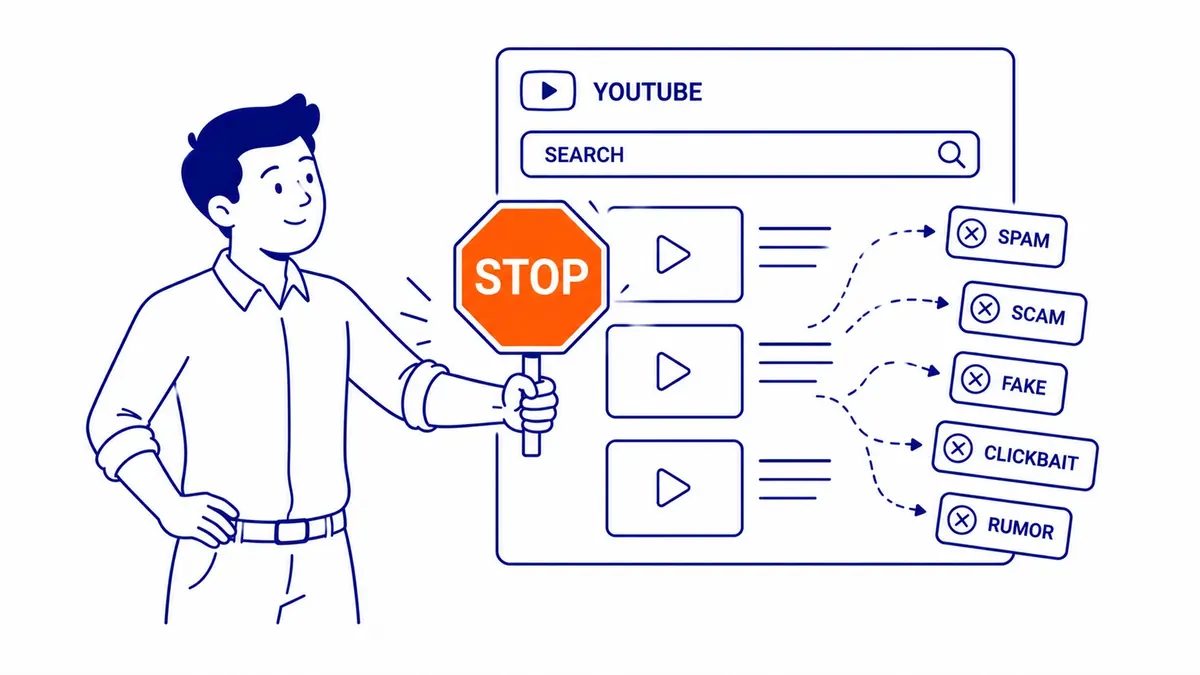
Why the minus sign does not do it
Many forum answers say that searching for something like “android -ios” will hide videos that mention iOS, because that is how exclusion works in Google web search. YouTube accepts the minus sign without an error, so it looks as if it worked. To check, four pairs of searches were run on youtube.com from a Calgary connection while signed out, and the titles on the first page of results were counted for the word that was supposed to be excluded.
| Search | Results counted | Titles containing the word |
|---|---|---|
| pasta recipe | 10 | 0 with “chicken” |
| pasta recipe -chicken | 6 | 5 with “chicken” |
| dog training | 16 | 4 with “puppy” |
| dog training -puppy | 19 | 17 with “puppy” |
| ford f150 review | 20 | 0 with “lightning” |
| ford f150 review -lightning | 20 | 15 with “lightning” |
| calgary weather | 19 | 9 with “snow” |
| calgary weather -snow | 19 | 6 with “snow” |
In three of the four pairs, the minus term behaved more like an extra search word than an exclusion, and in the fourth it trimmed the snow videos without removing them. An earlier run the same evening showed the same pattern in the pairs that returned results. It is a small sample, it only counts titles, and YouTube may treat signed-in searches differently or change the behaviour at any time, so treat it as a reason not to rely on the trick rather than a permanent rule.
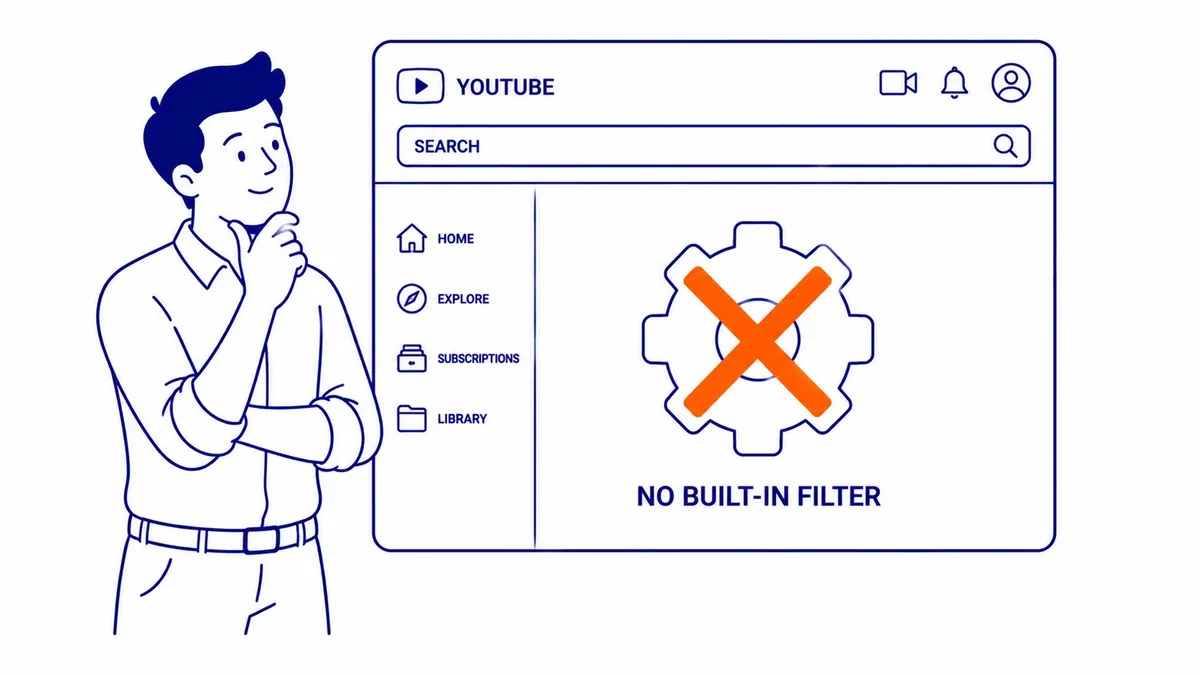
What works, by device and by who you are
The right tool depends far more on where you watch than on the word you want gone. This table maps each situation to the control that exists there.
| Situation | Can you block by keyword? | What to use |
|---|---|---|
| YouTube in a desktop browser | Yes, with an add-on | A YouTube filtering extension, or a uBlock Origin rule |
| YouTube app on a phone or tablet | No | “Not interested”, “Don’t recommend channel”, search and watch history |
| Phone browser | Sometimes | Firefox for Android with an extension that supports the mobile site |
| Smart TV or console | No | “Not interested” and history controls, or a supervised account |
| A child’s account | No, but content levels and channel blocks exist | Supervised account content settings, YouTube Kids blocking, Restricted Mode |
| School Chromebooks | Yes, through the school’s filter | The district’s filtering software, set by its administrator |
| Your own channel’s comments | Yes | Blocked words in YouTube Studio |
| Where your ads appear | Yes | Excluded content keywords in Google Ads |
On a computer: an extension or a uBlock Origin filter
Extensions are the only way most viewers will get true keyword blocking, because they hide matching videos after YouTube has loaded the page. YTBlock, which the Chrome Web Store listed with 70,000 users on 2026-11-21, takes lists of words and phrases (regular expressions included) and can block videos by title, channel and other fields, although its listing says some fields such as tags and descriptions need you to supply a Google API key. BlockTube is an open-source alternative for Chrome and Firefox that blocks videos by title, channel name or ID and blocks comments by content. Its GitHub page also lists support for m.youtube.com in Firefox for Android, which is the main route to keyword filtering on a phone. Before installing any of them, read the permissions it asks for, since an extension that filters YouTube can read every YouTube page you open.
If you already use uBlock Origin, you can do much the same job with one line under “My filters” in its dashboard, without adding another extension. A rule such as www.youtube.com##ytd-video-renderer:has-text(/spoiler/i) hides any standard video result whose visible text contains “spoiler”, ignoring capitals. The uBlock Origin wiki notes that this type of filter must begin with the site’s name, or it is discarded. The element name is the one YouTube used for search results when checked on 2026-11-21, and YouTube changes its page structure from time to time, so if the rule stops working, that is the first thing to check. Because the match covers all of the result’s text, including the channel name and the snippet of description, it can catch more than you meant, so start with distinctive words.
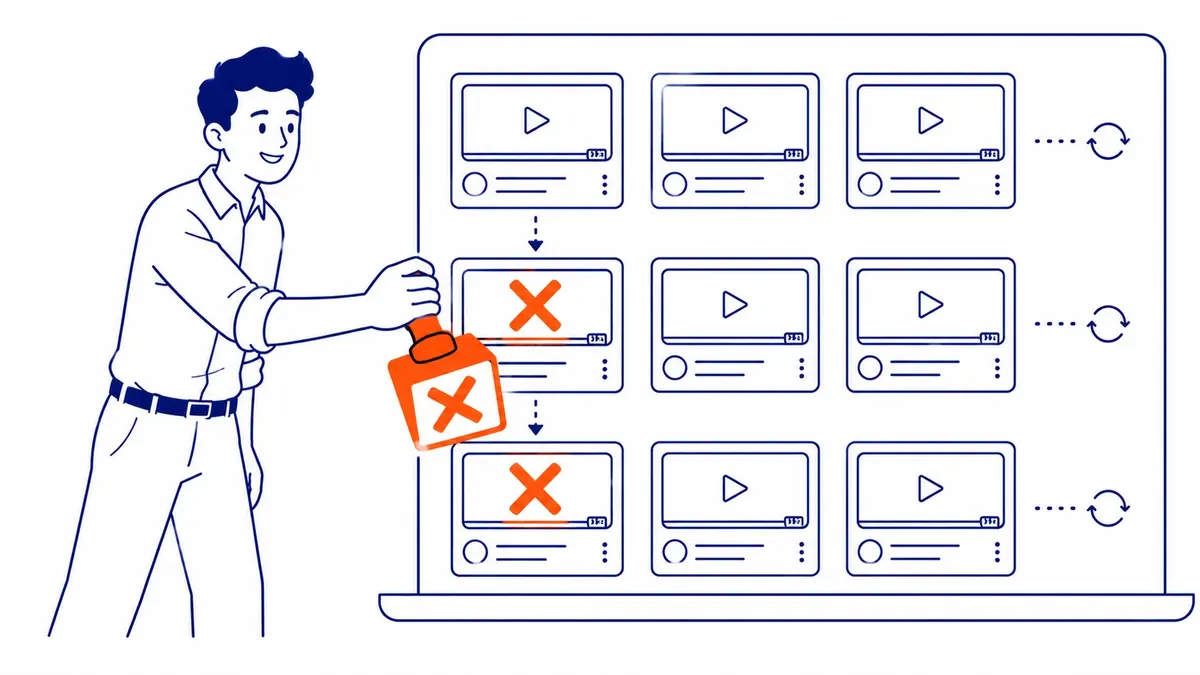
On the YouTube app and TV: steer it instead
Extensions do not run inside the YouTube app, so on a phone, tablet or TV you are working with YouTube’s own feedback tools. YouTube Help says you can mark a video “Not interested” or choose “Don’t recommend channel” from the More menu, remove individual searches and videos from your history, or turn search and watch history off for a while if, for example, you are researching something you have no wish to see again. On pages such as Home, the app also offers “Show fewer Shorts” on a grid of recommended Shorts. YouTube says these influence both your recommendations and your search results, but none of them blocks a word, so a new channel covering the same topic can still turn up.
Restricted Mode is often suggested as a keyword block, and it is not one. YouTube describes it as an optional setting that can “help screen out potentially mature content”, judged from signals such as the title, description, metadata and Community Guidelines reviews. On a computer, you turn it on from your profile photo at the top right, then Restricted Mode at the bottom of the menu. It has to be switched on in each browser and each browser profile, and while it is on you cannot read comments.
For parents and schools
Parents get more control than other viewers, though it still works by content level and by channel rather than by word. A supervised account lets a parent choose a content setting, which YouTube describes as generally aligning with ratings for viewers 9 and over (“Older kids”), 13 and over (“Teens”) or 16 and over (“Older teens”). In YouTube Kids, a parent can block a single video or a whole channel on the child’s device after entering the passcode, and can block channels from regular YouTube while signed in with the linked parent account. YouTube’s help page adds a limit worth knowing: blocking a channel does not block the same videos reuploaded by other channels.
Schools that use a filter such as GoGuardian can block YouTube videos by keyword on the devices they manage. GoGuardian’s documentation says its keyword rules accept single words only and block videos whose titles or descriptions contain the word, but they do not block the search itself. Families who want the same at home can look at parental-control software that offers YouTube filtering, keeping in mind that it will be subject to the same limits.
For creators: blocked words in YouTube Studio
If the keywords bothering you are in comments on your own channel, YouTube does have a list for that. In YouTube Studio, go to Settings, then Community moderation, then Content controls, and add words and phrases, separated by commas, under Blocked words. YouTube Help says the list applies to comments, live chat and posts in your Community. Comments containing or closely matching a blocked term may be held for up to 60 days, and you can approve them from the Held tab on your Comments page. Comments from approved users skip the filter.
A few limits catch creators out. The list applies to all of your videos and your channel homepage, so you cannot block a word on one video only. If you want broader screening, the comment moderation setting offers Basic and Strict levels, which use AI to hold potentially inappropriate comments and will not always get it right. Your own titles, descriptions and tags are a separate matter, since they help decide where your videos appear rather than what other people see; the guide on how YouTube search decides what to show covers that side.
For businesses whose ads run on YouTube
Business owners sometimes ask this question for a different reason: they want their ads kept away from videos about certain subjects. If you promote a video through Google Ads or run Display and Video campaigns, Google Ads offers excluded content keywords. Google Ads Help says they help prevent ads from showing on videos, channels, websites and apps related to those words, that up to 1,000 can be excluded at the account level, and that they apply to YouTube, the Display Network and Google video partners but not to YouTube Sponsorship campaigns.
They need care. Google says excluded content keywords only support exact matches, so spelling matters, and that a word with several meanings will exclude content related to all of them. That is different from negative keywords in a Search campaign, which filter the searches that trigger your ads; Google notes that negative keywords in Display and Video campaigns work differently, and that ads may occasionally still appear on content containing excluded terms. The inventory type setting (Maximum, Moderate or Limited) controls sensitive content more broadly and is usually the place to start.
SEO Company To-The-TOP! has worked with Calgary businesses since 2007 and is Google Ads certified, and as a solo practice the person who reviews your account is the person who does the work. If your video or Display ads are showing up next to content you would rather avoid, the Google Ads management page explains how an account review works, or you can call SEO Company To-The-TOP! at (403) 308-5949.
Contact Calgary SEO Company To-The-TOP!
Questions about anything in this article, or about your own rankings? Talk to a Calgary SEO specialist directly.
Phone: (403) 308-5949
Address: 1509 14 Ave SW, Calgary, AB T3C 0W4
Hours:
Monday to Friday: 10:00 am – 7:00 pm
Saturday: 12:00 pm – 4:00 pm
Sunday: closed