How to Keyword Search on a Chromebook
Chromebook keyword search works through the same Chrome shortcuts and address bar tools that run on any laptop, with one small difference: the keyboard layout. Chromebooks replace the Caps Lock key with a Search key, and some models have slightly modified shortcut combinations. Everything else about how to find a keyword on a Chromebook follows the standard Chrome rules.
At To-The-TOP!, we use keyword search tools constantly — auditing competitor pages, checking keyword placement, reviewing client content before it goes live. Knowing the fastest way to search for a specific word or phrase on any device saves significant time. Here is how to do it on a Chromebook.
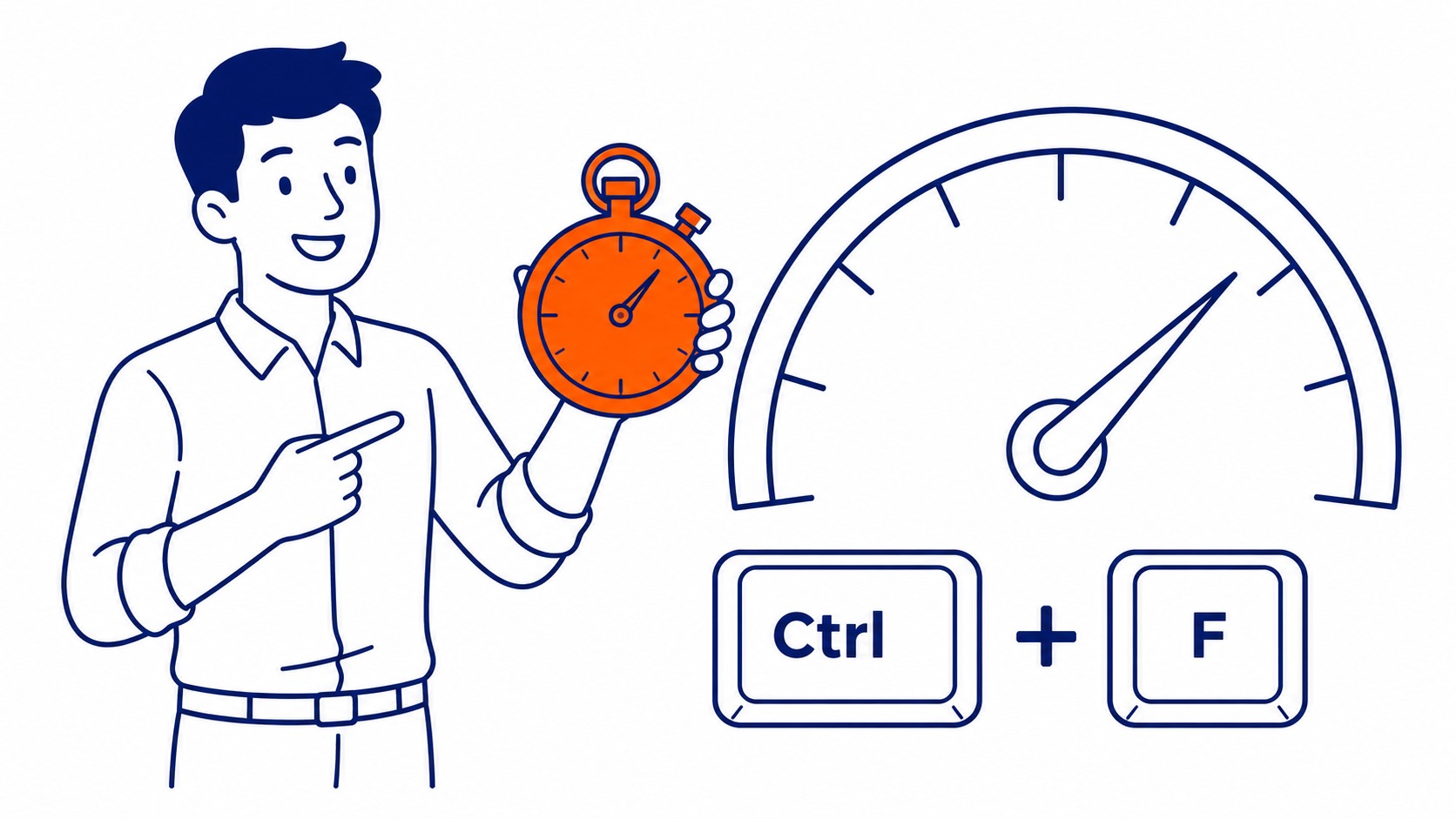
How to Find a Keyword on a Page: Ctrl+F
Press Ctrl and F together on any Chromebook. A small find bar opens in the top right corner of Google Chrome. Type your keyword or phrase in the field. Something worth noting: this shortcut is identical on Windows and Mac, so if you are switching from another laptop to a Chromebook, the habit carries straight over. Chrome highlights every match on the page and shows a count. Press Enter or click the down arrow to move through each match one by one. Press Escape when finished.
This works for any word, phrase, or partial phrase. Chrome’s find feature is not case-sensitive. Searching “seo” finds “SEO” and “Seo” and any other capitalisation. It also matches partial words: searching “key” finds “keyword,” “keywords,” and “monkey.” If you want to find the exact standalone word, type the full word so that partial matches are less likely to appear mixed in.
For a phrase search, type the full phrase in the find bar. Chrome searches for the exact sequence of words with the spacing you enter. Useful when checking whether a specific product name or keyword phrase appears on a page, rather than just one word of it.

How to Search Keywords Across the Web from a Chromebook
Click the Chrome address bar at the top of the browser. Type a keyword or phrase and press Enter. Chrome sends the search to Google by default. What you get is a standard Google search results page for that keyword — the same as if you had opened Google and typed it there. The address bar doubles as a full Google search box on Chromebook.
The site: operator is useful for keyword searches within a specific domain. Type site:to-the-top.ca keyword into the address bar and press Enter. Google returns only pages on that domain containing the keyword. Researchers checking whether a specific page or post exists on a site use this constantly. Our keyword competitive analysis uses site: searches to audit what specific domains have covered on a given topic.
Quote marks inside the address bar search narrow the phrase. Entering “how to do keyword research” with quotation marks tells Google to return only pages containing that exact phrase in that exact order. Without quotes, Google expands the search to semantic variants and related content.

Custom Search Engine Shortcuts in Chrome
Chrome lets you set keyword shortcuts for specific search engines or websites. Open Chrome Settings, go to the Search engine menu, then Manage search engines and site search. A list of saved sites appears. Each gets a short keyword trigger. Add them one at a time for the tools and sites you visit repeatedly. Type that trigger into the address bar, press Tab, and you search that specific site directly without loading its homepage first.
Example: set “yt” as the keyword for YouTube’s search URL. Type “yt” in the Chromebook address bar, press Tab, then type your search term. Chrome sends the search directly to YouTube. Set one for each tool you use frequently. It cuts two or three clicks off repeated searches throughout the day. A separate shortcut for your analytics tool, your CMS, or any external platform you check regularly pays back the five minutes it takes to configure.
Firefox on Chromebook: How Keyword Search Works
Firefox runs on Chromebook through the Linux environment available in newer ChromeOS versions. When Firefox is installed, keyword search within a page still uses Ctrl+F, the same as Chrome. The find bar in Firefox opens at the bottom of the screen rather than the top right corner, which is the main visual difference. Firefox’s find feature is also case-insensitive by default and highlights all matches simultaneously.
Firefox also supports custom search engines via address bar keywords, configured through Settings, then Search. The setup is similar to Chrome’s custom search engine feature, and the shortcuts work identically once configured. For Calgary SEO research work done across multiple browsers, the keyboard habits transfer cleanly between Chrome and Firefox on a Chromebook.
Frequently Asked Questions
How do I do a word search on a Chromebook?
Press Ctrl+F to open the find bar in Chrome. Type the word, and Chrome highlights all matching instances on the current page. The up and down arrows in the find bar move between matches. Press Escape to close the bar. This is the standard Chrome keyboard search shortcut and works the same on every Chromebook model.
What is the keyboard shortcut for find on a Chromebook?
Ctrl+F opens the find-on-page bar in Chrome. For a full-page search, this is the shortcut. For an address bar web search, click the address bar and type any keyword or phrase directly — the address bar is also a Google search box on Chromebook without any additional shortcut needed.
How do I search for a specific phrase on a Chromebook?
Two methods. For a phrase on the current page: Ctrl+F, then type the full phrase. Chrome finds all matching instances. For a phrase on the open web: type the phrase with quotation marks in the Chrome address bar. The quote marks tell Google to match the exact phrase rather than semantic variants. Most keyword research tasks use both methods at different points, and the same exact-phrase logic applies to keyword match types when you have us manage your Google Ads.
Can I search for a keyword within a specific website on a Chromebook?
Use the site: operator in the Chrome address bar. Type site:example.com keyword and press Enter. Google returns only pages from that domain containing the keyword. This does not require installing any extensions or additional tools. It is available in the address bar on every Chromebook running Chrome. We use this in client SEO work to check competitor content coverage before planning new content.