
How to Block Keywords in YouTube Search Reddit
Clients running YouTube channels ask me two completely different questions about blocking keywords. Creators want to stop specific words from appearing in their comments. Viewers want to filter what shows up in their search results. Different tools in different places, and treating them as the same problem wastes time on both ends.
As a Calgary SEO expert, To-The-TOP! manages video campaigns alongside paid search for clients who rely on YouTube for both organic reach and paid placement. Knowing where YouTube’s keyword controls actually sit matters more than most tutorials admit. Here is what the controls actually do.
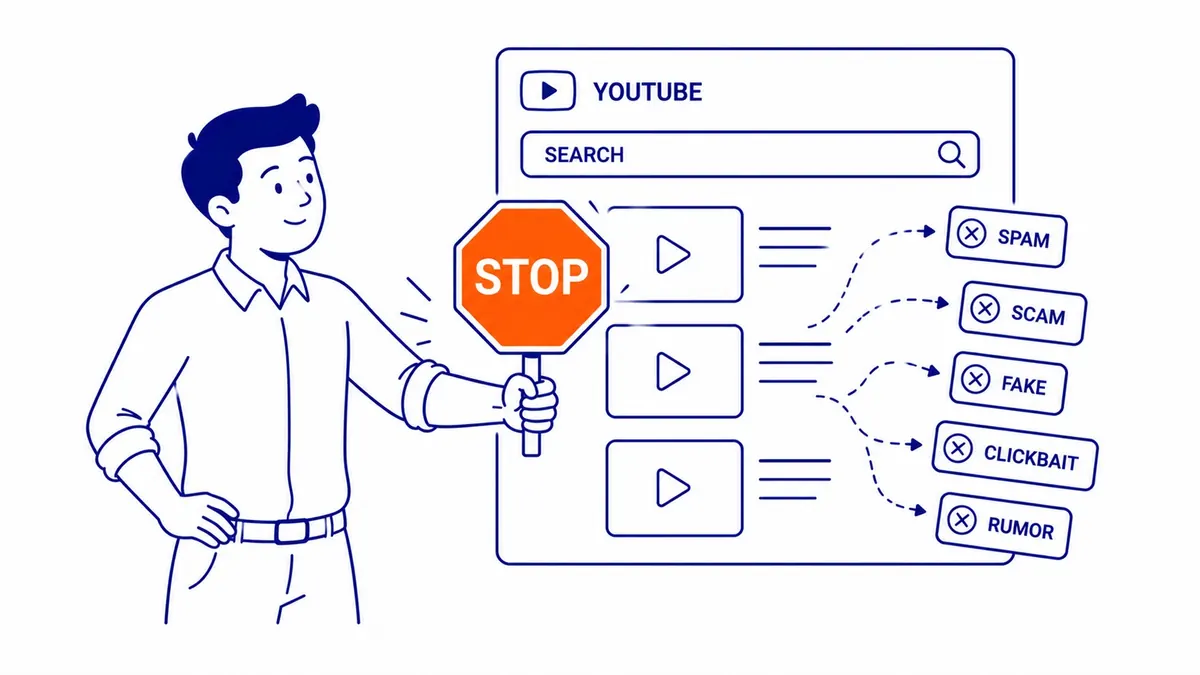
Creator Controls: Blocking Keywords Through YouTube Studio
The most useful keyword block on YouTube is the blocked words list inside YouTube Studio. Creators use it to automatically hold or remove comments containing specific words, phrases, or emojis before they appear publicly. Most complaints we hear about “keywords showing up on my channel” are about comments, not search results.
To access it: open YouTube Studio, click Settings, then Community. The Blocked Words field accepts up to 500 characters of comma-separated terms. Any comment containing certain words from that list gets automatically held for review. Users never see a warning. The comment simply disappears until the creator approves or deletes it from the Review queue. Changes to the blocked list take effect on any new comments going forward.
Blocked word lists work in live chat too, not only on published video comments. Channels running live streams can add keywords to the blocked list and YouTube applies them in real time. Any user who types a blocked phrase finds their chat message never appears. Moderators see the held items on their end and can approve or remove them.
Held vs. Blocked: What Actually Happens
Commenters see nothing when their comments are held. No notification, no error. The comment appears to post successfully on their screen. On every other user’s screen it never shows up. The creator sees it in the Review section inside YouTube Studio.
YouTube also runs its own automatic filter on top of any manual blocked words list. Comments with large numbers of emojis, repeated characters, certain link patterns, or phrases matching YouTube’s internal spam signals get held automatically even when no creator keyword triggered them. These land in the same Review section but under a separate tab. Checking both tabs is how creators catch everything waiting for moderation.
One limit worth knowing: the blocked words list does not remove comments already published before the word was added. Only new comments get filtered. Anything that got through before the keyword was entered stays visible until the creator deletes it manually.
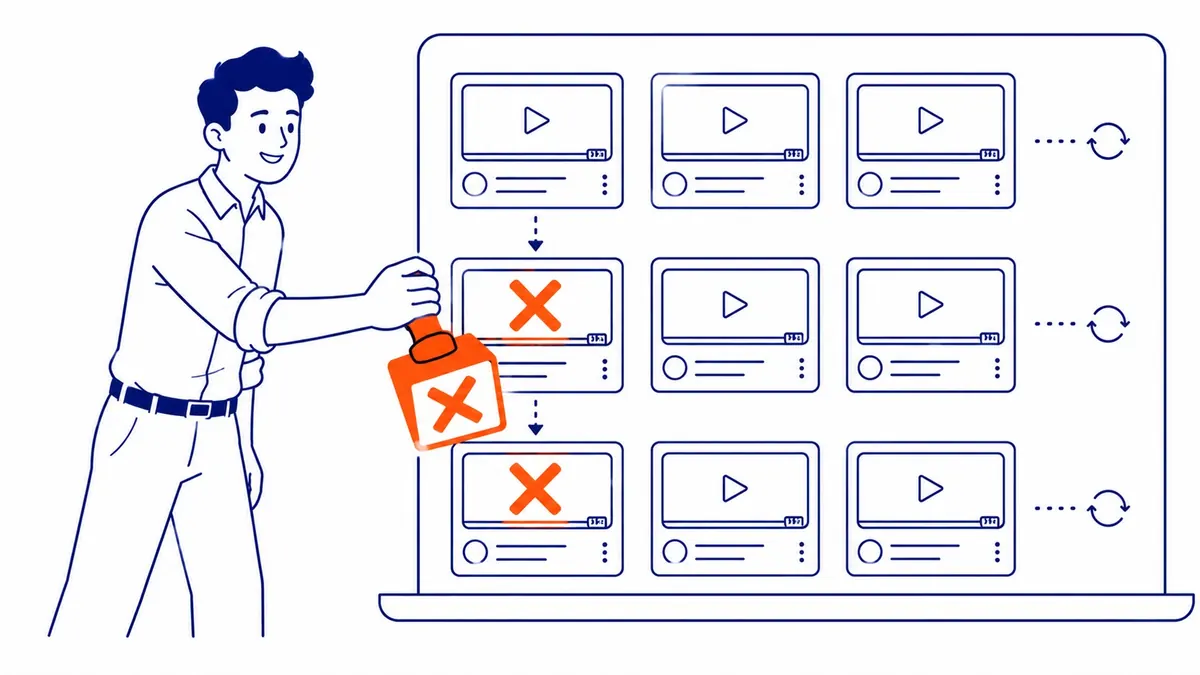
Viewer Controls: Filtering YouTube Search Results
Blocking specific keywords from appearing in YouTube search results is not a native YouTube feature for viewers. The platform offers no search-term exclusion tool the way Google’s minus-operator works in web search. What viewers have instead:
Restricted Mode filters content YouTube has flagged as potentially mature, including certain movies and shows the platform has categorised as age-restricted. Enable it from the account menu at the bottom left on desktop, or inside Settings on mobile. This feature applies account-wide across every search on that device. The limit: it filters by content rating, not by keyword. Searching “boxing” still returns boxing content even with Restricted Mode on. It excludes videos flagged for mature content, not search terms.
“Not Interested” and “Don’t Recommend Channel” are the practical viewer tools for controlling what channels and content keep appearing. YouTube itself has not added a keyword-exclusion search filter despite years of users requesting one. Clicking the three-dot menu beside a video and selecting “Don’t Recommend Channel” removes that channel from recommendations. The effect is gradual. YouTube’s recommendation engine adjusts over several sessions rather than instantly.
Browser extensions fill the gap YouTube leaves open. Video Blocker for Chrome and Firefox lets viewers enter channel names or keyword strings. Matching videos disappear from search results, suggested feeds, and the homepage. Third-party tools with no official YouTube support, but widely used and reliable across browser sessions. Some users keep lists of dozens of blocked keywords running through the extension with no performance hit.
Tags: What Creators Can and Cannot Control
Tags on YouTube videos are metadata the creator adds to categorise content. Creators cannot block tags on their own channel or prevent other channels from using the same tags. Tags are not a moderation target. They are an indexing signal. The assumption that “blocking a tag” would remove related channels or videos from search is a misread of how YouTube’s indexing works.
What creators do control on their own channel: the keywords and phrases in their own title, description, and tag fields. That determines where their videos surface in search. For channels competing in a specific niche, precise long-tail phrases in titles and descriptions matter more than tag management. The same principle guides our keyword analysis for SEO whenever clients move between Google and YouTube as channels.
Channels can also disable comments entirely or restrict them to approved subscribers only. These are blunt tools next to the blocked words list, but they exist for channels dealing with repeat spam that keyword filtering alone does not handle. Disabling comments on specific videos without touching the channel-wide settings is also an option.
YouTube channels linked to a Google Ads account unlock a separate set of controls: keyword exclusions for video campaigns, audience targeting, and placement targeting that controls which videos your ads do not appear against. Handling that layer is where our Google Ads campaign management work sits, a different discipline from organic search blocking. For the advertising side of the same account, see using Google Ads to promote a YouTube video.
Frequently Asked Questions
Can you block keywords on YouTube search?
Not natively as a viewer. YouTube has no search-term exclusion filter for users browsing search results. Creators block keywords from their channel’s comments through YouTube Studio, Settings, then Community. For viewers wanting to filter their own search experience, third-party browser extensions are the practical tool. Video Blocker for Chrome handles it at the browser level, outside YouTube’s own settings.
How do I exclude words from a YouTube search?
No native option for viewers. YouTube’s search does not support a minus-operator exclusion the way Google web search does. Restricted Mode is the closest built-in control, but it filters by content maturity rating, not by specific words. Browser extensions are the realistic path for viewers who want keyword-level filtering. Enter the word or phrase in the extension and matching videos drop out of search results.
How do I block some searches on YouTube?
Two tools, different goals. As a creator: YouTube Studio, Settings, Community, Blocked Words. Any comment containing those words gets held automatically. As a viewer filtering your own search experience: Restricted Mode for maturity-level filtering, browser extensions for specific keywords or channels. The viewer side is something YouTube has never fully addressed with its own tools.
How do I block specific tags on YouTube?
Tags cannot be blocked by viewers or by other creators. Tags are indexing metadata each creator adds to their own videos. Other creators and viewers have no access to remove or block them. What creators control on their own channel: words and phrases in their title, description, and tags, plus the blocked words list for comments. Viewers have no tag-specific control through YouTube’s settings at all.
Contact Calgary SEO Company To-The-TOP!
Questions about anything in this article, or about your own rankings? Talk to a Calgary SEO specialist directly.
Phone: (403) 308-5949
Address: 1509 14 Ave SW, Calgary, AB T3C 0W4
Hours:
Monday to Friday: 10:00 am – 7:00 pm
Saturday: 12:00 pm – 4:00 pm
Sunday: closed