
How to Optimize Google Ads: A Practical Checklist
To optimize Google Ads, work in a fixed order: make sure conversion tracking is right, read the search terms report and add negative keywords, match your keyword match types to your bid strategy, improve the ads and their assets, fix the landing page, and only then adjust budget and bids. The order matters because every later step depends on the data from the earlier ones. A bid strategy fed by broken conversion tracking will optimize toward the wrong thing, however carefully you set it, and a landing page problem will look like a keyword problem until you check the page.
This guide from SEO Company To-The-TOP!, which has worked in Calgary search marketing since 2007, follows that order. Each section says what to check, what Google’s own documentation says about it, and where common advice has gone out of date. A weekly and monthly checklist at the end pulls it together, so you can use it as a review routine rather than a one-time cleanup.
Start with conversion tracking you can trust
Every other optimization decision in Google Ads reads from the conversion column, so check it before you touch anything else. Open Goals, then Conversions, and look at each conversion action’s status. The status labels Google uses have changed over time, so rather than memorizing a list, treat any warning, any action shown as inactive or misconfigured, and any primary action that has stopped recording conversions as something to investigate before you change a single bid. Then ask a plainer question: does each primary conversion represent something the business actually values, such as a form submission, a booked call or a purchase, or is it a page view that happens to be easy to count?
Two things go wrong most often. The first is counting the wrong thing, for example a “thank you” page that also loads for newsletter sign-ups, which tells Smart Bidding that low-value clicks are working. The second is double counting, where the same lead is recorded by a Google Ads tag and again by an imported GA4 key event, both set as primary. If you have not done this yet, set up conversion tracking before following the rest of this guide. Google calculates conversion rate as conversions divided by ad interactions, so a broken conversion count distorts every rate, cost per conversion and bid strategy target downstream.
Read the search terms report every week
The search terms report shows the actual searches that triggered your ads, which is often quite different from your keyword list. You find it under Campaigns, then Insights and reports, then Search terms. Sort by cost, look at the searches that spent money without converting, and ask whether a customer of yours would ever type them. Doing this every week is how wasted spend gets found early, because the report shows you what the matching system is really doing with your keywords.

The report has one limit that is easy to miss. Google’s help page on the report says that search terms without enough query activity are left out of it to meet Google’s data privacy standards. Search terms insights group some of those low-volume searches into themes, but you never see the individual queries. A report that looks clean is therefore not proof that all your traffic is clean, and it is worth comparing the total cost in the report with the campaign’s total cost to see how much spend sits in searches you cannot see.
Negative keywords: add them from data, variants included
Negative keywords stop your ads from showing on searches you know are wrong for you: job seekers, people looking for free versions, other cities outside your service area, or a product category that shares a word with yours. Build them from what the search terms report shows, not from guesses, because a guessed negative can quietly block searches that would have converted. For the mechanics, the guide to adding negative keywords step by step covers campaign lists, shared lists and match types.

The rule that catches most people is that negative keywords do not behave like your positive keywords. Google states that “negative keywords won’t match to close variants or other expansions”, and gives the example that a negative broad match keyword “flowers” blocks “red flowers” but not “red flower”. You therefore need to add singular and plural forms and obvious synonyms yourself, although Google says casing and misspellings are handled for you. An account-level negative list, which Google applies to eligible search and shopping inventory across the account, is the right home for terms you never want, such as “jobs” or “careers”, so that every new campaign inherits them.
Match types and bid strategy go together
Older advice says to avoid broad match until an account has history. Google’s current documentation points the other way: broad match is the default match type, and Google says “it’s critical to use Smart Bidding with broad match” because Smart Bidding uses signals at auction time to bid on each search differently. The useful way to think about this is that match type and bid strategy are one decision, not two. Broad match gives the system room to find searches, and Smart Bidding needs reliable conversion data to judge which of those searches are worth paying for.
That gives a simple decision rule. If conversion tracking is sound and the campaign records conversions regularly, broad match with a Smart Bidding strategy is the setup Google designs for, provided you keep reading the search terms report and adding negatives. If conversion data is thin or untrustworthy, or you are on Manual CPC, phrase and exact match keep spend closer to the searches you chose while the data builds. Neither is right in every account, and the search terms report is how you tell which one your account can support. If you change bid strategy, Google says the Learning status can show for up to seven days while ads keep running, and that changes to budgets, targets or targeting settings never trigger Learning at all, so there is no need to freeze an account for weeks after a small change.
Quality Score is a diagnostic, not a price tag
Quality Score is the 1 to 10 rating you see next to each keyword, built from expected clickthrough rate, ad relevance and landing page experience. Google is direct about what it is: “Quality Score is not an input in the ad auction. It’s a diagnostic tool”. It compares your ads with other advertisers’ ads over the last 90 days of searches that exactly match the keyword, which is why it is useful as a pointer to the weakest of the three components, and less useful as a number to chase. Each component is rated Above average, Average or Below average, so the three ratings tell you more than the overall number does.

What decides your position and price is Ad Rank. Ad Rank weighs your bid against the quality of your ad and landing page, measured at the moment of each search, along with Google’s minimum thresholds, the context of the search, how competitive the auction is and the expected impact of your assets. Google adds that higher quality ads “can often lead to lower CPCs”, so the work that raises Quality Score (a closer match between keyword, ad and page, and a better page) is the same work the live auction rewards. Treat a “Below average” component as a task list: below-average ad relevance usually means an ad group covers too many themes, and below-average landing page experience points at the page rather than the ad.
Ads and assets that earn the click
A responsive search ad can hold up to 15 headlines and 4 descriptions, and Google assembles combinations from them for each search. The headlines only help if they say different things. A useful spread is a few that mirror the main keywords of the ad group, a few that state a concrete detail a searcher cares about (service area, hours, what is included), and a few that answer the most common hesitation. Fifteen variations of the same generic claim give the system nothing to choose between.
Google says pinning “isn’t recommended for most advertisers and can affect ad strength”, because it reduces the combinations available. Pin only what must appear, such as a legal disclaimer or a licence number, and if you pin, Google suggests pinning two or three options to the same position so testing can continue. Fill in the assets as well: sitelinks, callouts, structured snippets and, where it fits, a call asset, because they add useful space below the ad and Google counts their expected impact in Ad Rank. The ad text itself is worth as much care as the settings around it.
Bid adjustments, and when Smart Bidding ignores them
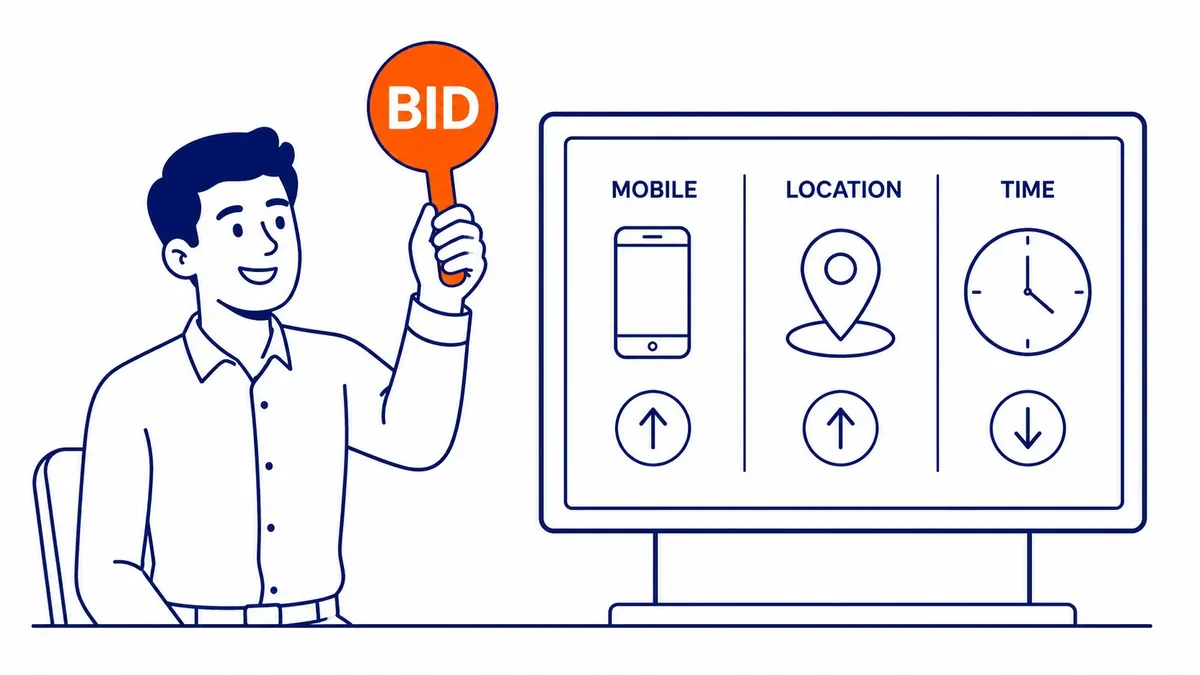
Device, location and ad schedule adjustments used to be the main lever in a search account, and they still are on Manual CPC, where Google’s device adjustments run from -100% to +900%. A typical use is raising bids in the part of your service area that produces most of your leads, or lowering them outside the hours someone can answer the phone. Check the device, location and time reports monthly so the adjustments follow the data rather than an assumption.

Under Smart Bidding the picture changes, and many guides skip this. Google’s bid adjustment table shows that with Target ROAS, Maximize conversions and Maximize conversion value, the only device adjustment possible is -100%, which turns a device off. Target CPA works a little differently, because a device adjustment there changes the CPA target for that device rather than the bid, so a +40% mobile adjustment on a $10 target makes the mobile target $14. Location, ad schedule, audience and demographic adjustments are not used by any of these strategies, although Google notes that Smart Bidding still respects your ad schedule, so ads will run only in the hours you set. If your campaign uses Smart Bidding, a +20% weekday adjustment does nothing, and the way to steer it is through your conversion data, your targets, your schedule and your location targeting instead.
Landing pages: where the click is won or lost
The ad earns the click, and the page decides whether that click turns into a call or a form. The most common gap is message match: someone searches for an emergency service, clicks an ad that promises it, and lands on a general home page that makes them hunt for it. The page should repeat what the ad promised in its main heading, show the phone number or the form without scrolling on a phone, and give one clear next step rather than a menu of options.

Speed matters too, particularly on mobile, so run the page through PageSpeed Insights before you blame the keywords. A useful test is to look at clicks against conversions by landing page. If one page takes a large share of the clicks and few of the conversions, fix that page first, because no bid or keyword change will make an unconvincing page convert. Landing page experience is also one of the three Quality Score components, so a better page shows up there as well.
Budget: what a small daily amount can and cannot do
For most campaigns, Google’s spending limits are twice the average daily budget on any one day and 30.4 times the average daily budget over a month, so a campaign can spend more on a busy day without the monthly total running past that cap. That makes the monthly arithmetic simple. A $20 a day budget in Canadian dollars caps out at about $608 a month, and a $500 monthly plan works out to roughly $16.45 a day.
What that buys depends entirely on cost per click and conversion rate in your category, so the following is illustrative arithmetic, not a Calgary benchmark. At an average of $4 a click, $608 buys about 150 clicks a month, and at a 5% conversion rate that is around seven or eight conversions. Google’s guidance for Target CPA is to measure performance over the last 30 days with at least 30 conversions, so a campaign at this level would take about four months to build that sample, and its results are harder to judge with confidence in the meantime. That is a point about evaluation, not an entry requirement, since Google says Target CPA can start with no conversion history and is effective for campaigns of all sizes. Nor does it make a small budget useless. It means a small campaign should be narrow (fewer keywords, tighter match types, a tight service area and schedule), and you should judge it over months rather than weeks.
Optimization score and recommendations
The Recommendations page and its optimization score are where many advertisers start, and they are better used last. Google describes the score as “an estimate of how well your Google Ads account is set to perform”, from 0 to 100%, and states that your account “can reach an optimization score of 100% by applying or dismissing all recommendations.” It also says optimization score is not used by your Quality Score. In other words, a high score means you have dealt with the suggestions, not that the account performs well, and dismissing a recommendation that does not fit your goals is as legitimate as applying one.
Read each recommendation against what you already know from the steps above. Suggestions to add broad match keywords or raise budgets can be right for an account with strong conversion data and wrong for one without it. If you use “Automatically apply recommendations”, which Google allows only at the account level, check which types are switched on and review the history regularly, because applied changes reach live campaigns without you reviewing each one.
A Google Ads optimization checklist
| When | What to check |
|---|---|
| Weekly | Search terms report sorted by cost; add negatives from it, with plurals and synonyms |
| Weekly | Conversion action statuses; spend and conversions against the previous week |
| Weekly | Any disapproved ads or assets, and new recommendations (apply or dismiss) |
| Monthly | Quality Score components for the keywords that spend most |
| Monthly | Ad and asset performance; replace the weakest headlines with new angles |
| Monthly | Landing pages by clicks and conversions; device, location and time reports |
| Monthly | Bid adjustments (Manual CPC only) or targets and schedule (Smart Bidding) |
| Quarterly | Match type and bid strategy fit, the auto-apply settings, and the account-level negative list |
The checklist works best as a routine rather than a one-time cleanup. Reviewing the same few reports on schedule, and acting on what they show, keeps the account’s settings in line with current data rather than with the assumptions it was launched on. If you would like a second opinion on an account, or want the work done for you, To-The-TOP! offers Google Ads management from Calgary, and you can call (403) 308-5949 to talk it through.
Contact Calgary SEO Company To-The-TOP!
Questions about anything in this article, or about your own rankings? Talk to a Calgary SEO specialist directly.
Phone: (403) 308-5949
Address: 1509 14 Ave SW, Calgary, AB T3C 0W4
Hours:
Monday to Friday: 10:00 am – 7:00 pm
Saturday: 12:00 pm – 4:00 pm
Sunday: closed