
How to Preview a Google AdWords Ad Without Wrecking Your CTR
Clients ask how to preview Google AdWords ad copy regularly. The campaign is live. They want to confirm the ad shows. So they run a quick Google search. That live search counts as an impression. No click follows. Repeat this across a team and the CTR starts dropping with no visible cause.
The problem compounds quietly. Rates fall below expected levels. That drop drags Quality Score down too. CPC climbs, then position drops. The whole campaign costs more than it should, and the cause stays invisible in the dashboard.
Google Ads has a built-in answer. The Ad Preview and Diagnosis Tool shows what your ad looks like in search results. Any keyword. Location too, even down to a city block. Any device. Language, also configurable. No real impression triggered. That is the correct way to check your ads before and after every campaign change.

What the Ad Preview and Diagnosis Tool Does
Two functions. One tool.
Most people setting up Google Ads management for the first time encounter this in the wrong order. Months of live searches, then skewed CTR data. Then someone mentions the preview. At To-The-TOP!, it is one of the first things we walk clients through when they get account access.
For your business, this tool is also essential for catching ad errors before they show in the data. It simulates exactly what a real searcher sees. Keyword, location, device type, language, all configurable, none of it live. The diagnosis layer is the second function. It simply names the specific cause on days your ad is not appearing. Not a generic message. The actual reason. The preview tool also settles the wider question of checking if my Google Ads are running. Preview first, then negative keyword setup, and the early data stays usable.

Step by Step: Accessing the Ad Preview Tool
Three clicks from the main dashboard.
Log in. The wrench icon sits at the top right, then opens Tools and Settings. Under the Planning column, Ad Preview and Diagnosis is the link. New users miss it regularly since Planning sits below the larger Tools and Shared Library section.
Once inside, enter the keyword you want to test. The same terms mapped through keyword research apply here. A keyword that does not trigger your ad in the preview likely will not in real search results either. Set the country first, then narrow to a city or region under Location.
A campaign targeting Google Ads management in Calgary previews differently than one tested in Edmonton. Set device type first, desktop or mobile. Choose your language next. Then run the search.
The tool returns one of two things. A realistic search result page showing your ad’s headline and description, display URL included. Or nothing at all. Nothing is not automatically a problem, however. The diagnosis section below explains what is happening. That second half is where most of the useful information lives.

Why Your Ad Might Not Appear in the Preview
Several causes. Most are fixable, even in the same session.
Budget exhaustion tops the list. Daily budget spent by early afternoon, your ad stops serving. A preview at 4 pm returns nothing. The diagnosis flags budget status explicitly.
Ad scheduling catches people off guard. Campaigns set to run during business hours do not serve at night. A preview at 10 pm in the campaign’s local time zone correctly shows no results. Your ad is not broken, simply doing what the schedule was set to do.
Keyword match type is another one. A preview on a specific keyword phrase will not pull your ad in one common case. The campaign runs only on broad match. Its algorithm is not routing that exact query. The tool still pulls keyword-level eligibility data and names the gap.
Location targeting is the quietest cause. Tight geographic targets for Calgary SEO clients do not serve impressions to searchers outside the radius. Preview from outside the target zone and nothing appears. Adjust preview settings to match actual campaign targeting first. Preview quirks aside, most Google Ad visibility issues trace back to a setting nobody checked twice.
Reading the Diagnosis Results
Not just pass or fail.
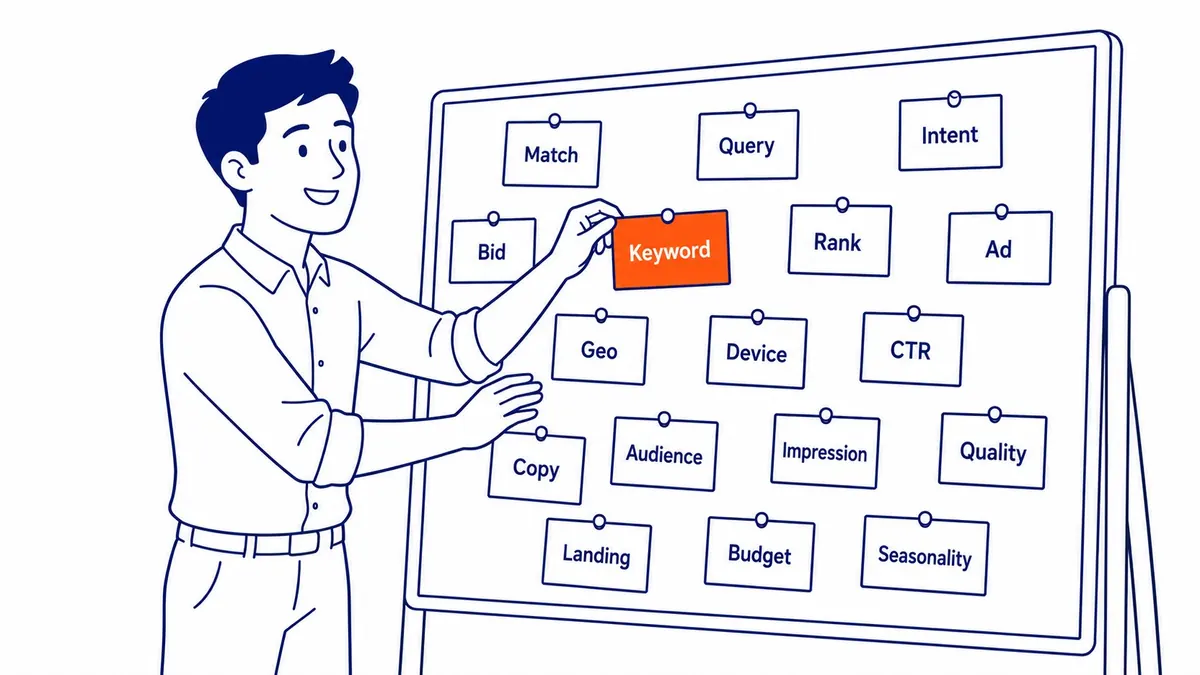
Impressions status. Budget status. Ad eligibility. Policy compliance. Then keyword match eligibility. The diagnosis tool surfaces all of this on one screen. A campaign that looks active but is not spending usually has one of five problems. It names which one. Most fixes take under ten minutes once identified.
For businesses running search engine optimization alongside paid search, this tool also connects both channels. Organic results tell you where you rank. Ad preview and diagnosis tells you whether your ads are reaching those same results at the same time.
Worth bookmarking before any campaign launch. Run it again after changes to ad copy. Targeting changes too. Budget changes too.
Frequently Asked Questions
How do I preview an ad in Google Ads?
Log in, open Tools and Settings from the wrench icon at the top right, then under Planning select Ad Preview and Diagnosis. Enter your keyword first. Set the location. Pick device and language. Run the preview. Your ad appears exactly as a real searcher would see it, no impression counted. Useful before launches and after changes to your keywords or ad copy settings.
Why is my Google ad preview not showing?
Four likely causes. Budget exhausted for the day. Ad scheduling has your ad paused. Keyword match type is not routing the query. Or the preview location sits outside the campaign’s geographic target. The diagnosis panel below the preview result names the specific reason. Check there first before assuming a structural problem with the account.
What does the diagnosis part of the ad preview and diagnosis tool actually do?
Ad copy appears as it would for a real searcher. Same for headline and display URL. The diagnosis explains why your ad is or is not showing. Zero impressions on an active campaign. A policy flag. Otherwise a keyword eligibility gap. Budget capping out by mid-morning. The diagnosis tool surfaces whichever issue applies. Worth running on any Google Ads account that looks live but is not serving at the expected rate.
Contact Calgary SEO Company To-The-TOP!
Questions about anything in this article, or about your own rankings? Talk to a Calgary SEO specialist directly.
Phone: (403) 308-5949
Address: 1509 14 Ave SW, Calgary, AB T3C 0W4
Hours:
Monday to Friday: 10:00 am – 7:00 pm
Saturday: 12:00 pm – 4:00 pm
Sunday: closed