
How to Use Google Search Console to Improve SEO
To use Google Search Console to improve SEO, verify your site, make sure the pages that matter are indexed, and then use the Performance report to find searches where you already appear but earn few clicks or sit just off page one, and fix those pages one at a time. Search Console does not change rankings by itself. It shows you how Google sees your site, which is the information you need to decide what to work on next. Google’s own getting-started guide says many site owners only need a quick check-up once a month, unless Search Console emails them about a problem, so a short monthly routine is enough for most small business sites.
What Search Console tells you, and what it leaves out
The Performance report rests on four numbers. Impressions count how often a link to your site was seen in Google Search, clicks count how often someone followed it, CTR is clicks divided by impressions, and average position is the average placement of your topmost result across every search where it earned an impression. Google’s help article on impressions, position and clicks adds an important rule: a position is recorded only when the result is actually seen, so a page sitting on page three for a search where nobody scrolls that far records nothing for that search.

The data comes from Google, but it is filtered and incomplete, and knowing how changes the way you read it. Queries made by only a small number of people over a two to three month period, which Google calls anonymized queries, are left out of the tables to protect privacy but are still counted in the chart totals, so the rows rarely add up to the total. Tables in the interface stop at 1,000 rows, data normally appears two to three days after the searches happen, and a new property can take up to a week to show anything. Google also labels each day by California time, which is one hour behind Calgary, so a daily figure will not line up exactly with a Google Analytics report set to Mountain time.
There is a local limit as well. The report breaks results down by query, page, country, device, search appearance and date, but not by city. A Calgary business can filter to Canada, yet it cannot see Calgary searches on their own, which is why queries that contain “calgary” or a neighbourhood name are often the closest practical proxy for local demand. If you are new to the tool, there is a separate explanation of what Search Console is and what it covers before you start on the routine below.
Set up the right property
Search Console offers two kinds of property. A Domain property covers every protocol and subdomain of your site, so it gathers http, https, www and any other subdomain in one place, and Google’s verification help says a DNS record is the only way to verify it. A URL-prefix property covers one exact address, such as https://www.example.com/, and can be verified in several ways, including an HTML file upload or a tag on the home page. For most business sites the Domain property is the better choice, because it removes the common mistake of verifying the http version of a site that actually runs on https and then seeing no data.
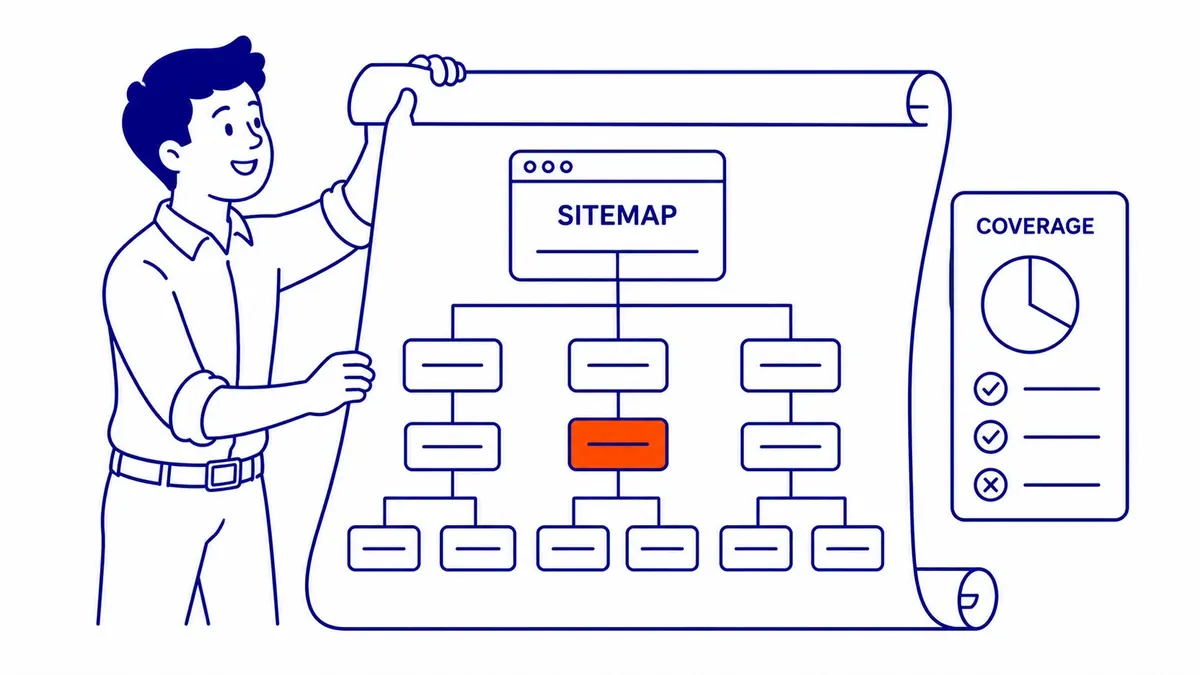
After verification, submit your XML sitemap in the Sitemaps report. A sitemap tells Google which URLs you want it to know about, but Google states plainly that a URL listed in a sitemap is no guarantee of being crawled or indexed. Treat it as a list Google can work from rather than a request it must honour, and check the report later for errors such as a sitemap that could not be fetched or one that lists addresses that redirect.
Read the Performance report by query and page together
Open the Performance report, set the date range to the last three months, and switch on all four metrics at the top. The chart shows totals for the whole site, while the table below groups the same data by the dimension you choose. The most useful habit is to look at queries and pages together: click a page to filter the report to it, then switch to the Queries tab to see which searches that page actually appears for. A page-level average position blends every query the page appears for, and that blended number rarely describes any single search.

As an illustrative example, a Calgary furnace repair page might show an average position of 14 across three months. Filtered to that page, the queries tab could show “furnace repair calgary” at around position 9 with steady impressions, “furnace making clicking noise” at around position 4 with a handful of impressions, and a dozen long queries further back. Those are three different jobs: the first is a page one candidate, the second is already doing its work, and the long tail may simply be noise. The blended 14 hides all of that, which is why decisions should be made query by query.
Two newer features make this easier. The branded queries filter, which Google announced on 20 November 2025 and made available to all eligible sites on 11 March 2026, splits searches that include your business name from those that do not, so you can see how people who do not already know you are finding the site. Google says it only works on top-level properties with enough query volume, so many small local sites will not see it. In that case a regex filter does the same job: under Query, choose Custom (regex), select “Doesn’t match regex” and enter your business name and its common misspellings, separated by a vertical bar.
Find queries sitting just off page one
Queries where your page already ranks somewhere near the bottom of page one or the top of page two are usually the best place to spend effort, because Google has already judged the page relevant and real people are already searching. Filter the report to a position range and sort by impressions. A practical working range is an average position of about 5 to 20, although other guides use 4 to 15 or 11 to 40, and the exact cut-off matters less than looking at each query against the page it belongs to.

For each candidate, open the page and ask whether it actually answers that search. Often it covers the topic in passing but never addresses the query directly, the heading does not match the words people use, or the page has few internal links from related pages on your own site. Fixing those is usually more effective than adding words for their own sake. Make one round of changes, note the date, and give it time, because rankings move over weeks and months rather than days. If the page is already ranking for other queries, it is worth reading how to refresh a page without losing the rankings it already has before you rewrite it.
Fix pages that earn impressions but few clicks
A query with plenty of impressions at a good position and very few clicks usually means the listing is not persuading people, or that something above it on the results page is taking the attention. Sort the table by impressions, then compare CTR across your own queries at similar positions rather than against a published benchmark, because ads, a map pack or an AI Overview above the organic results can lower CTR for reasons that have nothing to do with your page. Ignore CTR on very small numbers: a few dozen impressions will swing wildly from month to month.
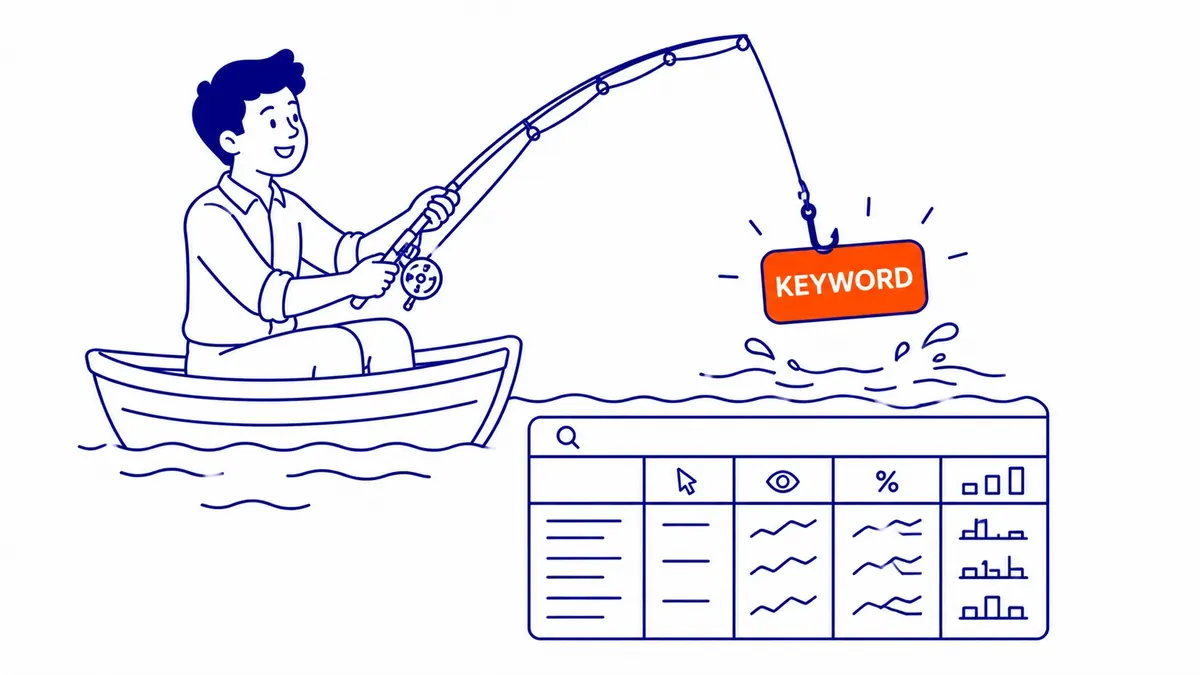
The two parts of a listing you can influence are the title and the snippet. Google’s documentation on title links says title links are generated automatically from several sources, the page’s title element among them, and that Google may rewrite a title that is stuffed with keywords, full of boilerplate, out of date or inaccurate, while its meta description guidance says the snippet is usually drawn from the page content, with the meta description used when it describes the page better. Write a title that matches the words people actually search, and a meta description that tells them what they will find, then search the query yourself to see what Google is showing. There is more detail on improving click-through rate in a separate guide.
Get the right pages indexed
A page that is not in Google’s index cannot rank for anything, so the Page indexing report deserves a look at every monthly check. It shows how many of your URLs are indexed and lists the rest with a reason beside each group. The key is to read the reason correctly, because some statuses need action and others do not. Google says “Crawled – currently not indexed” is a common message that does not necessarily indicate a problem, and “Discovered – currently not indexed” means Google found the URL but has not crawled it yet, usually because it rescheduled the crawl.
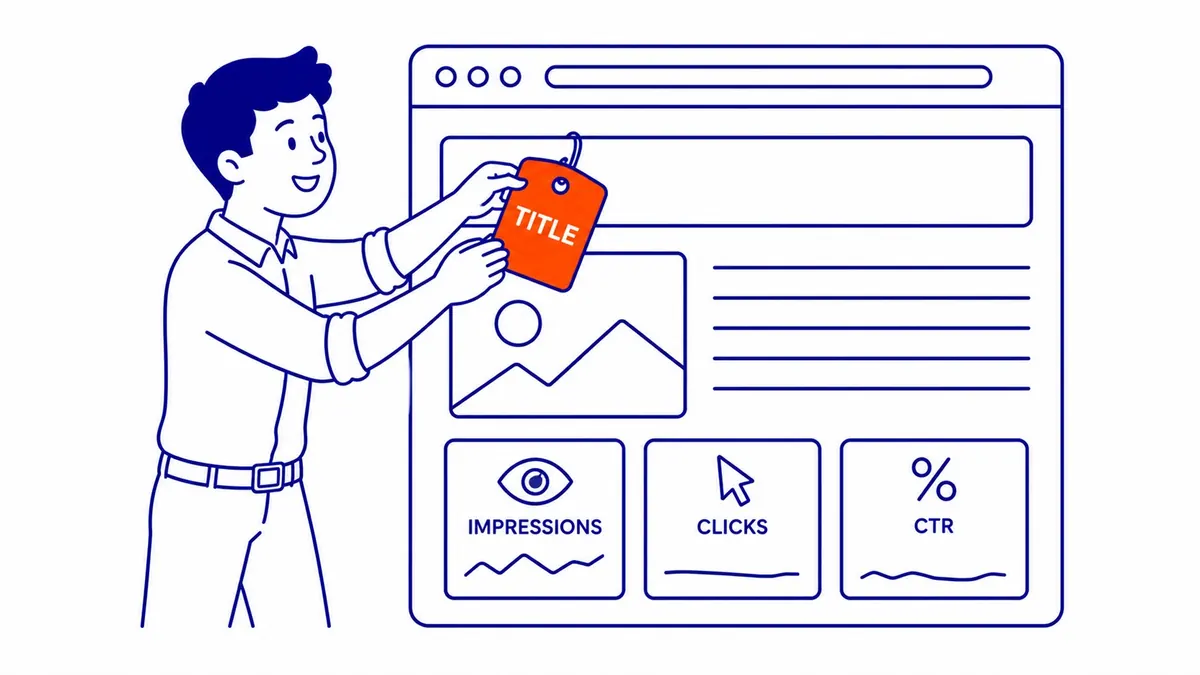
What matters is which pages are affected. A tag archive or an old test page left out of the index is fine, while a service page or a page you are paying to promote is not. Use the URL Inspection tool on any important page to see whether it is on Google, which canonical Google chose, and whether the live page can be fetched and rendered. You can request indexing from the same screen, but there is a daily limit per property, and Google is clear that “URL is on Google” means the page is eligible to appear, not that it is guaranteed to. When important pages stay out, the cause is usually that they are thin, duplicate another page or are hard to reach through internal links, and there is a fuller explanation of how Google crawls and indexes a page if you need to dig further.
A monthly routine that uses the data
Most of the value comes from checking the same things in the same order each month. The comparison feature in the Performance report lets you set the last three months beside the previous three, or the same months a year earlier for a seasonal business, and the table then shows a difference column for every query. A query that has slid from position six to fourteen stands out at once, and catching it early means a small fix rather than a rebuild. Custom annotations, added by right-clicking the chart, let you note the date of a redesign, a content change or a campaign in up to 120 characters, and Google points out that everyone with access to the property can see them.
| Order | Report | What to look for | What to ignore |
|---|---|---|---|
| 1 | Overview, Manual actions, Security issues | Any manual action or security issue (Google also emails these) | Nothing; act on any issue at once |
| 2 | Page indexing and URL Inspection | Important pages missing from the index, and the reason given | Archives, filters and test pages left out |
| 3 | Performance, compare date ranges | Queries and pages that dropped noticeably | Small day-to-day movement |
| 4 | Performance, positions about 5 to 20 | Query and page pairs close to page one | Queries with only a handful of impressions |
| 5 | Performance, impressions vs CTR | Good positions with unusually low CTR for your site | CTR on very small numbers |
| 6 | Links and Core Web Vitals | Important pages with few internal links; URL groups rated Poor | Treating the Links report as a complete list |
The last row covers two reports that support the rest. The Links report shows which of your pages are linked most from within your own site and which pages link to a given URL, which makes it easy to spot an important service page with almost no internal links and to add some from related posts. Google notes that it is a sample, not a full list. The Core Web Vitals report groups URLs as Poor, Need improvement or Good based on real visitor data, and Google’s getting-started guide says these usability measures can affect ranking, so URL groups rated Poor are worth passing to whoever maintains the site.
If you also run Google Ads, linking Search Console to the Ads account unlocks the paid and organic report, which shows how often your pages appear in organic results next to your ads for the same search terms. It is a useful way to see where you are paying for clicks on searches you already rank well for, and where organic visibility is weak enough that ads are doing most of the work.
Search Console as a feedback loop
Search Console will not do the work of SEO for you, and it cannot promise a result, because rankings depend on competitors as much as on your own pages. What it does is show where Google already sees value in your site and where something is holding a page back, so effort goes into the pages and searches most likely to respond. Used once a month in a steady order, it turns SEO from guesswork into a series of small, checkable changes, though the results still take months to build.
SEO Company To-The-TOP!, a Calgary practice working since 2007, reports keyword positions to clients every month. If you would like a second opinion on what your own Search Console data is telling you, call (403) 308-5949.
Contact Calgary SEO Company To-The-TOP!
Questions about anything in this article, or about your own rankings? Talk to a Calgary SEO specialist directly.
Phone: (403) 308-5949
Address: 1509 14 Ave SW, Calgary, AB T3C 0W4
Hours:
Monday to Friday: 10:00 am – 7:00 pm
Saturday: 12:00 pm – 4:00 pm
Sunday: closed