How to Add Google Ads Conversion Tracking to a Shopify Store
Every order that comes through Shopify checkout gets tracked. On its own, Google Ads never sees that data. Someone has to build the bridge, or ad spend keeps getting judged on clicks instead of actual sales.
Setting it up takes under an hour for most stores. Getting it accurate takes a bit more care.
Install the Google & YouTube Channel App First
Shopify built a native integration for this. Search “Google & YouTube” inside the Shopify app store, then install it. That single app connects a Google Ads account. It links a Merchant Center feed too. Conversion tracking rides along with both.
Use the Google account already running the ad campaigns to sign in. A prompt asks which Google Ads account to link next. Pick the right one here. Linking the wrong account is the single most common setup mistake. It stays invisible until someone checks the numbers weeks later.
Verification runs automatically once the accounts connect. Clearing usually takes a few minutes, sometimes closer to a full day depending on how busy Google’s review queue is that week.
Let Shopify Install the Google Tag Automatically
Older setups required pasting a Google tag into theme code by hand. Shopify handles that step now, through the same app. The tag drops into every page automatically, checkout included.
That matters because checkout runs on a separate, locked-down domain inside Shopify. Manual tag installs used to miss checkout entirely. Purchases never got counted. The native app closes that gap.
Confirm the tag fired correctly before moving on. Google’s Tag Assistant browser extension flags a live tag in seconds. No tag showing means the app connection needs another look.
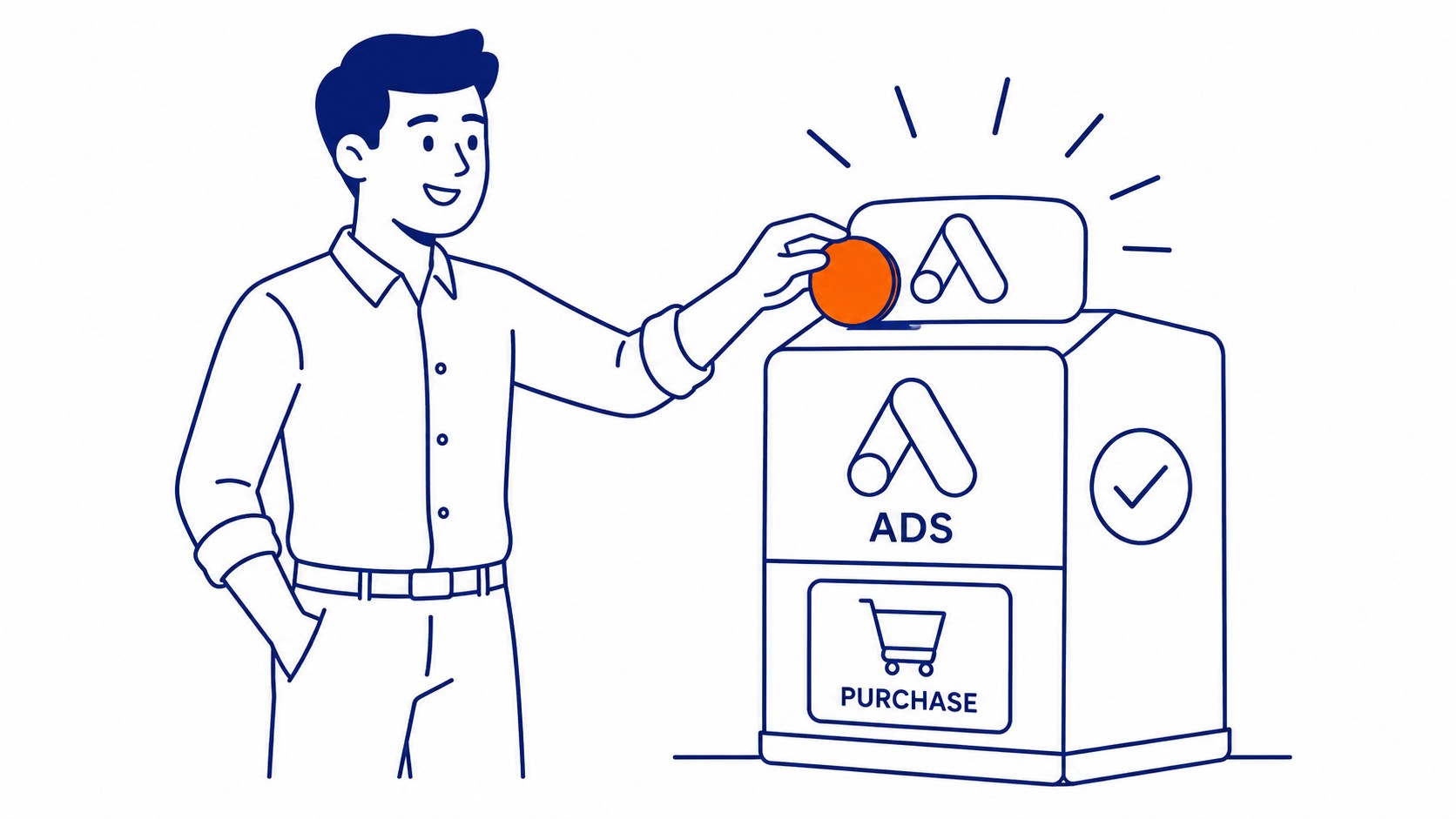
Build a Conversion Action Inside Google Ads
The app creates a basic purchase conversion action by default. Most stores need to check its settings, not just accept them blindly.
Open Google Ads, then Goals, then Conversions. Find the Shopify purchase action. Set the counting method to “one” per order, not “every.” One order should count once, never once per line item.
Attribution model matters here too. Data-driven attribution works well once a store has enough conversion volume. Newer stores with thin order counts should stick with last-click, at least until the data catches up.
A Calgary SEO agency running paid campaigns for a Shopify client checks this exact setup during onboarding. The conversion action needs to count real orders correctly, before a single ad dollar goes out. Settle which actions count as conversions before the first order lands. That onboarding pass also covers linking Analytics to Google Ads so both tools report identical orders.
Track the Right Event on the Thank You Page
The purchase event fires from Shopify’s thank you page after checkout completes. That page carries the order value. Revenue data flows into Google Ads alongside the raw conversion count.
Custom thank you page edits can break this. A theme customization that alters page structure sometimes strips the tracking script along with it. Test a real order after any theme change, not just a preview.
Test orders count as real conversions too, unless a store filters them out manually inside Shopify’s order settings.
Turn On Enhanced Conversions for Better Match Rates
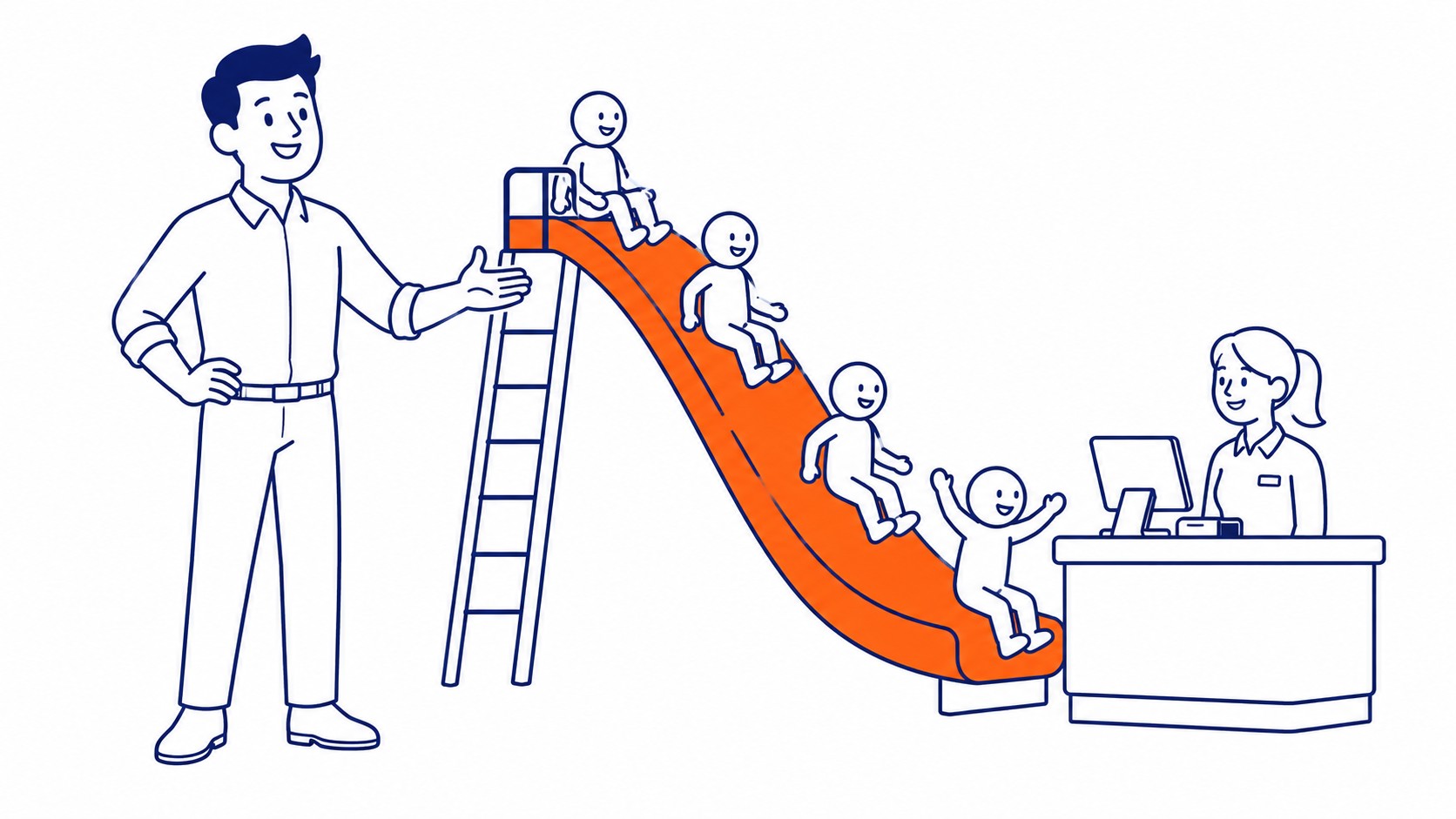
Enhanced conversions send hashed customer data, email and phone mostly, alongside each conversion. Google matches that data against signed-in users. Conversions that cookie-based tracking alone misses start showing up again.
Shopify’s app includes a toggle for this. Turning it on takes one click. The upside shows up gradually, as match rates climb over the following weeks rather than overnight.
iOS privacy changes and browser cookie limits pushed enhanced conversions from optional to close to necessary. Stores running Google Ads without it are working with data that undercounts real performance. Gaps like this get caught early under ongoing Google Ads management, often within the same week they start.
Set a Conversion Window That Matches the Sales Cycle
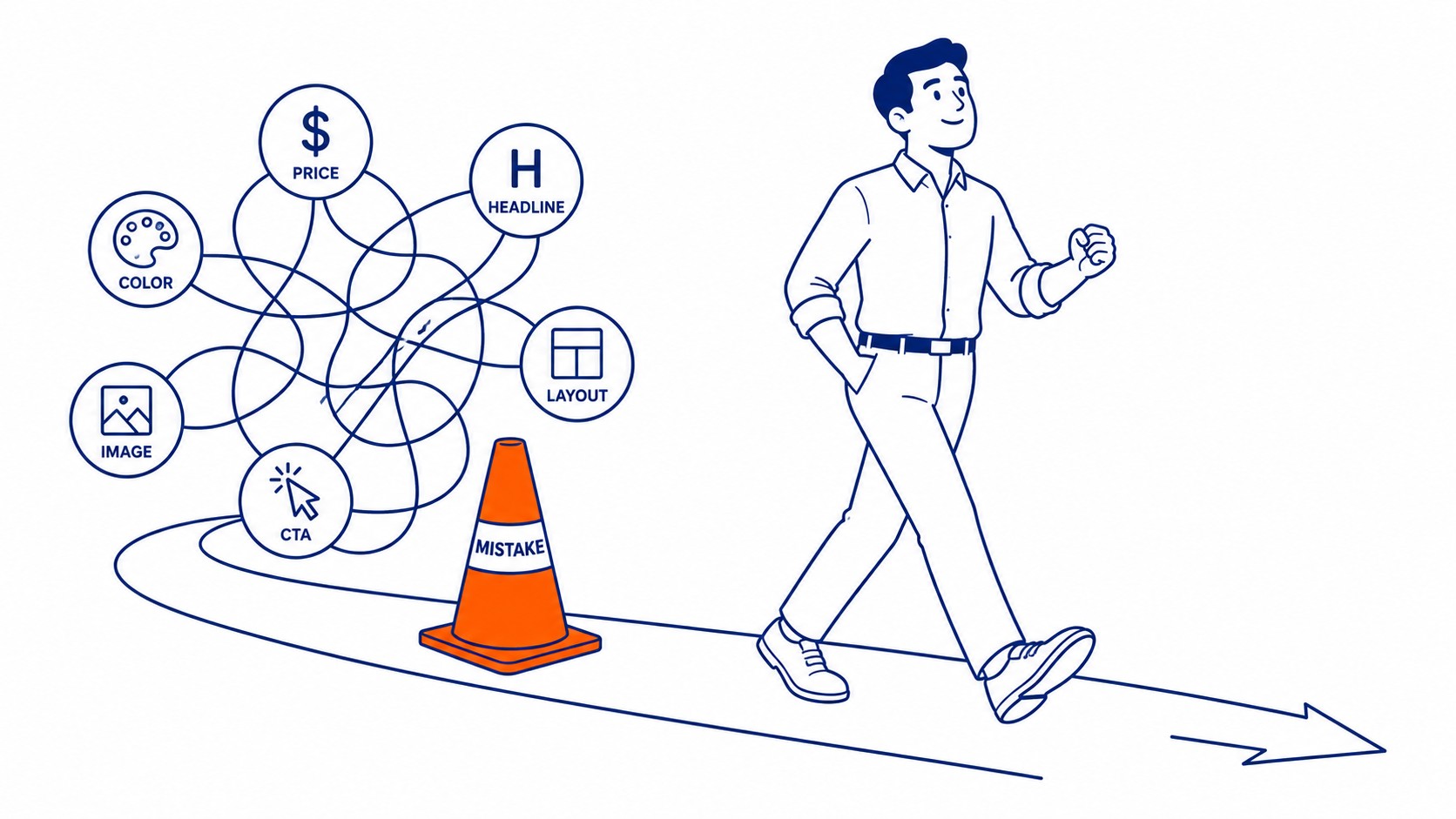
Thirty days is the default conversion window inside Google Ads. Impulse purchases fit that window fine. Furniture, custom gear, anything higher-ticket. Browsers on those items often return weeks later before buying.
Stretching the window to 60 or 90 days catches those delayed purchases the way it should. Shortening it too far does the opposite. Real sales stop counting as conversions. The campaign data starts understating what the ad spend actually produced.
Click-through and view-through windows can differ too. Stores get more accurate reporting by leaning heavier on click-through data. View-through counts tend to run generous on their own. Window choices come after setting up conversion tracking correctly in the first place.
Verify the Setup With Tag Assistant
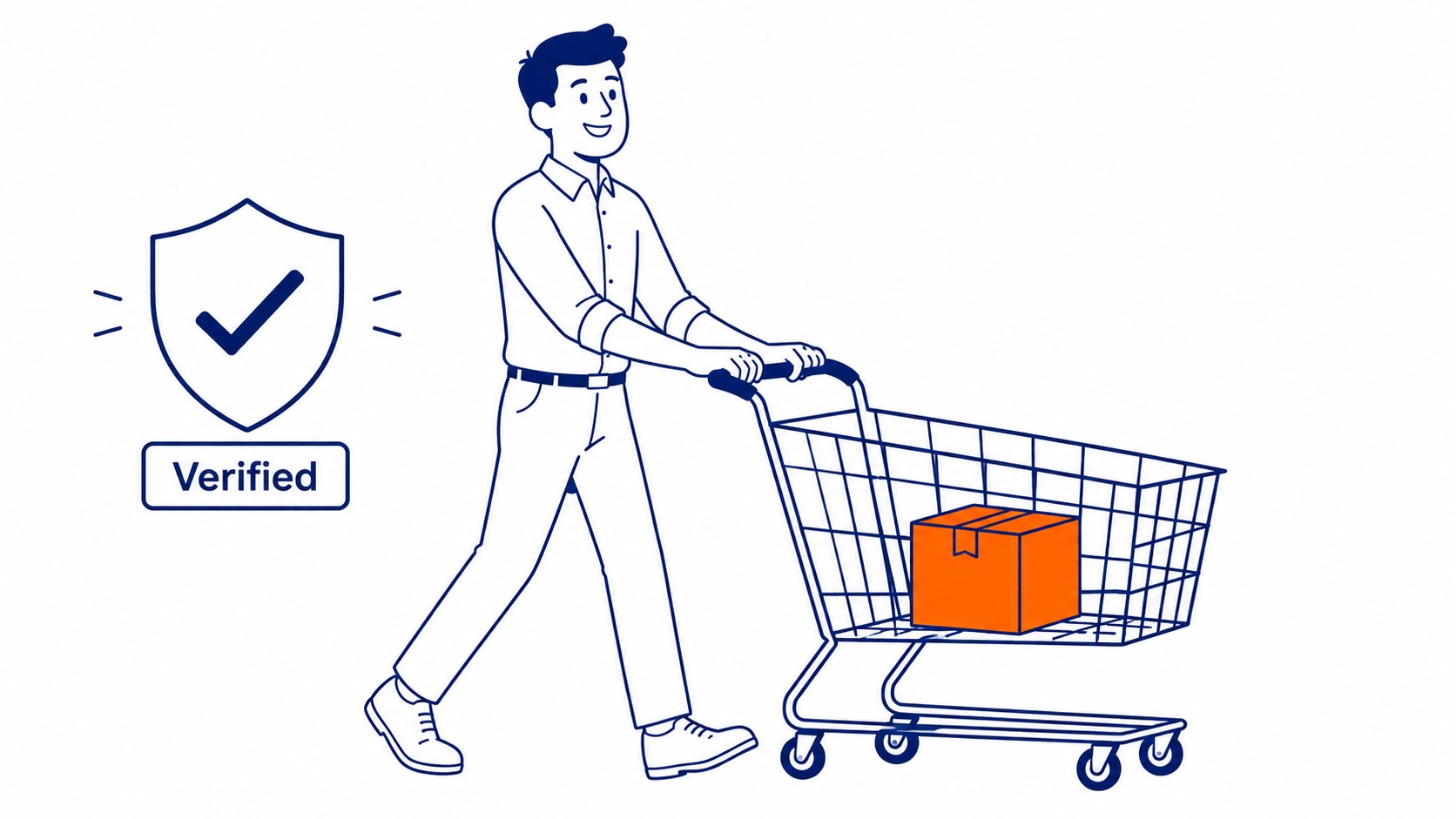
Google’s Tag Assistant extension checks live tags on any page, checkout included. Install it, visit the store, then place a real test order.
A correctly firing tag shows the conversion event inside Tag Assistant’s panel right away. Two things usually explain nothing showing up. An ad blocker running during the test. Or a theme conflict blocking the script entirely.
Recheck weekly for the first month. Shopify updates and theme changes both have a habit of quietly breaking tracking, with no error message to flag it.
Common Mistakes That Quietly Break Shopify Conversion Tracking
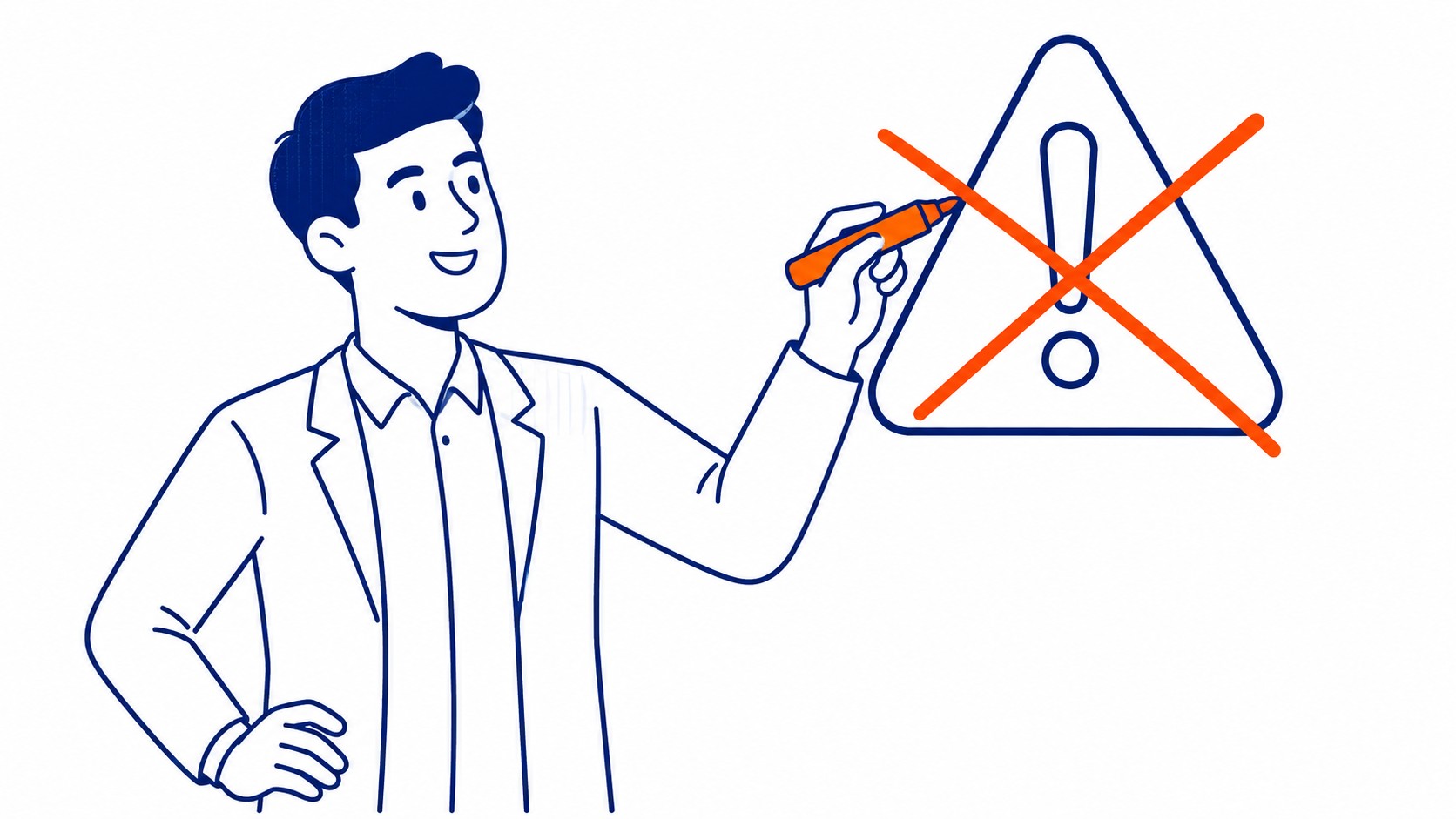
Duplicate conversion actions cause the most damage. A leftover manual tag running next to the native app doubles every count. The resulting numbers look great, right up until someone checks actual revenue against the bank statement.
Currency mismatches cause a second common problem. A store selling in Canadian dollars needs its Google Ads account set to match. Otherwise reported conversion value comes out wrong, off by whatever the exchange rate happens to be that day.
Apps installed for other purposes sometimes interfere too. A speed optimization tool that delays script loading can quietly suppress the tag along with everything else it defers. Running a website audit after installing any new app catches this kind of break early. Waiting means a month of ad spend riding on numbers nobody double-checked.
SEO Company To-The-TOP! walks Calgary clients through this setup as part of onboarding for any Shopify store running paid ads. This kind of tracking gets checked on a regular schedule under ongoing SEO support, past the initial launch.
Frequently Asked Questions
Does a Shopify free trial support Google Ads conversion tracking?
Yes. Every Shopify plan supports the Google & YouTube app, trial included. Ad spend triggers a paid subscription requirement, not the tracking setup itself.
How long before conversion data shows up in Google Ads?
Usually within 24 hours of the first real order. Some accounts take up to 72 hours before conversion counts settle into their final numbers.
What is the difference between the Google tag and enhanced conversions?
The Google tag fires the base conversion event on every page. Enhanced conversions add hashed customer data on top of that event, improving match accuracy without replacing the tag itself.
Can a Shopify theme update break conversion tracking?
Yes, particularly custom thank you page edits. Testing a real order right after any theme change is the only reliable way to confirm tracking survived it.
Contact Calgary SEO Company To-The-TOP!
Questions about anything in this article, or about your own rankings? Talk to a Calgary SEO specialist directly.
Phone: (403) 308-5949
Address: 1509 14 Ave SW, Calgary, AB T3C 0W4
Hours:
Monday to Friday: 10:00 am – 7:00 pm
Saturday: 12:00 pm – 4:00 pm
Sunday: closed