
How Do I Get Rid of Google Ad Services?
Google Ad Services is not an app or a program, so there is nothing to uninstall. It is googleadservices.com, a web domain Google uses for its advertising, and your browser passes through it when you click a Google ad or visit a site that measures its ads with Google. What you can get rid of depends on what is bothering you. If you want fewer or less personal ads, change your settings in My Ad Center. If pop-ups or pages carry the name “Google Lead Services”, you have adware, which is not Google, and it has to be removed from the device or browser. If ad links refuse to open, something is blocking the domain. If you run the ads and want out, you pause or cancel the Google Ads account.
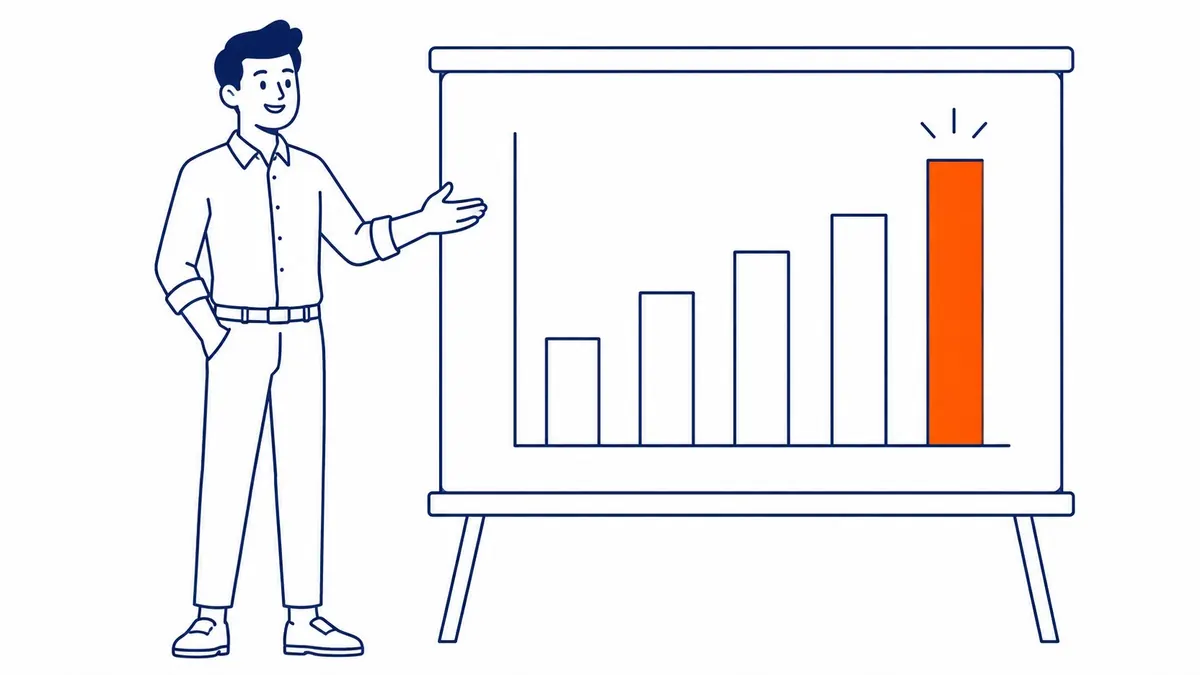
Find your situation first
People type this question for four quite different reasons, and the fix for one does nothing for the others. Clearing your history will not remove adware, and an ad blocker will not change which ads Google picks for you. Match what you are seeing to the right row before you change anything.
| What you see | What is happening | Where the fix lives |
|---|---|---|
| Too many Google ads, or ads that follow you around | Normal Google advertising, possibly personalized | My Ad Center, and your device’s advertising ID |
| Pop-ups, new tabs, alerts or pages naming “Google Lead Services” | Adware or a site you allowed to send notifications | Installed apps, browser extensions, notification permissions, a browser reset |
| Ad links that fail, or “googleadservices.com” in a blocked list | A blocker is stopping the domain | Your ad blocker, Private DNS, router or security software |
| “googleadservices.com” in your own website code or invoices | You (or someone before you) ran Google Ads | Your Google Ads account and your site’s tags |
What googleadservices.com is
Google’s own advertising technologies page says the cookies its ad products use “may be set from a few different domains, including google.com, doubleclick.net, googlesyndication.com, or googleadservices.com”. The registration records back that up. When checked on 2026-11-21, googleadservices.com had been registered since 2003 through MarkMonitor, the registrar Google uses for its brands, its name servers were ns1 to ns4.google.com, and it resolved to an address assigned to Google LLC. That is why it shows up in browser history, in network logs and in the lists that ad blockers and security tools keep.
Because the domain sits on Google’s servers rather than on your computer, there is nothing for you to delete. You can block it, and plenty of ad blockers do by default, but the side effect is that clicking a sponsored search result often goes nowhere, since the click is routed through the domain on its way to the advertiser. If that is the problem you are trying to solve rather than cause, the companion guide on unblocking it walks through each layer that can block it.
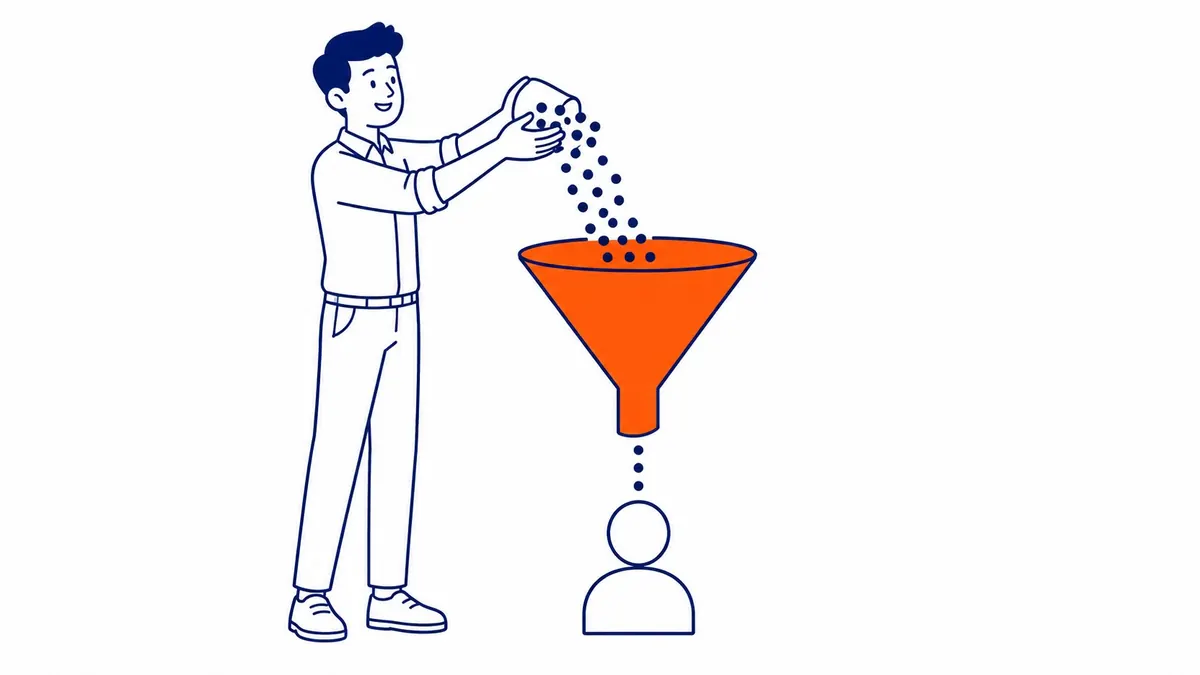
If you want fewer or less personal ads
Google will keep showing ads on Search, YouTube and partner sites whatever you set, because ads are how those services are paid for. What you can control is how much your own activity shapes them. Signed in to your Google Account, open My Ad Center and switch personalized ads off; Google says this setting controls personalization on Google services and on partner sites and apps. From any ad on Google you can also select the three-dot menu or the info icon and choose “Block ad” (on partner sites the option reads “Stop seeing this ad”), and the Customize Ads tabs in My Ad Center let you ask for fewer ads about particular topics, brands or sensitive subjects such as alcohol or gambling.
Two limits are worth knowing before you spend an evening on this. Google’s advertising page states that even if you remove or disable cookies, Google “may use cookie-based information or other advertising technologies to personalize ads” unless you change your ads settings, so clearing your history alone does very little. It also says that with personalized ads off, you may still see ads based on your general location from your IP address, your browser type and your search terms. On an Android phone, Google adds that you can reset the device’s advertising ID or delete it; after deleting it, apps can still show ads, but not ads based on that ID. For the detail on what each of these switches records and what it only stops being used, see the guide on turning off Google ad tracking.
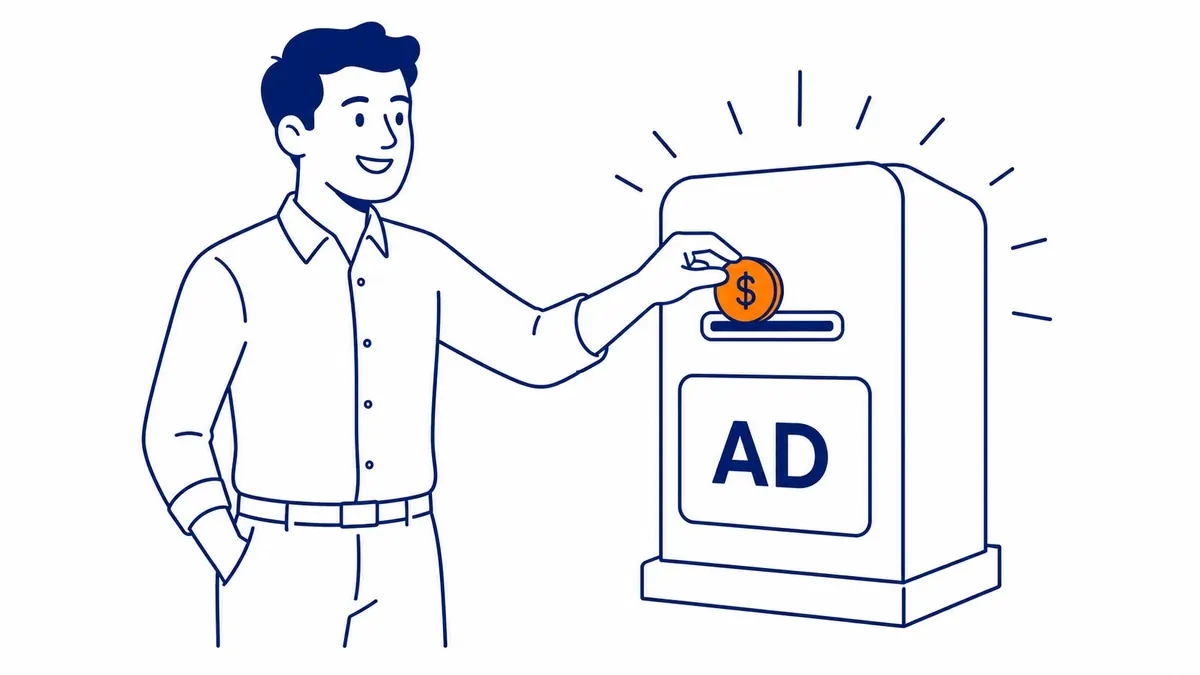
“Google Lead Services” is not Google
Many of the people who arrive here have seen “Google Lead Services” or googleleadservices.com, often on a connection error page that blocks sites they normally use, or in pop-ups that will not stop. The name borrows Google’s branding, but the domain’s records do not look like Google’s. When checked on 2026-11-21, googleleadservices.com had been registered in 2011 through GoDaddy, with the owner hidden behind the privacy service Domains By Proxy, its name servers were at JustHost, and it resolved to an address on the Unified Layer hosting network. None of the signs that mark Google’s own domains were present. The security vendor 2-spyware describes “Google Lead Services” as an adware name that only borrows the look of a Google brand, and threads on the Chrome Help Community and Microsoft Q&A describe the same symptoms.
Treat it as unwanted software. Google’s Chrome Help lists the classic signs: pop-up ads and new tabs that will not go away, a homepage or search engine that keeps changing, extensions or toolbars that keep coming back, browsing that redirects to unfamiliar pages, and alerts about a virus or an infected device. Any one of these is reason to work through the clean-up below rather than trying to block a single domain.
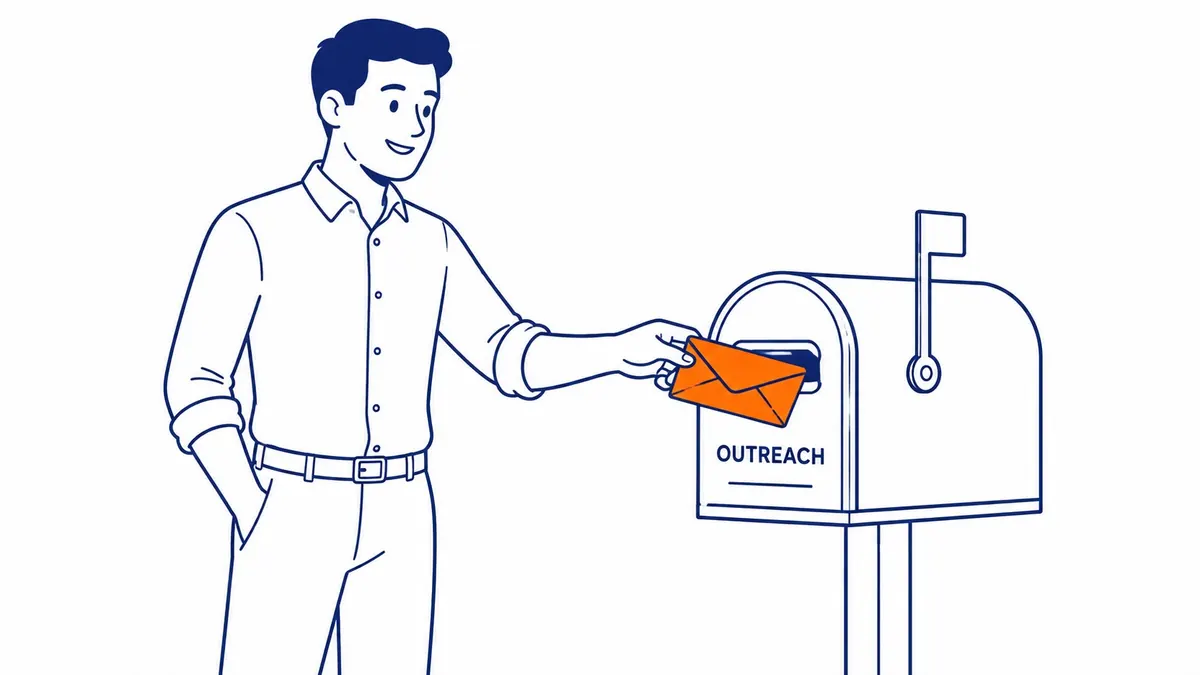
How to remove the adware
These steps follow Google’s Chrome Help pages and work in this order, because a reset does little good while the program that changed your settings is still installed.
- Remove programs you do not recognize. On Windows, open the Start menu, then Settings, Apps, Installed apps, select the unfamiliar app and choose Uninstall. On a Mac, open Finder, select Applications, move anything you do not recognize to the Trash and empty it. On an Android phone, uninstall apps you did not mean to install, then open the Play Store and make sure “Scan apps with Play Protect” is on.
- Check your browser extensions. In Chrome, open More, then Extensions, Manage extensions, and remove anything you did not add yourself or no longer use.
- Stop site notifications. Many “virus” alerts on phones are notifications from a site you once allowed. On Android, open the site in Chrome, tap Page info, then Permissions, then Notifications, and turn “Show notifications” off. To change every site at once, go to More, Settings, Site settings, Notifications. Some devices also let you tap Unsubscribe directly on the notification.
- Reset Chrome. On a computer, open More, Settings, Reset settings, then “Restore settings to their original defaults”. Afterwards you will have to turn back on any extensions you trust.
- Block intrusive ads. On a computer, go to More, Settings, Privacy and security, Site settings, Additional content settings, Intrusive ads, and choose the default you want.
If the problem survives all five steps, Google’s page points you to the Chrome Help Forum, and a reputable malware scanner is the usual next step. Be wary of any pop-up that tells you to install a “cleaner” to fix it, since that is a common way the same software gets back in.

When ad links will not open
If sponsored results go nowhere, or a phone says Google ad services are blocked, the cause is usually something you or your network installed on purpose: a browser ad blocker, a Private DNS setting on Android pointing at a filtering service, a router or Wi-Fi filter at work or school, or security software. Each one stops requests to googleadservices.com, and the click that has to pass through it fails. You can leave it that way if you are happy to skip ads entirely, or allow the domain in whichever layer is blocking it. The unblocking guide goes through each layer in turn.
If you are the advertiser
A smaller group finds the domain in their own website code or on an old invoice, and what they want to get rid of is Google Ads itself. The first decision is whether to pause or cancel. Google’s own Help page suggests that if you have no remaining balance, you consider pausing your campaigns instead of cancelling, and pausing has the advantage that campaigns can be switched back on later without reactivating anything.
If you do cancel, Google Ads Help sets out how it works. Only a user with Admin access can do it, from Admin, then Account settings, then Account status, then “Cancel my account”. All ads stop within 24 hours, any unused prepaid funds or refundable credits are refunded to the original payment method, typically within 4 to 12 weeks, and any costs already accrued are still owed. Remarketing lists owned by the account are closed. Cancelling is not deletion: you can usually still sign in and see the account’s history, although Google warns that access may end after an extended period, and an Admin can reactivate it later. Google also cancels accounts automatically when they have had no recorded spend for more than 15 months.

Cancelling the account and cleaning your website are two separate jobs, and it is common to do only one. Conversion tracking is added to the site through the Google tag or through older Google Ads snippets, some of which load from googleadservices.com, and closing the account leaves that code in place. Removing the code, on the other hand, stops measurement but does not stop spending, so an account with live campaigns keeps charging. Decide which outcome you want, then check both the account and the site’s code or tag manager before you call it finished.
When the ads are worth keeping
Sometimes the urge to get rid of Google Ads comes from an account that spent money without producing calls or leads, rather than from any real wish to stop advertising. That is usually a setup problem, such as broad targeting, missing negative keywords or conversion tracking that no longer fires, and it is worth a second look before the account is closed. SEO Company To-The-TOP! has been working with Calgary businesses since 2007 and is Google Ads certified, and as a solo practice the person who reviews your account is the person who does the work. If you would like an outside view of an account you are thinking of closing, the Google Ads management page explains how that works, or you can reach SEO Company To-The-TOP! at (403) 308-5949.
Contact Calgary SEO Company To-The-TOP!
Questions about anything in this article, or about your own rankings? Talk to a Calgary SEO specialist directly.
Phone: (403) 308-5949
Address: 1509 14 Ave SW, Calgary, AB T3C 0W4
Hours:
Monday to Friday: 10:00 am – 7:00 pm
Saturday: 12:00 pm – 4:00 pm
Sunday: closed