
How to Create a Google Ads Account
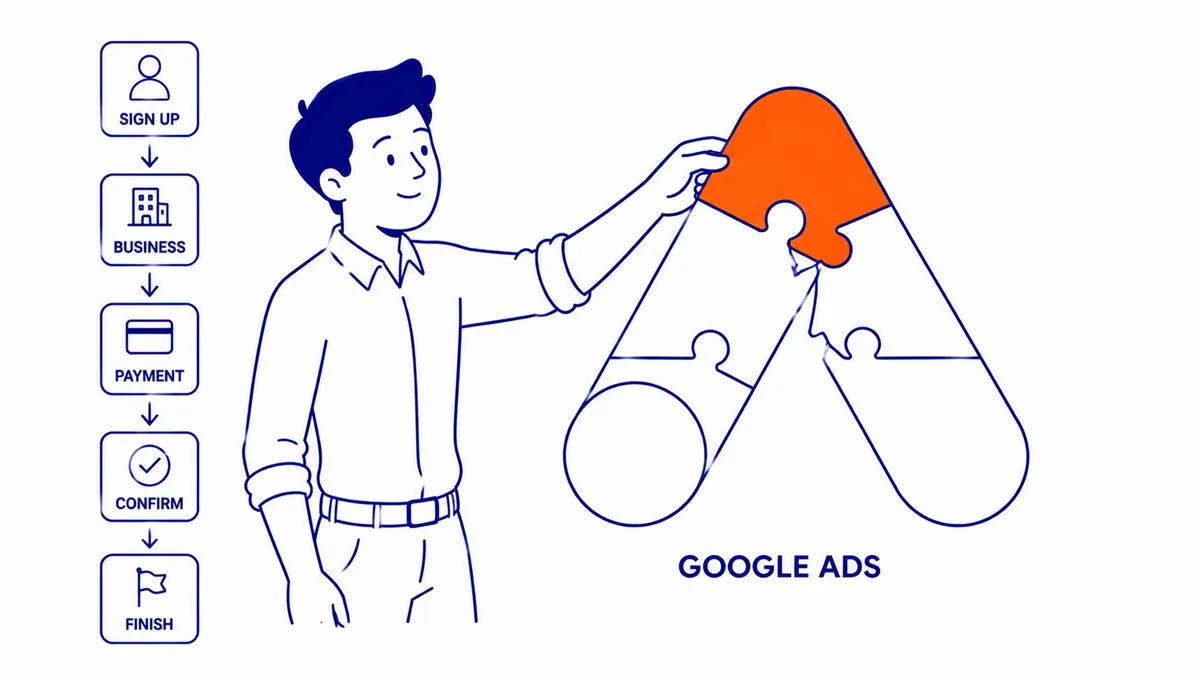
The first Google Ads account I set up for a client was in 2008. Back then it was Google AdWords, and getting started involved a phone call. Today the process is self-serve, takes about fifteen minutes, and still contains a few decisions that cause problems down the road. Those are still worth slowing down on.
At To-The-TOP!, we have been managing Google Ads campaigns for Calgary businesses since 2007. Watching clients set up accounts incorrectly and troubleshoot months later is part of what shaped how we walk people through this now.
What to Have Ready Before You Sign In
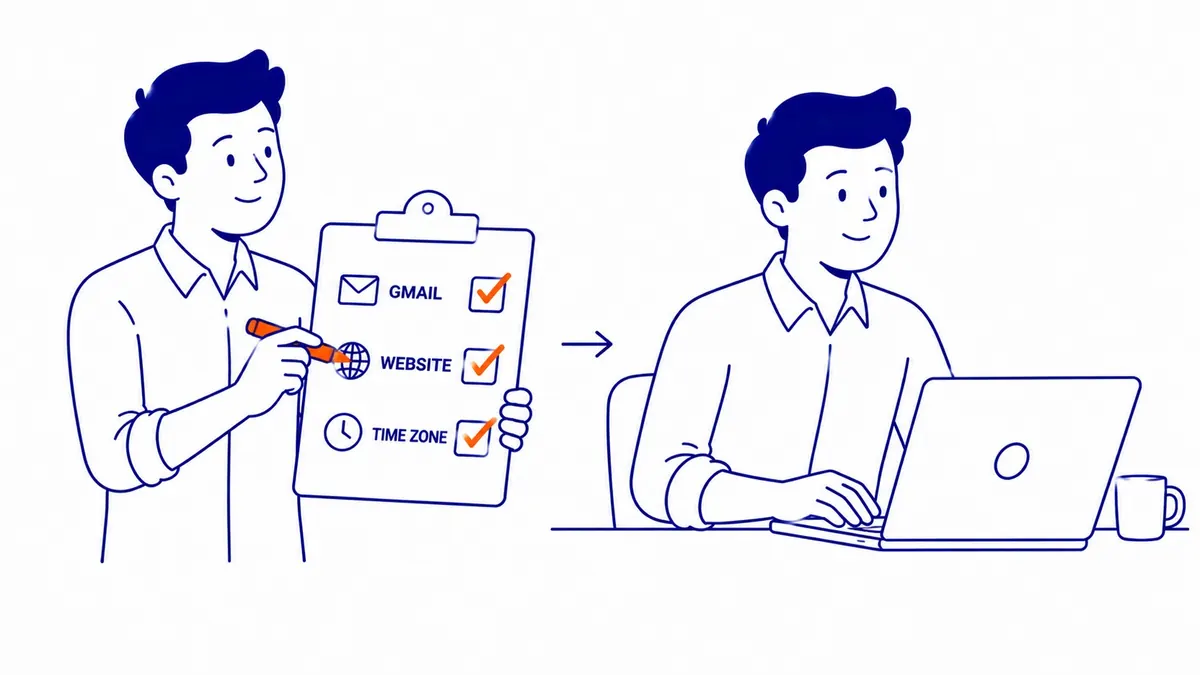
Pull these together before opening a browser. A dedicated Gmail address for the business. Your website URL. The time zone your campaigns will run in. A credit card for billing.
Time zone is the one people miss. Once set in your account, it cannot be changed without opening a new account entirely. No support ticket fixes it. For Alberta businesses targeting local customers, Mountain Time is the right call. The currency locks in the same way, so set it to match your billing card. Conversion tracking comes right after, and what tracking SEO conversions involves overlaps more than people expect.
Step 1: Create or Sign Into Your Google Account
Go to ads.google.com. Sign into your account or create one. The setup process starts immediately. Use a business Gmail address rather than a personal one. Campaign notifications, billing statements, and policy alerts all land in whichever inbox is tied to your Google account.
The guide on Google Ads setup and strategy picks up after account creation, covering campaign structure, match types, and budget allocation.
If you are creating a new Google account, it takes under two minutes. Your Gmail address becomes the username. Choose your password before moving through the setup; use something memorable or store your password in a manager right away. Your Google Ads account, your campaign data, and your billing history all sit behind it. Losing access to your password later is a real problem. Recovery through Google can take several days.
Step 2: Switch to Expert Mode Before Anything Else
Google’s default landing is Smart campaigns. Skip it. Every time.
The explainer on how much it costs to buy keywords on Google sets realistic budget expectations before your first campaign goes live.
Targeting decisions go to Google’s automation in Smart campaign mode. The result is still limited visibility into where your ads actually go and which searches they match. Expert mode is where your Google Ads account actually runs. Search, Display, YouTube, Shopping: Expert mode controls all of it. The toggle to switch lives at the bottom of the sign-in screen. Click it before entering any campaign details.
The two modes are not interchangeable. Data built in Smart campaign mode does not transfer cleanly. Switch first.
Step 3: Enter Your Business Information
Business name goes in first. Then your website URL. Google uses this to verify domain ownership and pre-populate ad suggestions. Country, time zone, and currency confirm here. Double-check before clicking through. These fields, however, are permanent.
Billing comes next. Most major credit cards work. Nothing charges until a campaign is live and your ads are generating clicks. Your account will sit ready until then.
One thing on billing country: set it to match where your business is registered and your card is issued. Mismatches still create account holds.
Step 4: Two Settings Most New Accounts Skip
Link Google Analytics before launching anything. Navigate to Tools, then Linked Accounts, then Google Analytics. Select the property tied to your website. Two minutes of setup that makes every campaign result readable in context.
Enable conversion tracking as well. A short code snippet goes on your thank-you or confirmation page. That snippet then tells your Google Ads account which clicks turned into calls, form fills, or purchases. Without it, your ads are running without any signal on what converts.
Notification preferences are also worth reviewing. Google defaults to sending several recommendation emails, though some push toward higher spend. Trim them to billing alerts and weekly performance summaries.
After Your Google Ads Account Is Set Up
Having an account and running it profitably are two different things. Setup takes an afternoon. That said, ongoing work is a different commitment: negative keyword lists, bid strategy, Quality Score optimisation. Owners who already invest in keyword research tend to bring the same scrutiny to what they are bidding on. Many Calgary businesses run both, adding our SEO services alongside the ad account for full search coverage.
For Calgary businesses that want expert setup and hands-on campaign oversight, To-The-TOP! handles Google Ads PPC management from account creation through monthly reporting. An SEO expert Calgary businesses can rely on will tell you the same thing: paid and organic work best together when the account is structured correctly from day one. Worth getting right at the start.
New advertisers in High Level SEO, High River SEO, and Innisfail SEO go through the same account setup process before their first campaign goes live. Setup gets covered often; deleting a Google Ads account gets covered almost never. Some owners already have one sitting under an old login, so your own Google Ads account is worth confirming.
Frequently Asked Questions
Can I use an existing Gmail account for Google Ads?
Working option. The bigger concern, however, is noise. Campaign alerts, billing emails, and policy notices all land in the same inbox. A dedicated Gmail address keeps your Google Ads account communications separate from everything personal.
What is the difference between Smart campaigns and Expert Mode?
Smart campaigns run on Google’s automation with minimal input from you. Expert mode gives you control over keywords, bidding, audience targeting, and ad scheduling. For any business that wants to understand where its budget goes, Expert mode is the right choice. Smart campaigns, however, produce less actionable data.
Do I need a website to run Google Ads?
Technically your account creates without one. In practice, your ads need a destination URL before they go live. Running budget to a page that is not yet ready to convert wastes the spend. Build the landing page first.
Can I pause my Google Ads account without losing my data?
Any campaign pauses without wiping settings or historical data. Your account stays open. Billing stops when your ads stop running. Pausing campaigns is still the right move for seasonal breaks or budget resets rather than closing the account.
Contact Calgary SEO Company To-The-TOP!
Questions about anything in this article, or about your own rankings? Talk to a Calgary SEO specialist directly.
Phone: (403) 308-5949
Address: 1509 14 Ave SW, Calgary, AB T3C 0W4
Hours:
Monday to Friday: 10:00 am – 7:00 pm
Saturday: 12:00 pm – 4:00 pm
Sunday: closed