
How to Use Screaming Frog to Improve On-Page SEO
To use Screaming Frog to improve on-page SEO, crawl your site with the SEO Spider, then work through the Page Titles, Meta Description, H1, Content, Images, Canonicals and Response Codes tabs, and fix what affects your most important pages first. The free version crawls up to 500 URLs, which is often enough for a small site, although images, scripts and other files count toward that limit, and a licence costs US$279 (or £199) a year per user, about C$390 (prices as of 6 November 2026). The tool finds patterns quickly, but it cannot tell you which ones matter for your business, and several of its filters flag things Google’s own documentation says are not problems. This guide goes through each tab in the order worth working it.
What the free version can and cannot do
The SEO Spider is a desktop program that requests your pages much as a search engine crawler would and lists what it finds in each one. If you are new to it, the overview of what the SEO Spider is and where it fits covers the background. For on-page work, the important detail is the line between the free and paid versions, because many tutorials describe licensed features without saying so.
| Task | Free version | Licensed |
|---|---|---|
| Crawl limit | 500 URLs per crawl | No set limit (depends on memory and storage) |
| Titles, meta descriptions, headings, broken links, redirects, exact duplicates | Yes | Yes |
| Change the crawl configuration (exclude URLs, crawl speed, content area) | No | Yes |
| Save a crawl and open it later | No | Yes |
| Near-duplicate content, spelling and grammar checks | No | Yes |
| Search Console, Google Analytics and PageSpeed Insights data in the crawl | No | Yes |
| Scheduled crawls and crawl comparison | No | Yes |
Source: Screaming Frog’s pricing page and FAQ, 2026-11-06. Licences are per user and last a year, and when one expires the program returns to the free version, which means saved crawls can no longer be opened. For a single small business site, the free version is usually enough for a first on-page review. A licence becomes worth considering when the site passes 500 URLs, when you want to compare crawls over time, or when near-duplicate pages are a likely problem.
Run the first crawl
Enter your home page address in the box at the top and click Start. The spider follows internal links from that page and fills the tabs as it goes, so let it reach 100% before you read anything, because a half-finished crawl gives a partial picture that looks complete. A link-based crawl will also miss orphan pages that nothing links to, so compare the results with your XML sitemap if completeness matters. On a larger site, you can crawl one section at a time by entering the section’s address with its trailing slash (for example /blog/) and choosing Subfolder from the switcher at the top, as the user guide describes.
When the crawl finishes, the Issues tab on the right lists what Screaming Frog found as issues, warnings and opportunities, each with a high, medium or low priority. It is a useful starting list, but Screaming Frog’s own issues page says its priorities come from broadly accepted best practice and “lack context”. A high-priority issue on a page nobody visits can wait, while a medium one on your main service page may not.
Page titles and meta descriptions
Open the Page Titles tab and use the filter dropdown. Missing and Duplicate are the two to fix, because Google’s title link documentation asks for a unique, descriptive title on every page, and two pages with the same title give searchers no way to tell them apart. The Multiple filter is also worth checking: Screaming Frog notes that more than one title element on a page is often caused by conflicting plugins, which on WordPress can mean two SEO plugins, or a theme and a plugin, are both printing a title.
The length filters (Over 60 characters, Over X pixels) are judgement calls. Google says there is no limit on how long a title element can be and that the title link is truncated as needed, typically to fit the device width. A long title only needs shortening if the part a searcher would see no longer says what the page is. Google may also rewrite a title it considers inaccurate or stuffed with keywords, so if you want to understand how title tags work in search results, read that before you rewrite dozens of them to hit a character count.
The Meta Description tab works the same way, with Missing, Duplicate and length filters. Google’s snippet documentation says there is no limit on how long a meta description can be, that Google builds snippets from both the page content and the description, and that the pages that matter most should get unique, hand-written descriptions first. A meta description’s job is to help a searcher decide to click, so a missing one on your contact page matters more than four hundred missing ones on old tag archives.
Headings
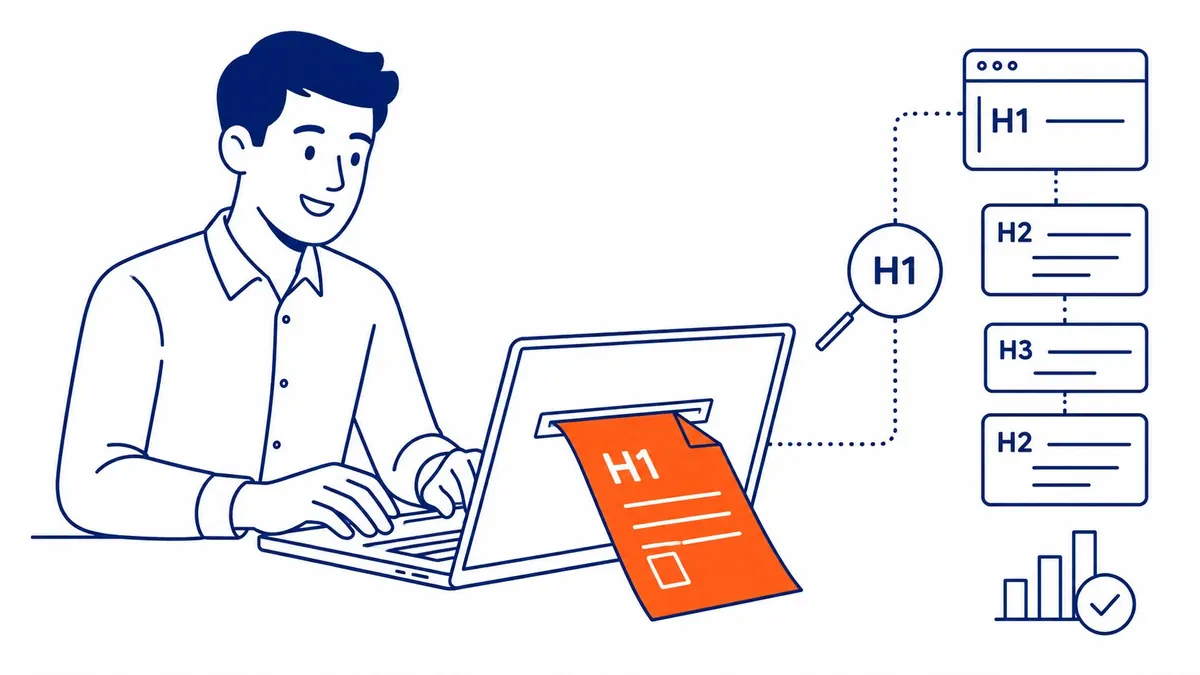
The H1 and H2 tabs show missing, duplicate, long, multiple and non-sequential headings. Fix a missing H1 on a page that should rank, and look closely at duplicate H1s across pages, because they often mean a template is printing the same heading everywhere. Beyond that, keep the filters in proportion. Google’s SEO Starter Guide says that having headings in semantic order is good for screen readers, but that from Google Search’s perspective it does not matter if they are used out of order, and that there is no ideal number of headings. Screaming Frog itself notes that HTML5 allows more than one H1. A theme that wraps the logo in an H1 is therefore an accessibility and tidiness fix, not an urgent ranking problem.
Content: duplicates and thin pages
The Content tab has an Exact Duplicates filter, which compares the full HTML of each page, and a Low Content Pages filter, which lists pages under 200 words by default. Screaming Frog says plainly that there is no minimum word count in reality, so treat that list as a set of pages to look at, not pages to pad. A short contact page is fine, while a short service page that leaves the visitor with questions is not.
Near duplicates are where the paid version earns its keep. With a licence, you switch on Enable Near Duplicates under Config > Content > Duplicates, run Crawl Analysis when the crawl finishes, and the filter lists pages whose text matches another page by 90% or more (the default threshold). This is where service-area pages often show up: a Calgary page, an Airdrie page and an Okotoks page with the same paragraphs and only the town name changed. Google’s starter guide says duplicate content is not a violation of its spam policies, but it also says search engines choose one URL to show per piece of content and may spend crawling on URLs you do not care about. The fix is a decision, not a setting. Either give each page something genuinely local, merge the pages and redirect the extras, or point the copies at one version with a canonical tag.
Images
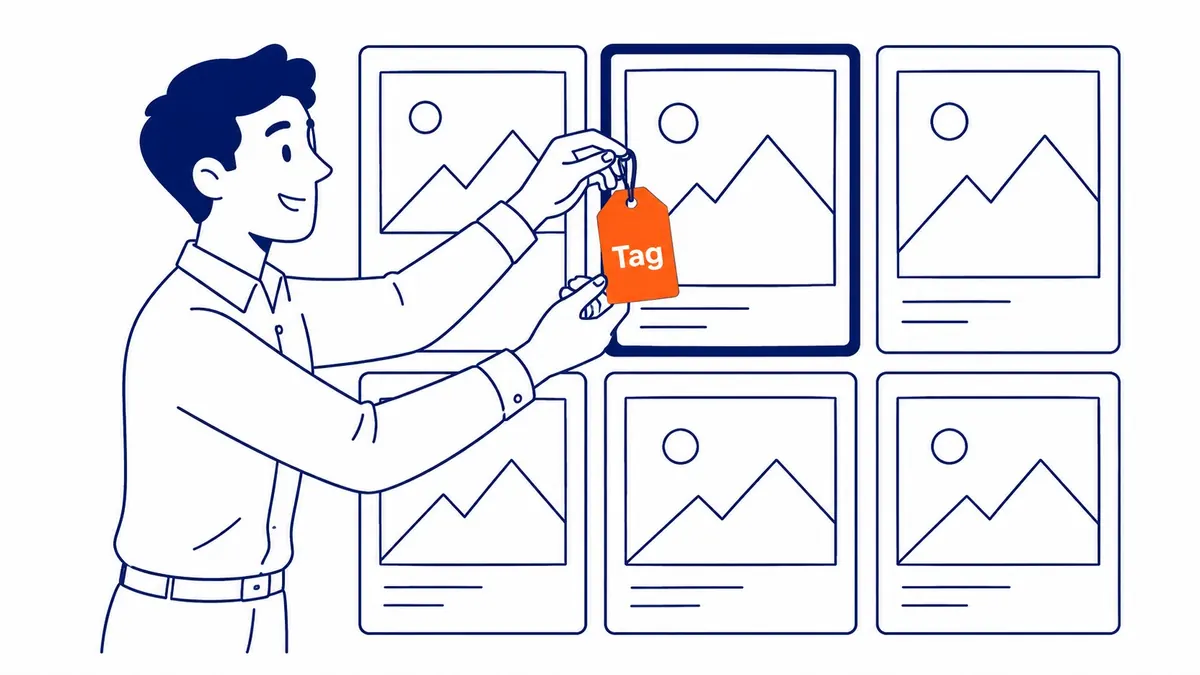
The Images tab separates two problems that look similar: Missing Alt Text (the alt attribute is there but empty) and Missing Alt Attribute (there is no alt attribute at all). Screaming Frog’s guidance is that every image should have an alt attribute, with descriptive text, or left blank when the image is decorative. To see which pages use a flagged image, click the image address and open the Image Details tab in the lower pane, or use Bulk Export to export every image missing alt text across the site in one spreadsheet.
Google’s image documentation says alt text is the most important attribute for describing an image, that Google uses it along with computer vision and the page content to understand the image, and that filling alt attributes with keywords gives a poor experience and may be seen as spam. Describe what the image shows in the context of the page, and if you want examples, there is a guide on how to write useful alt text. In the same tab, the Over 100kb and Missing Size Attributes filters point to images that slow the page or make it jump as it loads, which is worth passing to whoever builds your site.
Canonicals and noindex
The Canonicals tab shows pages with no canonical, pages that point their canonical to a different URL, and pages whose canonical points to a URL that is not indexable (one that redirects, returns an error or is set to noindex). Google’s canonical documentation describes rel=”canonical” as a strong signal and lists redirects ahead of it, so a canonical should point straight to the final, indexable URL, not to one that redirects or returns an error. Then open the Directives tab and look at the Noindex filter. Any page in that list will be dropped from Google’s index, and a noindex left over from a site build or a staging copy is one of the most damaging on-page mistakes a crawl can catch, because the page simply cannot rank.
Broken links and redirects
In the Response Codes tab, the Client Error (4xx) filter lists URLs that returned an error such as 404. The address of a dead URL is only half the answer, because the fix happens on the page that links to it. Select the URL and open the Inlinks tab in the lower pane to see every page linking to it, or use the Client Error 4XX Inlinks option under Bulk Export > Response Codes to get the full list at once. Then either update each link to the right page or put a redirect on the dead URL if it once had visitors or backlinks.
The Redirect Chain filter shows internal URLs that redirect to another URL that redirects again, and Reports > Redirects > Redirect Chains exports the full path. Google’s crawl budget guide says to avoid long redirect chains because they have a negative effect on crawling. That guide is written mainly for sites with about a million pages, or 10,000 pages that change daily, so for a 60-page Calgary business site the better reason to fix chains is simpler: each hop slows the visitor down. The clean fix is to change your internal links so they point straight to the final URL.
Decide what to fix first
A crawl of even a small site can list hundreds of flags, and working through them in the order the tool shows them wastes time on pages that do not matter. A practical rule is to weigh how serious the problem is against how important the page is. Pages that are blocked or noindexed by mistake, broken links on pages that get traffic, and missing or duplicate titles on service pages come first. Length warnings, heading order and old archive pages come last. To know which pages are important, check the Pages tab of the Performance report in Google Search Console for impressions and clicks; a licence lets you pull that data into the crawl, while on the free version you can export both and match them in a spreadsheet.
Here is an illustrative example with made-up numbers. A Calgary landscaping company has a 45-page WordPress site, and a free crawl returns 210 URLs. The Issues tab shows 31 images missing alt text, 12 duplicate meta descriptions, 9 titles over 60 characters, 4 broken internal links, 3 pages with two H1s, and one service page set to noindex. The fix order would be the noindex page first, since it cannot rank at all; then the four broken links, starting with any on the home page or a service page; then the duplicate descriptions on the service pages and the alt text on images that show the work. The long titles are checked in a search result and shortened only where the main point is cut off, and the extra H1s go on the list for the next theme update.
Re-crawl and keep the gains
After the fixes, crawl again and confirm the counts in each filter have gone down. With a licence you can save crawls, compare two crawls side by side and schedule them, while on the free version the practical routine is to export the tabs you care about to a spreadsheet after each crawl and keep the files by date. For a small site that adds pages regularly, a monthly crawl is a reasonable routine, and a crawl after any redesign, plugin change or migration catches problems before Google does.
Google only sees your changes when it recrawls the pages, and requesting indexing in Search Console does not guarantee indexing. Any effect on rankings also takes time, because on-page fixes are only part of how a page competes. SEO takes months, and a crawler checks the parts of a page that a machine can measure, not whether the page answers the searcher’s question better than the competition.
That last part is where a crawl stops and judgement takes over. SEO Company To-The-TOP! is a Calgary SEO company founded in 2007, and one specialist does every client’s work directly. If you have a crawl full of warnings and would rather have someone sort out what matters, a full SEO audit looks at your keywords, your site and the pages ranking above you together, and you can call (403) 308-5949 to talk it through.
Contact Calgary SEO Company To-The-TOP!
Questions about anything in this article, or about your own rankings? Talk to a Calgary SEO specialist directly.
Phone: (403) 308-5949
Address: 1509 14 Ave SW, Calgary, AB T3C 0W4
Hours:
Monday to Friday: 10:00 am – 7:00 pm
Saturday: 12:00 pm – 4:00 pm
Sunday: closed