
How to Add Ad Extensions in Google Ads
Most advertisers set up their campaigns. Write the headlines. Call it done. They skip ad extensions. That gap shows up in CTR data every time. Extensions add more real estate below your ad. More links. Added context. More reasons to click. Google calls them “assets” now. The rename was cosmetic. Most people still search for ad extensions and the term still sticks.
Should you decide to have us manage your Google Ads, you will hear the same observation we have shared with Calgary businesses since 2007: one pattern keeps repeating. Campaigns with sitelinks and call extensions pull higher click-through rates than bare-text ads competing in the same auction. The CTR difference shows up within weeks. Sometimes days. Skip your ad extensions and you are handing ground to competitors who did not.
What Ad Extensions Do to Your Ad
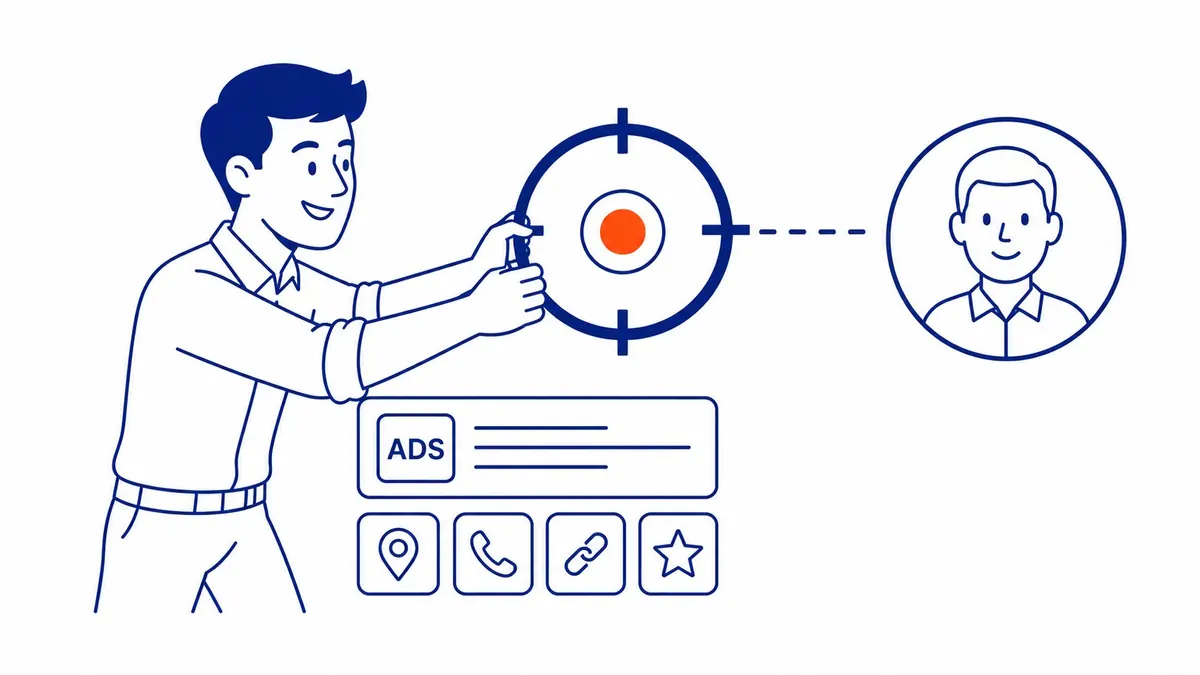
More space on the results page. That is the core of it. Your ad expands below the headline. Links to specific pages. A phone number. Your business address. Promotional details. All of it fits below the main text. Google decides which ad extensions show based on the auction and the likely impact on the searcher. Not every extension shows every time. Worth knowing before you obsess over setup.
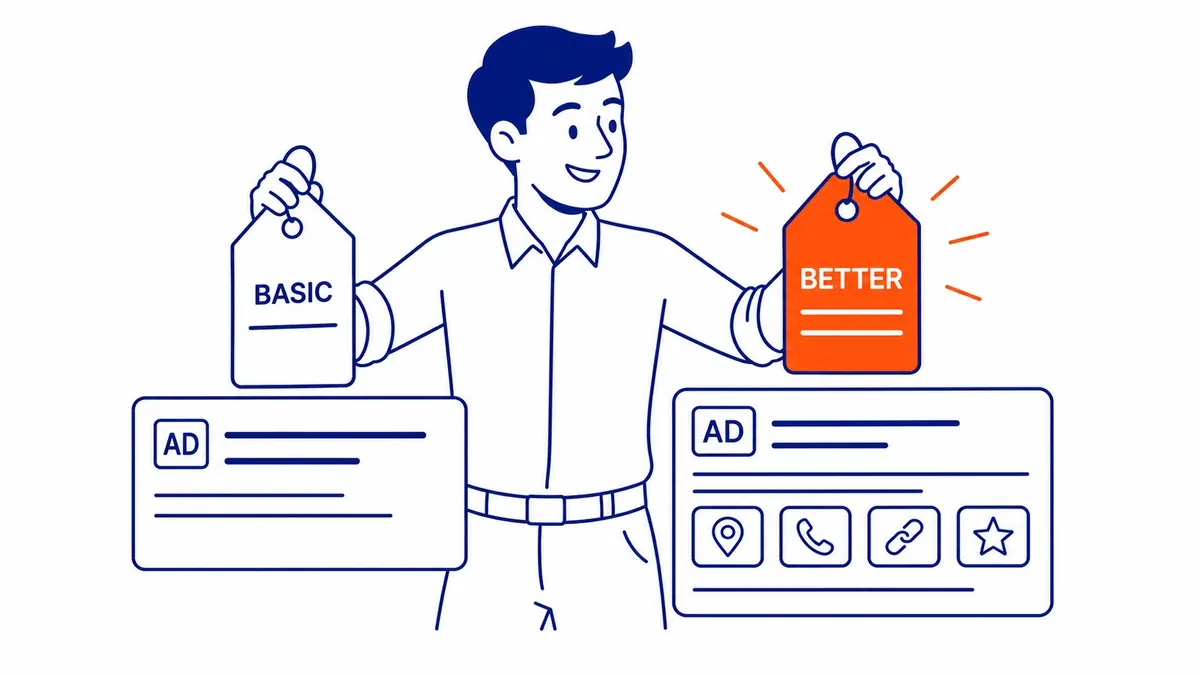
Extensions also factor into Ad Rank. Google weights the expected impact of your ad assets during each auction. More relevant ad extensions can push your ad higher, even against a competitor bidding more per click. Advertisers who skip extensions are leaving both CTR and position on the table.
Finding the Extensions Tab in Google Ads
Moved around more than once. Log in to your Google Ads account and navigate to “Campaigns” in the left menu. Look for “Assets.” Google renamed the tab from “Extensions” in 2022. Older accounts may still show “Extensions” as the label. The steps are identical either way.
Three levels available. Account level. Campaign level. Ad group level. Account-level extensions apply everywhere in your account. Campaign-level override account defaults for that specific campaign. Ad group level is the most specific. Your ads in that group are the only ones seeing them.
Start at the account level first. Phone number. Core sitelinks. Callouts true about your whole business. Layer campaign-specific extensions after. Your ads at the campaign level can then carry extensions relevant only to that product line or service type. Getting sitelinks in Google Ads right is worth a closer look before you build them.
How to Add Sitelink Extensions
Four links minimum. That is what shows on desktop when your ad appears in top position. Google needs at least two sitelinks to display any, but four gives the algorithm choices. Fewer choices means fewer opportunities to match the right link to the right search.
In the Assets tab, click the blue plus button, then choose the Sitelink option. Link text goes in first. Up to 25 characters. Two description lines next, up to 35 characters each. Last field is the destination URL. That URL should go to a specific page on your site. Not the homepage for every sitelink. The homepage is a dead end when someone is already searching for a specific service.
Highest-converting service pages make the best sitelink destinations for most businesses. Multi-service businesses get the most out of sitelinks by letting searchers skip the homepage and land directly where they need to be. Less friction from the first click. Fewer steps between the search and the inquiry.
Adding Sitelink Descriptions
Optional, but fill them in. On desktop, when your ad appears in the top two positions, description lines expand below the link text. More copy. Extra context for the searcher deciding whether to click your ad rather than a competitor’s.
Keep each description to one specific benefit. “24-hour response” beats “quality service” every time. Advertisers who fill in sitelink descriptions tend to see better click rates on the sitelinks themselves. Vague descriptions waste the space. Does keyword insertion in sitelinks behave the same way it does in headlines?
How to Add Call Extensions
Your phone number, directly in the ad. Mobile users tap to call without landing on your site first. For service businesses, that tap-to-call volume accounts for a meaningful share of monthly leads. The click never has to touch your website.
In the Assets tab, click the blue plus button and select the Call option. Enter your phone number. Set call reporting if you want Google to track calls as conversions in your account. Hours of operation need configuring too. You do not want your ads routing calls to voicemail at 11pm if no one checks messages until morning.
Call Extension Settings to Get Right
One issue we see consistently. Some advertisers use a tracking number from a third-party provider that differs from the number on their site. Your phone number needs to match across your website and your Google Business Profile. A mismatch weakens your local ranking signals for both paid and organic. Worth fixing before the call extension goes live.
A potential customer might search your number to verify you are legitimate. That number in your call extension needs to match. Clients who run our Calgary SEO work alongside their Google Ads campaigns see NAP inconsistency hit both channels at once.
How to Add Callout Extensions
Short. Punchy. No links. Callout extensions are plain text fragments below your ad copy. Up to 25 characters each. Google typically shows two to six at a time from whatever you have uploaded.
Put your differentiators here. Think about what makes your business worth contacting over the ad above or below yours. “Family owned since 2007.” “No overseas call centres.” “Free estimates.” These do not link anywhere. They just add text to your ad.
Account-level callout extensions apply across your whole Google Ads account. Useful for anything consistently true about your business. Campaign-level callouts apply only to your ads in that campaign. A seasonal promotion, for instance, works better as a campaign callout than an account-level one.
Location and Structured Snippet Extensions
Two different tools. Both worth having.
Location Extensions
Location extensions pull from your linked Google Business Profile. They show your business address below your ad. A map pin too. Directions to your location. Brick-and-mortar businesses should have these active. Searchers looking for a nearby option use the address line to decide whether to click at all. Physical location details in the ad convert proximity intent into actual visits.
Structured Snippet Extensions
Structured snippets let you list service categories or product types using Google’s predefined headers. Headers include “Services,” “Types,” and “Courses” among others. You choose the header from a fixed list. Each value under the header can be up to 25 characters.
Neither extension requires much setup once your Google Business Profile is properly linked.
Automated vs Manual Extensions
Worth understanding before the setup. Google runs two types of ad extensions in parallel. Manual ones you add yourself. The others the system generates on its own.
Automated extensions pull from your ads and your landing pages. Your account history factors in too. Google may show seller ratings and sometimes dynamic sitelinks. Dynamic callouts also appear. None of it requires your input.
Manual extensions override automated ones in most cases. Strong manual sitelinks mean Google shows those rather than auto-generating them. That is why building out your manual ad extensions matters. Control over what searchers see stays with you.
Check the Assets tab under “Automated” to see what Google has generated for your ads. Suppress anything that misrepresents your business or promotes a service you have since discontinued. An automated callout referencing a product line you no longer carry is a problem worth catching early.

Which Extensions to Add First
Not all equal across business types. Here is how we think about sequencing after years of managing Google Ads accounts across industries.
Sitelinks go in first. Every campaign. CTR lift is consistent. Callouts come second. Low effort, and every ad in your account benefits from them. Call extensions are mandatory for service businesses where deals close over the phone. Location extensions if you have a physical storefront and want foot traffic from nearby searchers.
Price extensions and promotion extensions are more situational. These display your services with prices attached. Useful when your pricing undercuts competitors. Promotion extensions highlight a sale with start and end dates. Good for retail and seasonal service businesses.
Image extensions add a square image beside your search ad. Not every account qualifies yet. Worth testing when your account becomes eligible.
A good SEO service in Calgary and Google Ads extensions share a common thread. Both perform better when the competitor keyword research behind them is solid. Knowing which terms your customers actually use shapes which sitelinks to build. The right callouts become clearer too. Service categories for your structured snippets follow the same logic.

Frequently Asked Questions
How do I add an extension in Google Ads?
Log in, navigate to “Campaigns,” then find the “Assets” tab in the left sidebar. Click the blue plus button to choose any extension type. Older accounts may still label the tab “Extensions.” Both names point to the same feature and the process inside is identical.
How to find ad extensions in Google Ads?
Current accounts show them under “Assets” in the left navigation panel. Older accounts may still display “Extensions” as the label. If you do not see either tab, check your campaign type. Some campaign types limit which ad assets are available in your Google Ads account.
What is the purpose of ad extensions in Google Ads?
More information without more ad copy. Phone numbers. Links to specific pages. Your business address. Callout text. Extensions let your ad show all of this below the main headline and description. More space on the results page typically translates to higher CTR. Google ultimately controls which ad extensions appear during any given auction based on predicted performance.
Do ad extensions cost extra to add?
No extra cost to set up. You pay only when someone clicks. A click on a sitelink costs the same as a click on your ad headline. The benefit is improved CTR and stronger Ad Rank, which often lowers your average cost per click over time.
Contact Calgary SEO Company To-The-TOP!
Questions about anything in this article, or about your own rankings? Talk to a Calgary SEO specialist directly.
Phone: (403) 308-5949
Address: 1509 14 Ave SW, Calgary, AB T3C 0W4
Hours:
Monday to Friday: 10:00 am – 7:00 pm
Saturday: 12:00 pm – 4:00 pm
Sunday: closed