
How to Find Keywords in Google Analytics (Plus What to Do With Them)
Every few months, somewhere in our Calgary SEO work, a client asks why their Google Analytics shows organic visits but no keywords. Short answer: Google stopped sending that information in 2013. It moved somewhere else.
The Queries platform is where actual search term information lives. GA4 connects to it and adds engagement context, making the combined view more useful. Here is how both platforms work together.
Organic sessions still appear in GA4 under the organic channel. The specific queries people typed before arriving, however, have been withheld since around 2013, when Google moved to secure search. Those accounts that displayed full keyword rows started showing “(not provided)” instead. It is not a configuration error. That privacy decision has not reversed.
Two free tools surface the keyword picture. The Queries platform is the primary source for query-level detail. Linking it to your Analytics property adds engagement context and makes the combined view more useful for decisions. The sections below cover both.
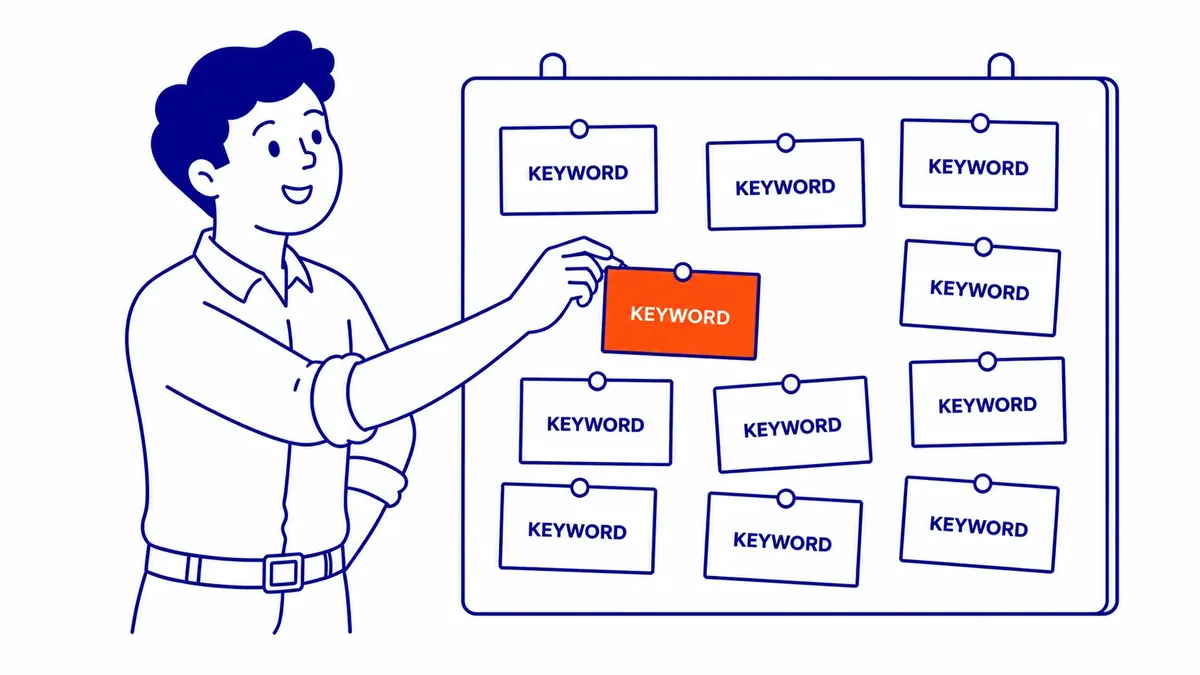
What “Not Provided” Means for Google Analytics Keywords
Still worth clarifying before the walkthrough.
Google began encrypting organic search queries in 2011 for signed-in users. Encryption extended to all organic traffic by late 2013. Google Analytics accounts that previously showed full keyword rows started filling with “(not provided)” instead of actual search terms. Site owners expecting to see which queries brought visitors found a wall. Practitioners running GA accounts through that shift still remember the volume of confused client calls.
What the change means practically: GA4 can show which channel sent a visitor, which landing page they arrived on, engagement rate, and conversion activity. Specific queries sit in the Queries platform instead. Any guide pointing to the native analytics view alone for this task is describing the wrong interface. Good agency analytics reporting pulls from both places, not one.
Where Your Keywords Live: Google Search Console
Right tool for the actual job.
Google Search Console shows the queries that triggered search appearances and visits for your site in organic results. Impressions count how many times Google displayed your page for a given query. Visits tell you how many of those appearances turned into clicks to your website. Average position reports roughly where your page ranked for each query over the selected period. CTR, click-through rate, divides visits by total appearances.
This query information comes directly from Google’s index. Not estimated. Nor drawn from a third-party panel. Specific to your website and your pages.
The default view covers the last 28 days. Extend it to three months under the date selector for a more complete baseline. Sort the query table by total appearances to surface terms your site appears for frequently without generating many visits. A page showing 6,000 monthly appearances at 0.5% CTR is visible in the market but losing the click to another listing. High appearances paired with a low CTR is one of the clearest patterns this tool surfaces.
How to Connect Google Search Console to GA4
In GA4, navigate to Admin, then Property Settings, then the linking panel. Add your verified property. Once the link is active, a keyword insights collection appears under the Acquisition menu. This integration does not replicate the full Queries report, but it places organic landing page metrics alongside GA4’s engagement numbers in one view.
That pairing shows something neither tool reveals separately. Page A brings 400 organic visits per month per the Queries report. GA4 shows 43 percent of those sessions end without a second pageview. The keyword is working. That page is not retaining the visitor. The gap is a content alignment issue, not a ranking issue, and it only becomes visible when both tools are linked.
Reading the Queries Report
Open Performance, then Search Results.
The default table shows search terms sorted by total visits. Sort by appearances instead. Add average position as a visible column. Now you have the full keyword picture: what you rank for, roughly where, how often your pages appear, and how often users follow through to a visit.
To isolate keyword information for one specific page: click Pages, select a URL, then switch to the Queries tab. That sequence reveals which search terms are sending visits to a particular page. Run it on key service pages and highest-traffic posts first. Newer accounts may want Google Search Console explained from the ground up before running these reports. Plenty more sits in using Google Search Console beyond the query table alone.
Keyword Data Inside Google Analytics and What It Shows
Useful in combination. Limited on its own.
With the integration active, the platform shows organic landing page performance alongside summary-level search term reports. Full query detail stays more complete in the Queries report we covered above. Its contribution is tying search arrivals to post-click behaviour: engagement rate, conversions, whether visitors navigate deeper or leave after the first page.
Those post-click metrics are what turn a keyword ranking into a diagnosis. Knowing your page ranks at position nine provides one signal. Visitors leaving in under fifteen seconds provides a different and more useful one.
Site Search Tracking in GA4
If your website has an internal search bar, GA4 can record what visitors type into it.
Those queries are a distinct type of keyword insight. Visitors searching your own site for “pricing” or “same-day availability” are leaving a direct record of what your navigation does not surface clearly. Gaps in your page structure show up in this report before they show up anywhere else.
Activate it through your Google Analytics 4 account. Open Admin, then Data Streams, select your web stream, and enable the search_term event. Results land in Events and can be added to Explore for deeper analysis. If internal search URLs use a parameter like ?s= or ?q=, confirm the account is reading the correct parameter name. Some setups need a tag configuration before the event fires.
Reading the Core Metrics in Google Analytics
Four numbers. Context needed for all four.
Times your pages appeared in results during the selected period add up to your total reach. A page earning 10,000 monthly appearances at position 17 has presence. It has not yet earned consistent visits. CTR divides visits by total appearances. Mean ranking position spans all queries that generated an appearance.
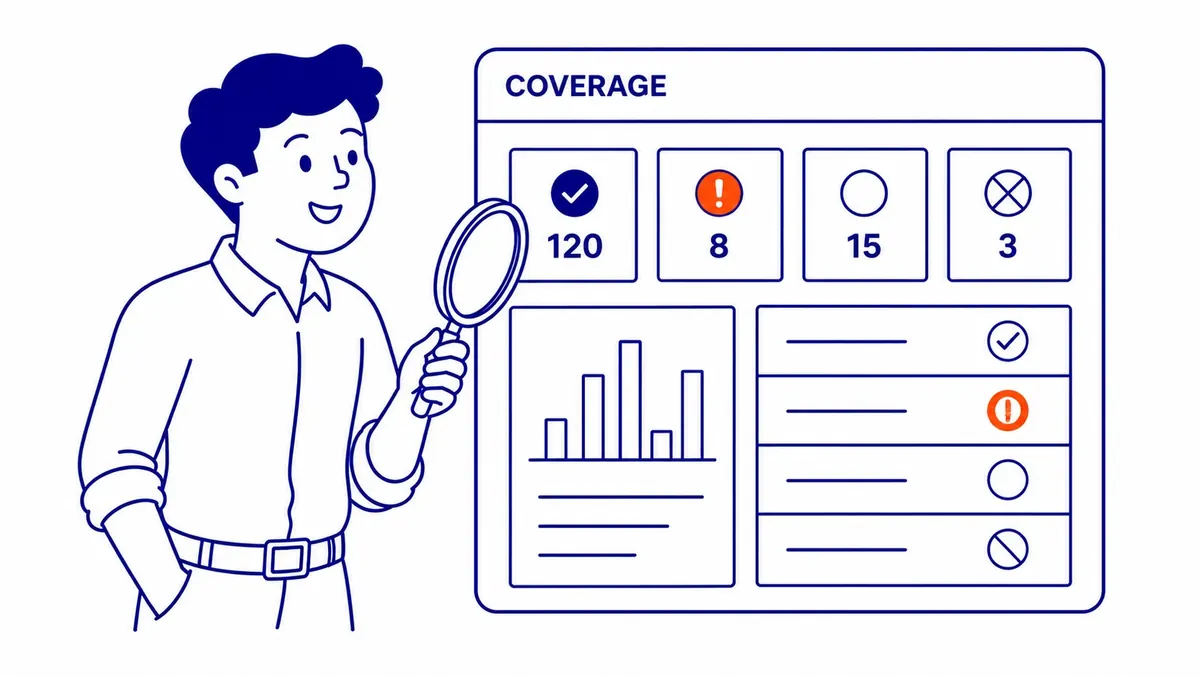
None of these four metrics tells a clear story without comparison. A CTR of 0.9% on a branded query warrants attention. The same rate on a competitive informational query in a crowded vertical may be about normal. Compare against your own historical baseline, not benchmark tables from keyword tracking tools that average across thousands of unrelated sites.
High appearances with a low CTR usually points at the title tag or meta description. Something about the listing is not compelling the visit. That is fixable without touching the underlying rankings. Low appearances with a strong CTR signals a page ranking for a narrow query set without enough topical coverage to appear more broadly. Content expansion is the right move. Both patterns come up regularly when clients book a website audit with us.
How to Spot Keyword Opportunities in Google Analytics
Three patterns show up most often.
Pages ranking between positions five and fifteen are the most productive segment in any keyword review. These pages already hold some authority. They sit close to the first page of organic results. A post refresh, a revised title, or a few supporting internal links often moves them. Pages in the top three rarely need urgent attention. Anything below position twenty usually needs something more foundational: links, topical depth, sometimes a full rebuild.
Queries with rising impressions over a 90-day window signal growing demand around a topic. Adding a focused section to an existing page or publishing a new supporting article captures demand that is already building.
Export your query reports on a consistent schedule. A 30-day export compared against a 90-day export, month over month, shows movement. Movement tells you whether your keyword research investment is producing any organic signal. A single report just shows state.

Google Keyword Planner and Paid Search Insights
Organic reports have real limits. Paid search fills some gaps.
Google Keyword Planner lives inside your Google Ads account. It shows estimated search volumes and competition levels for terms you enter manually or pull from a URL. Discovery happens here: finding keywords your pages have not yet targeted, before those terms would appear in organic reports because you do not yet rank for them.
For businesses using Google Ads management services alongside organic SEO, the Ads account surfaces an additional signal. Search term reports in Google Ads show the exact queries that triggered paid appearances and visits. Those terms sometimes reveal organic opportunities your pages do not yet rank for. A query driving 40 paid visits per month with no organic presence is worth adding to a content plan.
Linking Google Ads to GA4 connects paid keyword performance to on-site behaviour in a way neither source achieves alone. Paid keyword data, organic ranking information, and Google Analytics 4 engagement metrics together: that combination is what we draw from in our Calgary SEO practice when developing a strategy for a client’s website.
Turning Google Analytics Keyword Data Into Decisions
Worth reviewing each month, not just at campaign launch.
Pull keyword data from your Google Analytics 4 account monthly. Flag pages earning significant appearances but thin visits. Check whether the title and meta description match the intent behind the queries driving those appearances. Update when there is a mismatch. Flag pages sitting in positions five through fifteen. Review content depth and internal link count. Add a supporting article if the topic has enough search volume to justify the effort.

GA4 engagement metrics complete the diagnosis. A high-traffic keyword page with a low engagement rate or high exit after the first paragraph usually signals a content alignment problem. The user clicked expecting one answer and found another. That mismatch accumulates. Users leaving quickly from a specific query send a consistent signal over time, and that signal factors into how search engines interpret your website’s relevance to the topic.
Search term reports and Google Analytics engagement metrics together form the foundation for any proper search engine optimization Calgary strategy on an existing site. Rankings tell us what is working in the index. Engagement tells us what is working for the visitor. Separated, each tells half a story.
Frequently Asked Questions
How do I find keywords in Google Analytics?
GA4 does not show organic search keywords directly. Link your Google Analytics 4 property to Google Search Console through Admin, then Property Settings, then the linking section. Once connected, a keyword insights section appears under Acquisition. Full query information still lives in the Performance report, accessed at search.google.com/search-console, separate from your Analytics account.
How do I look up keywords on Google?
Two routes. The Queries report shows what your site already ranks for: search terms, visits, CTR, and average position for each. Google Keyword Planner, inside a Google Ads account, shows estimated search volumes for terms your website has not yet targeted. One source shows your current keyword coverage. The other shows what is still available to pursue.
How do I find my SEO keywords?
Start in the Performance report. Set a 90-day date range and sort by appearances. That view shows every term Google is already serving your pages for. Cross-reference the queries with your top landing pages to see which pages carry the broadest keyword coverage. That mapping is the core of any keyword research pass on an existing site. From there, a full analysis identifies the gaps worth targeting next.
How to check for keywords?
Open Google Search Console. Navigate to Performance, then Search Results. The Queries tab shows every search term that generated at least one impression for your site during the selected period. Add average position as a column. Use the Pages filter to isolate query information for one specific page. Export to a spreadsheet and compare across date ranges to track movement over time.
Contact Calgary SEO Company To-The-TOP!
Questions about anything in this article, or about your own rankings? Talk to a Calgary SEO specialist directly.
Phone: (403) 308-5949
Address: 1509 14 Ave SW, Calgary, AB T3C 0W4
Hours:
Monday to Friday: 10:00 am – 7:00 pm
Saturday: 12:00 pm – 4:00 pm
Sunday: closed