
How to Use Google Keyword Planner Without Creating an Ad
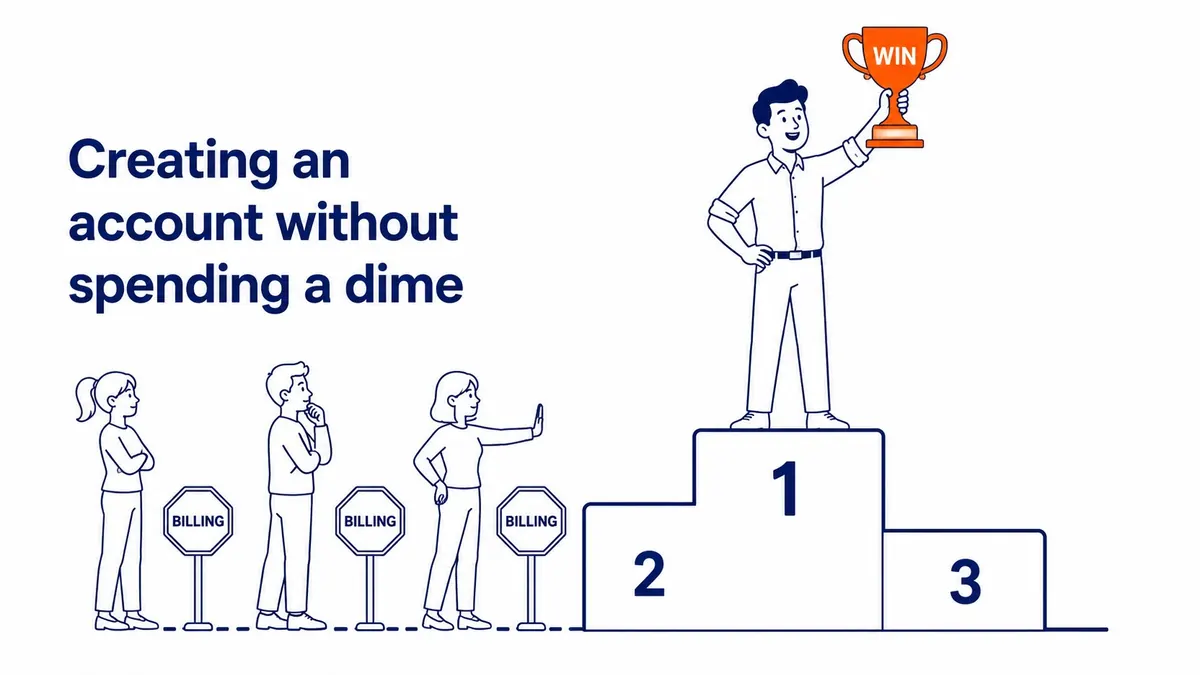
You can use Google Keyword Planner without creating an ad, but not without a Google Ads account. During sign-up you choose the option to set up the account without a campaign, and then you open Keyword Planner from the Tools menu. One thing has changed since many older guides were written: Google’s own Help page now says you must enter billing information to complete account setup before basic features such as keyword ideas will work. A payment method on file does not mean you are spending money, because Google bills for advertising, and with no campaign running there are no clicks or impressions to charge for, although a card may show a temporary authorization when it is added, which Google says is typically removed within a week.

Google describes Keyword Planner on its Canadian product page as “a free resource to help advertisers build keyword lists for search campaigns.” It was built for advertisers, yet the same data on searches, competition and bids is useful for anyone planning SEO pages or blog content, which is why so many people want to reach it without launching a campaign they do not need.
What you need before you start
You need a Google account to own the Ads account, a business name and website address for the sign-up form, and a debit or credit card or another payment method Google accepts in your country. If the business already has a Google Ads account, perhaps one an agency or a previous marketer set up, it is usually better to ask for access to that account than to open a second one, because a duplicate account with its own billing profile tends to cause confusion later when someone does decide to advertise.
For a Calgary business, the setup choices are billing country Canada, currency Canadian dollars and the Mountain Time zone. Google’s sign-up guide warns that “your reports, statistics, and billing are all affected by the time zone you select, so choose carefully.” Even if the account is only for research today, pick the settings you would want for a real campaign, since a research account may become the advertising account later, and Google does not let you change the time zone or currency once the account is set up.
Step by step: create the account without a campaign
- Go to ads.google.com, select Start now and sign in with the Google account that should own the Ads account.
- Enter the business name and website when asked. Google’s sign-up guide says that at this stage “you also have the option to create an account without a campaign.”
- Instead of choosing a campaign goal, look for the small text link that leaves the campaign wizard. Its wording has changed over the years: recent guides report “Skip campaign creation” and “Set up an account only”, and accounts that open in the simplified Smart mode have shown “Switch to Expert Mode” first.
- Confirm the billing country, time zone and currency.
- Add your payment method and finish the setup. Google Ads Help is explicit here: “You must complete your account setup by entering your billing information to access basic features like ‘Get ideas for new keywords’.”
- In the current interface, open Tools in the left-hand menu, find the Planning section and select Keyword Planner.
Once you are in, check the Campaigns page before you do anything else. Google’s payment Help notes that after your payment information is processed, any new ads and campaigns you create can begin running, and it tells you to pause them if you do not want that. If the sign-up flow created a campaign along the way, pause it and check that its status shows Paused, so nothing can spend. Where Google offers a prepaid payment setting, ads only run after you add funds, which some people prefer for an account that exists purely for research.
Why the old “no credit card” method no longer works
Several pages that still rank for this question describe a route with no payment details at all. One of the most visible is a 2018 Webmasters Stack Exchange answer that pointed to an Expert Mode address and said there was “no need of card details.” That may have been true then, but Google’s current Help says billing information is required for keyword ideas, so any guide that promises otherwise is out of date rather than clever.
It is also worth avoiding the workarounds that circulate online, such as borrowing someone else’s account to dodge the billing step, because your keyword research then sits in an account you do not control and may lose access to. If you cannot or will not add a payment method, there is still a useful free option for your own site: the Performance report in Google Search Console shows the real queries your pages already appear for, with impressions and positions, and it needs no Ads account at all.
Discover new keywords or check the ones you have

Keyword Planner opens with two choices. Discover new keywords takes words related to your products or services, or a website address, and returns keyword ideas; Google notes that entering your own domain alongside your keywords helps it exclude ideas unrelated to what you offer. Get search volume and forecasts takes a list you already have, typed or pasted in, or uploaded as a CSV file with a single column headed “Keyword.” Google limits each keyword to 80 characters and 10 words.
Before reading any numbers, set the location and network at the top of the results. Google states that the search volume and competition figures are specific to the location and Search Network settings you select, so a Calgary plumber looking at Canada-wide figures is not seeing Calgary demand. Set the location to Calgary or Alberta, and for SEO work leave the network on Google search alone rather than Google plus its search partners. If you want more on filters, plans and forecasts, there is a broader guide to using Google Keyword Planner that covers them.
Two gaps are worth knowing about. Keywords with very low search volume are not discoverable or forecastable, so a narrow Calgary phrase may simply return an error asking you to try something else. Google’s personalized advertising and privacy policies also often prevent results for sensitive categories such as health and finance, which means a Calgary clinic, dentist or lender may see far fewer ideas than a roofer or a restaurant, and should lean more on Search Console and on what customers actually ask.
What each column tells you for SEO
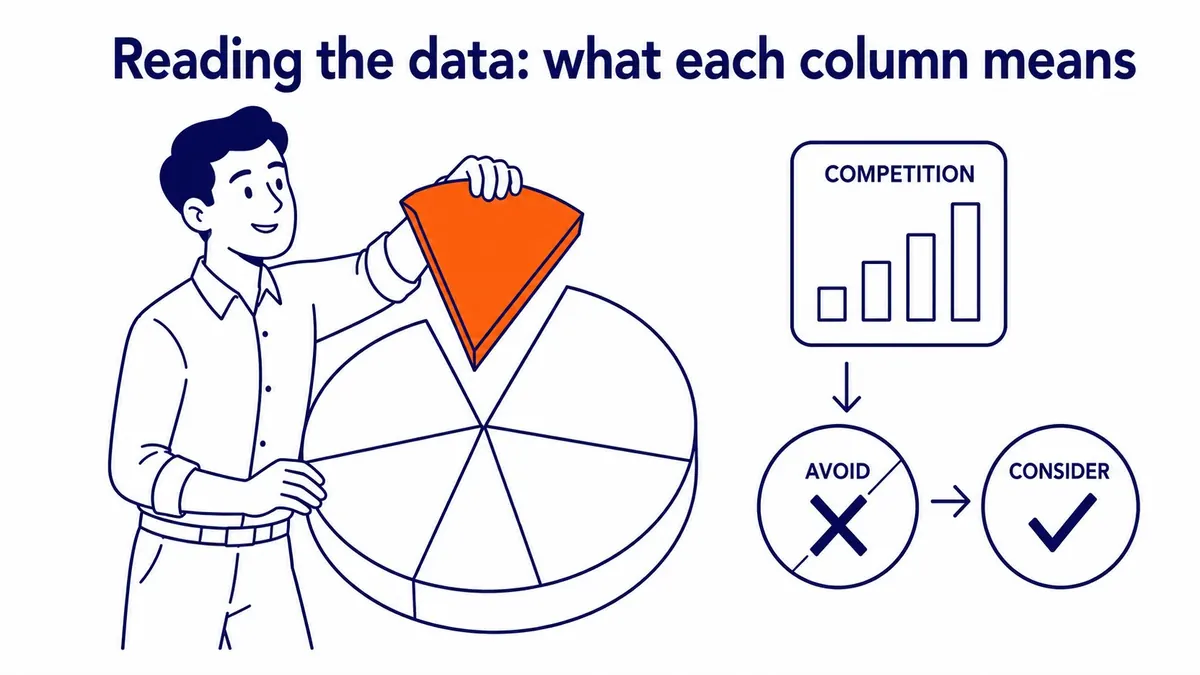
The columns were designed for advertisers, so some of them mean something different from what their names suggest to an SEO. The definitions below come from Google’s “About Keyword Planner forecasts” Help page.
| Column | What Google says it measures | How to read it for SEO |
|---|---|---|
| Avg. monthly searches | Searches for the keyword and its close variants, averaged over 12 months by default, for your chosen location and network; shown for exact match only | Rough demand. Use it to sort ideas by size, not to forecast traffic |
| Competition (low, medium, high) | The number of advertisers that showed on the keyword relative to all keywords across Google | How crowded the paid results are. It says nothing direct about how hard the organic results are |
| Top of page bid (low range) | About the 20th percentile of what advertisers paid for a top of page bid, from the last 30 days | A lower reference point for what advertisers have bid to appear at the top of the page |
| Top of page bid (high range) | About the 80th percentile of the same bids | A high figure is one sign of commercial interest; check the organic results before choosing a service page or an article |
| Organic impression share | How often a listing from your website showed in web searches for the keyword | Where your site already appears, when the data is available |
Accounts that are not spending on ads commonly see average monthly searches as broad ranges, such as 100 to 1K, rather than a single figure, although Google does not document when or why this happens on its Keyword Planner Help pages, so treat claims of an exact spending threshold with caution. If you need precise figures, read the separate guide on how to get exact search volume. For many SEO decisions the ranges are enough, because the real question is which of several phrasings is bigger and whether a topic has any demand at all.
As an illustrative example, a Calgary furnace repair company comparing “furnace repair calgary” with “furnace not turning on” is deciding between a service page and a troubleshooting article, and a range on each phrase, the bid columns and a look at the organic results usually make that choice clear without an exact count. High top of page bids tell you advertisers find those clicks worth paying for, which is a good sign of commercial intent. If you want to see how those bids translate into real costs, there is a separate explainer on what keywords actually cost on Google.
Turning the list into an SEO plan

Download the keyword ideas with the download button above the results table, then work in a spreadsheet. Group the ideas by what the searcher wants rather than by shared words, so that “furnace repair cost” and “how much is furnace repair” land together, and give each group one page. Before writing anything, check which groups already have a page on your site, because two pages chasing the same group can end up competing with each other instead of helping.
Keyword Planner shows demand, while Search Console shows where your own site already stands, and the two together give a far better plan than either alone. The groups with solid demand and no page targeting them become the new content, and the ones where you already appear on page two are often the quickest wins. If you would rather hand this part over, professional keyword research and selection covers the grouping, the mapping to pages and the gaps in one pass.
If you later decide to advertise, nothing is wasted. Keyword Planner can turn a saved plan into a Search campaign in the same account, and the bid ranges you collected give you a starting point for the budget conversation. That is also the point to think about whether you want to run the account yourself or use Google Ads management, and to ask any provider for the management fee and the ad spend as two separate numbers before you compare offers.
SEO Company To-The-TOP! is a Calgary practice founded in 2007, Google Ads certified, and run by one expert who does all the client work. If you would like a second opinion on your keyword list or on your site, call (403) 308-5949.
Contact Calgary SEO Company To-The-TOP!
Questions about anything in this article, or about your own rankings? Talk to a Calgary SEO specialist directly.
Phone: (403) 308-5949
Address: 1509 14 Ave SW, Calgary, AB T3C 0W4
Hours:
Monday to Friday: 10:00 am – 7:00 pm
Saturday: 12:00 pm – 4:00 pm
Sunday: closed