How to Use Google Keyword Planner Without Creating an Ad
Most people assume Google Keyword Planner is locked behind an active campaign. Not true. Getting access without spending anything is straightforward. Worth knowing if you pull keywords for SEO work or content planning.
We use it regularly here at To-The-TOP! Not every client needs to run Google Ads, but the planner data still tells you which keywords people search and how competitive each term is. Free access, no campaign required.
Why this tool is worth the setup
No cost to access it.

It draws from actual Google search data. Average monthly searches. Bid ranges. Seasonal trends. Third-party tools like Ahrefs also estimate keyword volume from their own crawl data. This tool, however, reports what advertisers are actually bidding on, sourced directly from real search traffic. Two different data sources, same cost: nothing.
The catch: Google wraps it in a setup process designed to get you running ads. Navigating past that without entering billing information still takes one specific step. Know where to click and the path stays open indefinitely. Once inside, the steps to find Google keywords are the easy part. Getting in is one thing, and knowing how to search Google keywords properly is another.
Creating an account without spending a dime
Most people, however, stop at the billing prompt.
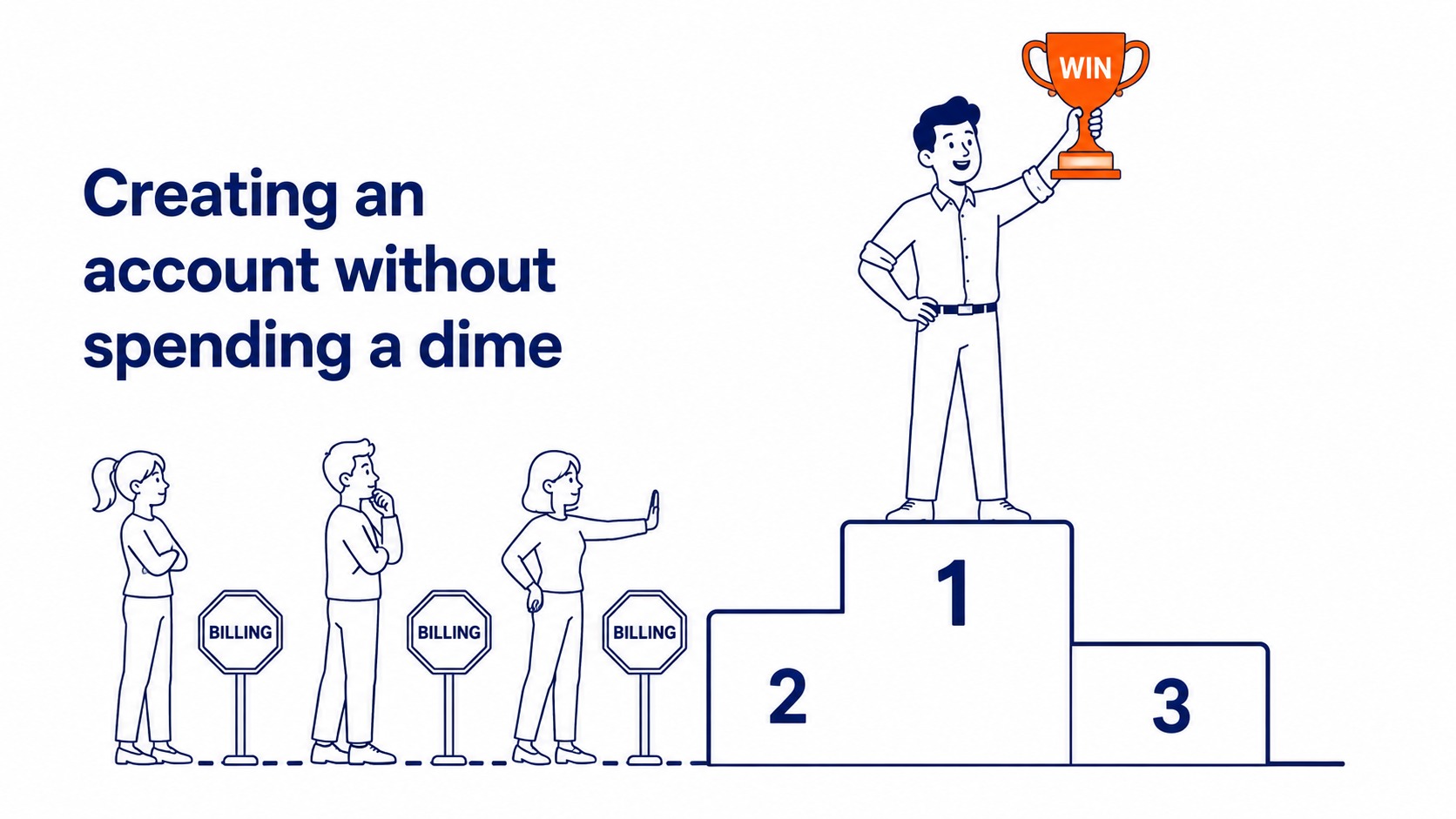
Go to ads.google.com and sign in with your Google account. The setup wizard loads. It asks about your advertising goal, your business name, and eventually walks you into a campaign creation screen. Skip all of it.
Near the bottom of that page, however, look for a small text link: “Switch to Expert Mode.” Click it. Expert Mode bypasses the simplified guided setup and opens the full Google Ads interface.
On the next screen, scroll past the campaign type options. At the very bottom: “Create an account without a campaign.” That link is small and easy to miss. Click it.
Enter your business name, time zone, and currency. Confirm. Done. No billing information entered. Your account is now active.
Getting to Keyword Planner in Expert Mode
Tools icon, top right corner.

Inside the account dashboard, look for the wrench icon in the upper right. Click it. A dropdown menu appears. Under the “Planning” section, Keyword Planner is listed. Click through.
Two options load: “Discover new keywords” and “Get search volume and forecasts.”
Discover new keywords is where most keyword analysis for SEO starts. Enter a seed topic, a product, a service, or a URL. Google returns keyword ideas, each with average monthly searches, a competition rating, and a bid range. The other option, Get search volume and forecasts, is more useful for campaign planning than for organic keyword research.
Keywords that come back under Discover new keywords include related terms, longer phrases, and seasonal variations. Still worth scanning the full list, not just the top ten results. Most of the value in using Google keyword planner hides below the obvious first rows.
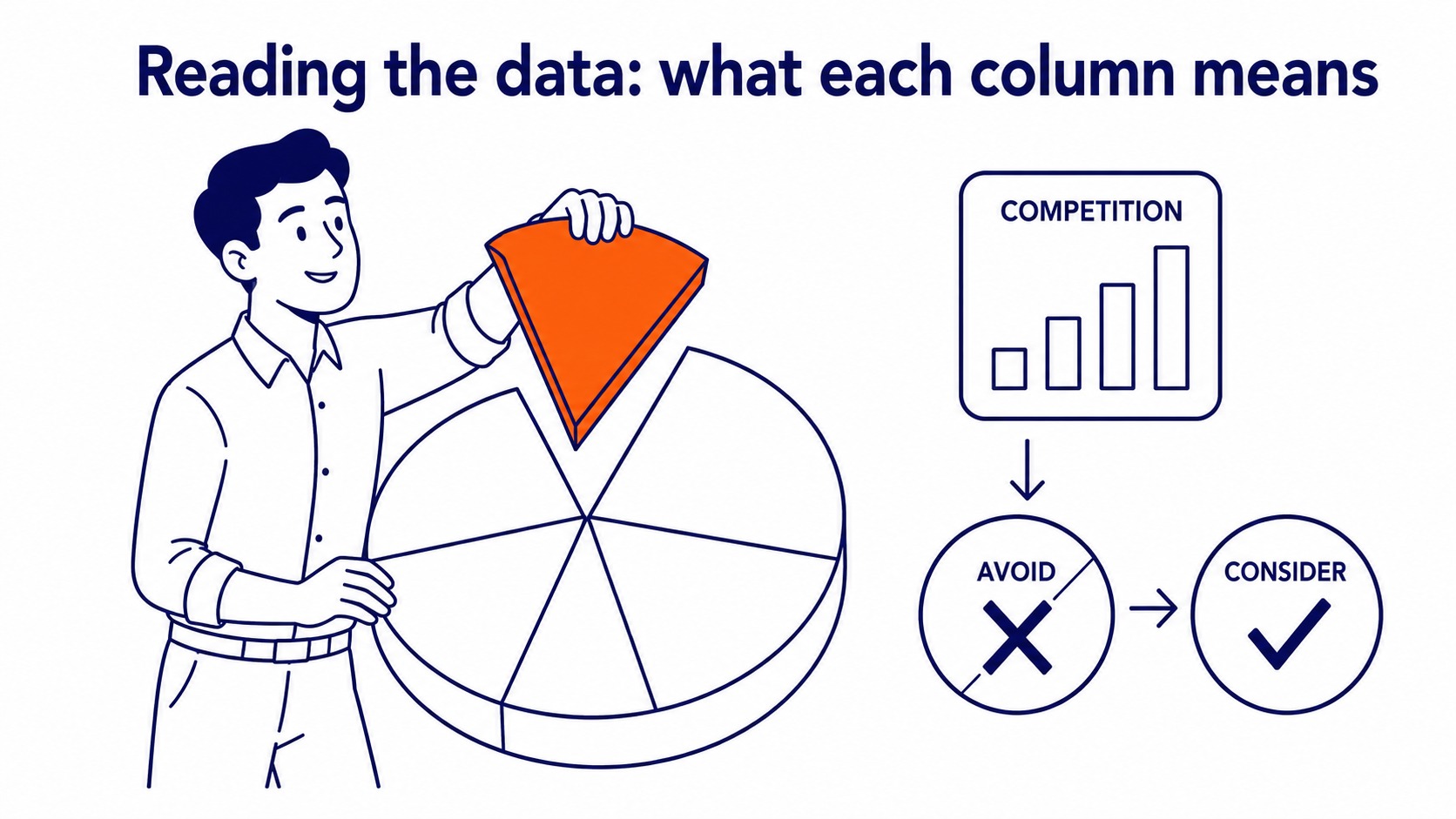
Reading the data: what each column means
High competition does not mean avoid. Know the distinction.
Average monthly searches shows a range. 1,000–10,000 instead of 4,300. Google blurs exact numbers for accounts not actively spending. Still directional enough for keyword decisions.
Competition, however, reflects advertiser bidding intensity, not SEO difficulty. Same name, different measurement entirely. High competition means advertisers are spending hard on those terms, which usually signals buying intent. Worth noting for both Google Ads management and organic keyword prioritisation.
Bid range columns also show cost per click estimates. High top-of-page bids often confirm commercial intent. A useful signal even when the goal is SEO rather than paid traffic.
Long-tail keywords with low competition and reasonable monthly searches often point to content gaps. Those keywords, moreover, convert better than broad head terms for most small business sites.
Export the results. The download button at the top of the ideas table pulls all keywords to a spreadsheet. Filter by search volume, competition, or bid range. Pull the keywords worth building pages around.
Using this data for SEO and content work
Most practitioners underuse this for organic keyword work.

This tool was built for advertisers. For our Calgary SEO work and content planning at To-The-TOP!, it still fills a specific gap: keyword data sourced directly from Google, free, without running a campaign.
The question worth asking: which keywords already have pages on your site, and which keywords have solid search volume but no page targeting them? That gap is where new content goes. Pair keyword ideas from the planner with guidance from a local search engine optimization company and the picture sharpens quickly.
Most of our client keyword research starts here before moving to any paid tool. The interface has changed over the years. Core use case for organic keyword research, however, has not.
One thing to know going in: once you start spending in your account, the monthly search volume ranges sharpen to exact numbers. The blurred data is a deliberate nudge toward spending. Still useful for SEO decisions without a budget behind it.
Frequently Asked Questions
Can I use Google Keyword Planner without a Google Ads account?
An account is required. Creating one takes about three minutes, and no billing information is needed at setup. The payment prompt only appears when you create an actual ad.
Can I use Google Ads Keyword Planner for free?
With an account and no active campaign: yes, with one limitation. Monthly search volume for keywords shows as ranges rather than exact figures. Exact counts unlock once spending is active. Still functional for keyword research and content planning without a budget attached.
How to use Google Ads without creating a campaign?
During account setup, switch to Expert Mode. At that screen, click “Create an account without a campaign” at the bottom. That skips it entirely and puts you on the main account dashboard. No ads, no billing.
How to use Google Keyword Planner step by step?
Sign in at ads.google.com. Create an account without a campaign. Inside the account: click the wrench icon, go to Planning, and open Keyword Planner. Choose Discover new keywords. Enter your topic or URL. Review keyword ideas. Export keywords to a spreadsheet. Filter by volume, competition, and bid range. Your keyword research builds from there.
Contact Calgary SEO Company To-The-TOP!
Questions about anything in this article, or about your own rankings? Talk to a Calgary SEO specialist directly.
Phone: (403) 308-5949
Address: 1509 14 Ave SW, Calgary, AB T3C 0W4
Hours:
Monday to Friday: 10:00 am – 7:00 pm
Saturday: 12:00 pm – 4:00 pm
Sunday: closed