
How to Do an SEO Audit: A Step-by-Step Guide
To do an SEO audit, work through nine steps in order: decide what question the audit has to answer, take a baseline in Google Search Console and Google Analytics 4, confirm Google can find and index the pages that matter, crawl the site for errors, check page experience, validate structured data, review each important page against its search intent, look at internal and external links, and check your Google Business Profile if you serve a local area. Finish by ranking what you found by its effect on the pages that earn you money, because a long list of issues with no order is not an audit. Each step below says which tool to use, what to look for and what usually goes wrong.

This guide is written for a site owner or marketer doing the work themselves, though it is just as useful if you are hiring someone and want to know what a proper deliverable should cover. Most of it needs only free tools from Google and a crawler, and each step that depends on how Google works follows Google’s own documentation.
Step 1: Decide why you are doing the audit
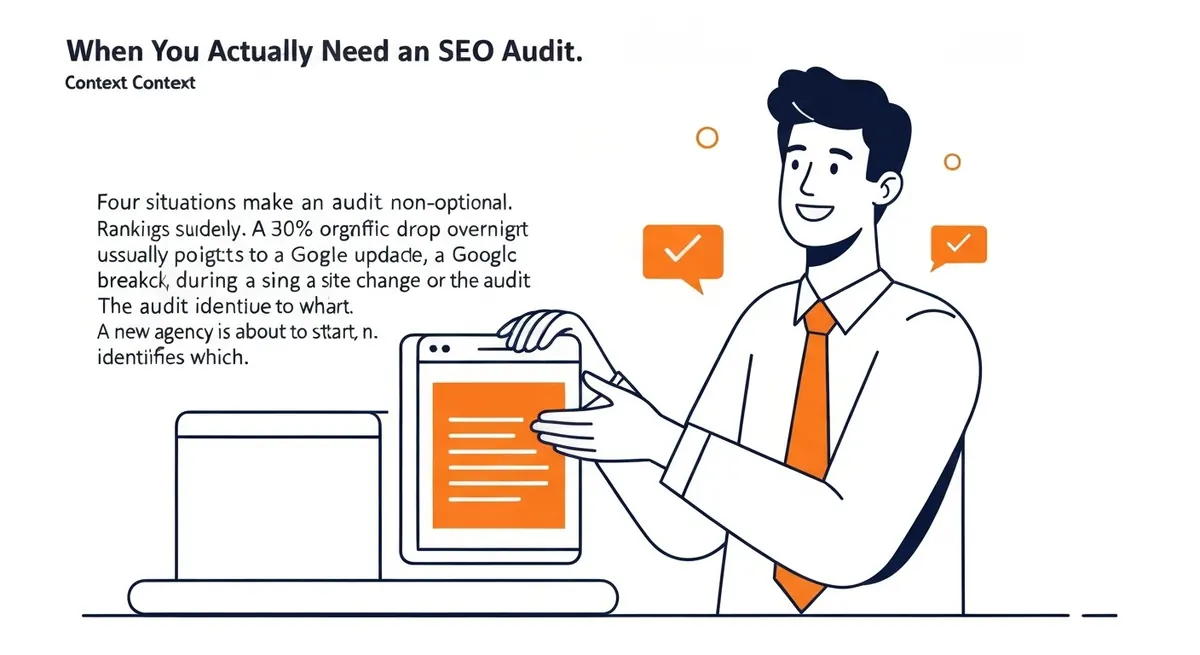
An audit without a question tends to become a tool export with a logo on it. Before you open anything, write down the reason in one sentence, since it decides where you start and how deep you go. The four most common reasons each point to a different first check:
| Situation | What you are trying to find | Open this first |
|---|---|---|
| Traffic or rankings dropped suddenly | Whether the cause is technical, a manual action or a broader ranking change | Search Console Performance report (compare date ranges by page and query), then the Manual actions and Page indexing reports |
| The site was redesigned or moved to a new domain or platform | Missing redirects, lost pages, changed URLs and dropped internal links | A crawl of the old URL list against the new site, then the Page indexing report |
| The site has never ranked well | Whether the problem is indexing, intent, content or authority | Page indexing report, then a search-intent check on your main keywords |
| A new SEO provider is about to start | A dated baseline both sides can measure against later | Performance report exports and a full crawl, saved before any change |
If none of these apply and nothing has changed, a full audit can wait, and lighter checks in Search Console will show indexing, performance and manual action changes in the meantime. There is a separate guide on how often a site should be audited, which covers that schedule in more detail.
Step 2: Set up access and take a baseline
You need Google Search Console verified for the site, ideally as a Domain property so that every protocol and subdomain is included, plus Google Analytics 4 and a crawler. Screaming Frog’s SEO Spider crawls up to 500 URLs free, and a licence that removes the limit costs £199 a year according to its pricing page (October 2026), billed in pounds, so the Canadian dollar amount moves with the exchange rate. A paid backlink tool such as Ahrefs or Semrush is useful for the link step but not essential for a small site.
Before you change anything, export the baseline. From the Performance report, save clicks, impressions and average position by page and by query for the longest range available, and note the date of the export. In GA4, record the key events (the conversions you actually care about, such as form submissions and calls) for your most important pages. Without that snapshot, nobody can say later whether the fixes worked, and the audit ends up blamed or credited for changes it did not cause.

Step 3: Confirm Google can find and index the right pages
Start with robots.txt at yoursite.ca/robots.txt and look for disallow rules that block sections you want in search. Keep in mind what the file can and cannot do: Google’s own documentation says robots.txt “is not a mechanism for keeping a web page out of Google“, and that the way to keep a page out is a noindex rule or a password. A page blocked by robots.txt can still appear in results if other pages link to it, while a noindex tag on a page Google is not allowed to crawl will never be seen.
Next, open the Page indexing report in Search Console. It shows which pages Google has indexed and, for the rest, the reason, such as “URL marked ‘noindex'”, “Crawled – currently not indexed” or “Duplicate without user-selected canonical”. Compare that list with your XML sitemap. If your important service pages are sitting in the not-indexed group, that finding outranks everything else in the audit. Use the URL Inspection tool on any key page that looks wrong, since it shows Google’s indexed version of the page and the canonical Google chose, which is not always the one you declared.
Canonicals deserve a careful look. Google describes redirects and rel=”canonical” annotations as strong signals, not commands, so a canonical that points to the wrong URL, or several near-identical pages with no canonical at all, can leave Google picking a version you did not intend. Common culprits on small business sites are a staging site left open to crawlers, a “discourage search engines” setting left ticked after a WordPress launch, both the www and non-www versions of the site resolving without a redirect, and pages still loading over http:// or mixing http:// images into https:// pages.
Step 4: Crawl the site and fix errors
Run your crawler over the whole site and sort the results by response code. Pages that return 404 and still have internal links pointing at them should either be restored, redirected to the closest equivalent page or have the links updated. Server errors in the 5xx range need your host or developer. Redirects that pass through two or three hops before reaching the final page waste crawling and slow visitors down, so point the original links straight at the destination.

The same crawl gives you duplicate and missing title tags, missing meta descriptions, missing or multiple H1 headings, images without alt text and very large image files. It will also show orphan pages if you compare the crawl with your sitemap and Search Console: a page that appears in the sitemap but receives no internal links is hard for both visitors and Google to reach. As a practitioner’s rule of thumb rather than a Google rule, the pages that bring in business should be reachable within a few clicks of the home page. The technical side in more depth, including JavaScript rendering and log files, is covered in the guide to conducting a technical SEO site audit.
Step 5: Check page experience and Core Web Vitals
Open the Core Web Vitals report in Search Console first, because it uses aggregated field data from real Chrome visitors rather than a single lab test. Small sites often have too few visits for field data, in which case PageSpeed Insights’ lab results are the starting point. Google’s thresholds for a good experience are Largest Contentful Paint under 2.5 seconds, Interaction to Next Paint (which replaced First Input Delay in 2024) under 200 milliseconds and Cumulative Layout Shift under 0.1. Then run your home page and your main service pages through PageSpeed Insights to see what is causing any slowness, and on WordPress sites the usual suspects are oversized images, plugins that load scripts on every page, and missing caching.
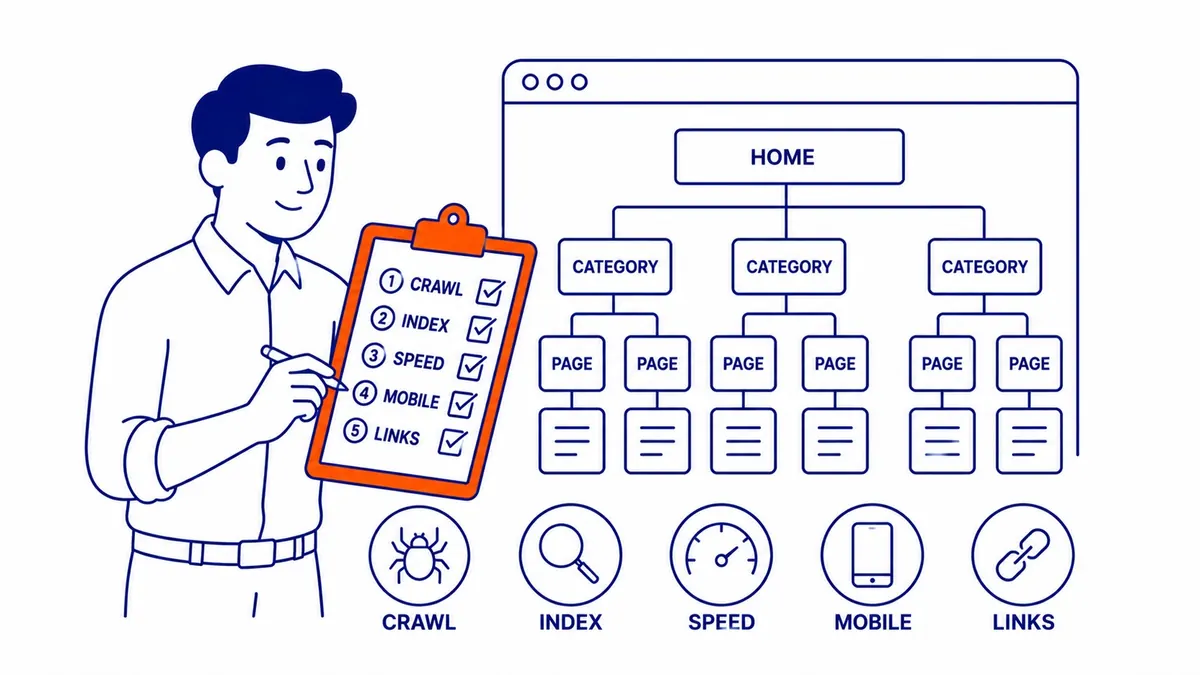
Keep speed in proportion. Google says that Core Web Vitals are used by its ranking systems, but also that it “always seeks to show the most relevant content, even if the page experience is sub-par“, so a fast page that does not answer the query will not outrank a slower one that does. For mobile, test the pages on an actual phone: Search Console’s Mobile Usability report and the Mobile-Friendly Test were retired at the end of 2023, so any audit guide that still tells you to open them is out of date. If the same pages also receive paid traffic, the work pays twice, because landing page experience is one of the ad quality factors that Google Ads assesses at auction time.
Step 6: Validate structured data
If your site uses schema markup (for example Organization, LocalBusiness, Article or Product), test a sample of pages in Google’s Rich Results Test, which covers the types Google can show as rich results, and use the Schema Markup Validator for other schema.org markup. After launch, check whichever rich result status reports Search Console shows for your site, which list errors and warnings by type. Google recommends that split: the test while you build, the reports after the markup is live, since a theme or plugin update can quietly break it. Look for markup that describes something not on the page, such as FAQ schema with questions the visitor cannot see, because markup has to match the visible content.
Step 7: Review each important page against its search intent
This is the step that tools cannot do for you. For each page that matters, write down the one query it should rank for, search it, and look at what Google is showing on page one. If the results are service pages and yours is a blog post, or the results are step-by-step guides and yours is a sales page, the mismatch matters more than any title tag. Then read the page as a customer would and ask whether it answers that query better than the pages already ranking, with specifics a competitor could not copy, such as your service area, your process or your prices if you publish them.
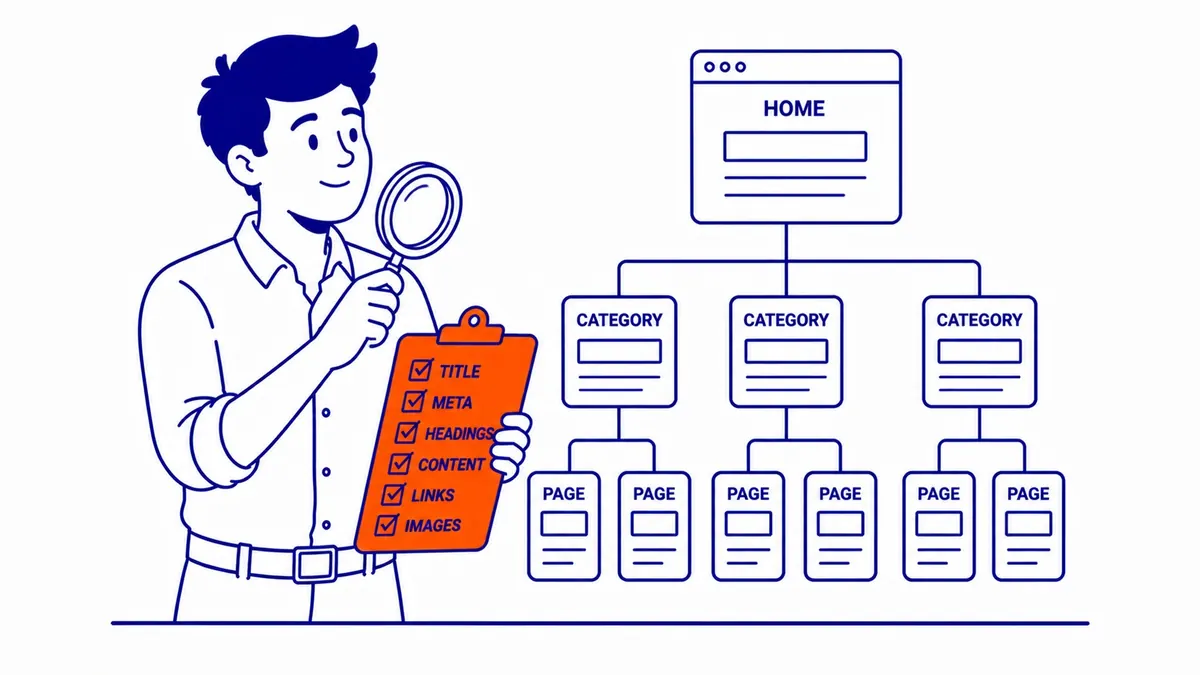
Next, check the on-page basics. Each page should have one clear title that names its topic near the start, a meta description that tells the searcher what they will get, and, by common convention rather than a Google rule, one H1. Google sets no length limit for either the title or the meta description and simply truncates them to fit the screen, so the familiar 60 and 155 character targets are display guidelines, not rules. Google also confirms that it does not use the keywords meta tag, so there is nothing to gain from filling it in.
Finally, look for cannibalisation. In the Performance report, filter by one of your main queries and switch to the Pages tab. If two or three of your URLs share the impressions for the same query and the ranking URL keeps switching between them, they may be competing with each other. Check whether they cover the same intent before acting; if they do, the fix is usually to merge them or make each one clearly about something different. Thin pages belong in the same review: tag archives, near-empty location pages and old posts that say what a newer one says better can often be improved, combined or removed.
Step 8: Review internal and external links
Internal links are the part of linking you control completely, so start there. Make sure your main service pages receive links from relevant articles, with anchor text that describes the destination rather than “click here”, and that no important page depends on the menu alone. The crawl from step 4 shows how many internal links each page receives, which makes weak pages easy to spot.
For external links, Search Console’s Links report shows the sites that link to you and your most linked pages, and a backlink tool adds more data and lets you compare your links with competitors’. Look for the sources a strong local business would have, such as industry associations, suppliers, local media and Calgary or Alberta directories that people actually use. Be careful with “toxic link” scores from tools. Google’s documentation says that in most cases it can assess which links to trust on its own, so “most sites will not need to use” the disavow tool, and that you should only disavow when there are many spammy or artificial links that have caused, or are likely to cause, a manual action. Check the Manual actions report while you are there, since a manual action changes the priority of every other finding.
Step 9: Check your Google Business Profile if you serve a local area
For a Calgary business that wants to appear in the map results, the Business Profile is part of the audit even though no crawler sees it. Google summarises local ranking as “mainly based on relevance, distance, and popularity“, so check that the primary category matches your main service, that the business name is the real name rather than a keyword phrase, and that the website link points to the right page. Check that the name, address and phone number match your website and the main directories.
Service-area businesses need one extra check. Google’s own rule is that if you do not serve customers at your business address, you remove the address from your profile and set a service area instead, as specifically and accurately as you can. For a trade or home-service business that works across Calgary, Airdrie and Cochrane from a home office, that usually means hiding the address and listing the areas you actually serve, so check which way your profile is set up.
How to prioritize the findings and write the report
A crawler will happily report hundreds of issues, and most of them will not change your rankings or your revenue. Rank each finding by two questions: does it affect pages that bring in business, and how much work does the fix take? Anything that keeps a money page out of the index goes first, whatever the effort. After that, fix the high-impact, low-effort items in a batch, plan the larger projects, and leave cosmetic warnings on low-traffic pages for later. The table below is an illustrative example of how a short findings list for a small service business might be ordered, not data from a real audit.
| Finding (illustrative) | Pages affected | Effect on business | Effort | Priority |
|---|---|---|---|---|
| Main service page excluded by a leftover noindex tag | 1 money page | Page cannot rank at all | Minutes | 1 |
| Old URLs from the redesign return 404 and still have backlinks | 12 | Lost link value and visitors | A few hours | 2 |
| Two blog posts split impressions for the same query | 2 | Neither ranks well | A day to merge | 3 |
| Largest Contentful Paint over 4 seconds on mobile | Most templates | Slower pages for every visitor | Days, with a developer | 4 |
| Missing alt text on gallery images | 40 images | Minor | An afternoon | 5 |
The report itself should lead with a short summary in plain business terms, then list each finding with the evidence (a screenshot or an export), the pages affected, the fix and who should do it. Include the baseline from step 2 so that the results of the fixes can be measured. Fix a few things at a time and check the effect in Search Console over the following weeks, because when everything changes at once you cannot tell what helped.
Can ChatGPT or another AI tool do an SEO audit?
An AI chat tool can help with parts of the work. It can review the text of a page you paste in, suggest clearer titles and descriptions, compare a page with the questions searchers ask, and turn a long crawl export into a readable summary. What it cannot do is see your Search Console data, crawl your whole site, measure real visitors’ Core Web Vitals or know which pages bring in your customers, unless you give it that data yourself. Treat it as an assistant for the writing and sorting parts of the audit, and check anything it states about how Google works against Google’s own documentation, because confident but wrong advice is common.
Should you do it yourself or hire someone?
A careful owner with Search Console and a crawler can cover steps 1 to 6 on a small, uncomplicated site and find the problems that matter most, such as indexing errors, broken links and slow pages. Steps 7 and 8 are harder to do well on your own, because judging search intent, content quality and link risk depends on experience with many sites. If you are weighing a paid audit, the guide to what an SEO audit costs sets out the published prices and what each level of audit should include.

SEO Company To-The-TOP! is a Calgary SEO practice founded in 2007 that serves businesses in Calgary, Edmonton and Vancouver, and as a solo practice the person who reviews your site is the person who writes the findings. If you would like a professional website audit, or a second opinion on an audit quote you already have, call (403) 308-5949.
Contact Calgary SEO Company To-The-TOP!
Questions about anything in this article, or about your own rankings? Talk to a Calgary SEO specialist directly.
Phone: (403) 308-5949
Address: 1509 14 Ave SW, Calgary, AB T3C 0W4
Hours:
Monday to Friday: 10:00 am – 7:00 pm
Saturday: 12:00 pm – 4:00 pm
Sunday: closed